Fill a step’s fields with values from the trigger, from an earlier step, or typed in, and ask an AI step to hand a value back by name.
Most fields in a step take a value: the reference to look up, the record to update, the value an If checks, the words of a note. You fill them by picking a value by name. Each picked value shows as a chip that says where it comes from:
from the document · Invoice number: a field of the document that started the run.
from the request · Contract number: a field another system sent.
from step 1 · Its id: what step 1 found.
from step 1 · Matches contract: a value you asked AI step 1 to hand back.
USD: a value you typed.
When the run reaches that step, each chip is replaced by its value.
A step can use values from the trigger and from any step above it, never from a step below.
Where it comes from
Values you can pick
The trigger: a document
Under From the document: The document, Its trade, and every field extracted from the chosen document types, such as Invoice number, Due date or Contract number
The trigger: another system’s call
Under From the request: the fields you listed under Fields it sends
The trigger: an email, Teams post or WhatsApp message
Under From the message: The message, Who sent it, The sender as a member, Where it arrived, The subject (email), When it arrived, Its files
Its id, Reference, Its trade, Counterparty, Quantity, Price, Currency, Amount
A Find contacts step
Their email addresses, Their names, Counterparties, How many
An Update a record step
Its id
A Make a confirmation step
The confirmation, Its file name
An app action
The values the action returns, listed by name
An Ask someone to approve step
What was approved
An Ask someone a question step
The answer
A Wait for step that waits for a document
The document, Its type
A Wait for step that waits for a callback
Any value you name, as the call sends it
In the list, an earlier step’s values sit under From stepN and the step’s sentence, such as From step 2 · Alex Morgan approves what step 1 drafted. A Mercora or app step is headed by its action’s name, such as From step 1 · Find a record. An AI step, and a Wait for step that waits for a callback, have no list: type a name to ask them for a value.A schedule or Only when someone runs it hands the steps no values. If, Tell someone, Report a finding and Stop here hand nothing on.
An AI step has no fixed list of values: it works out whatever its brief asks. So a later step names the value it needs, and the AI step hands it back.
1
Open the later step's value box
In the step that needs the value, click Pick a value. Here, an If in step 2 that should check whether the invoice matches its contract.
2
Type a name for the value
Type what the value is, such as Matches contract. Two choices appear: Use “Matches contract” as a typed value, and Ask step 1 for “matches contract” (one line for each AI step above).
Type a name, then click Ask step 1 for "matches contract".
3
Click Ask step 1
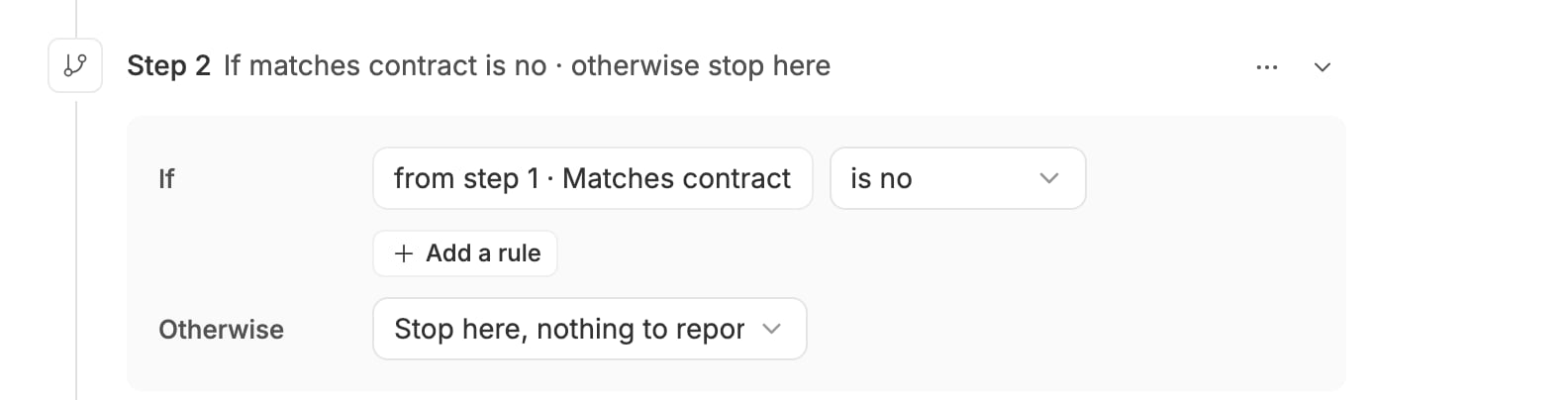
The box now reads from step 1 · Matches contract. Finish the rule: here, the test is no.
The If checks the value step 1 hands back.
4
Say how to work it out in the brief
Open step 1 and make sure its brief explains the value, such as “Say whether price, quantity and currency all match the contract.”
What happens in a run. Step 1 is told to hand back every value that later steps ask of it, by name. Each value’s kind comes from how it’s used:
Where the value is used
Step 1 hands back
is yes or is no in an If
Yes or no
is more than or is less than in an If
A number
Until a date from an earlier step in a Wait for
A date
On the trade in a Wait for
A trade
A field of a Mercora or app step
What that field takes
Anywhere else (text, is, contains)
Text
If step 1 can’t work the values out, the step fails and names the values later steps need, such as “Step 1 finished without the values step 2 needs: matches_contract”. It never invents one. Then the step’s failure plan applies. If step 1 ends with nothing to report, it hands back nothing and the run carries on, so later steps find each value empty (see When a value is missing).To use the same value in another step, ask for it again with the same name. In the due date example, steps 2 and 3 both ask step 1 for “due date”, and step 1 hands it back once.A name becomes lower_snake_case: Broker name is asked for as broker_name and shows as Broker name. Use a name that says what the value is, since step 1 reads it.
Click the value box, type the value, and click Use ”…” as a typed value. A plain number, such as 1200 or 3.5, is kept as a number; anything else is text. Use it for a fixed value, such as USD in a rule “from step 1 · Currency is USD”.A typed value can’t stand where Mercora needs a real record, such as the trade a Wait for step watches: pick that from the trigger or an earlier step.
A Report a finding text and a Tell someone note mix your words with values:
Type the first words in the box.
Click + value and pick a value. It goes in after your words, and a new box opens after it.
Type the next words in the new box. Repeat for each value.
The note ends with the answer to the question in step 2.
In the run, each value is written into the text, such as “Credit note account: 4010 Sales returns”. The step’s sentence in the list shows each value by its name (“Tell Alex Morgan: Credit note account: the answer”).
A value’s source can go: the step it came from was deleted, or moved below the step that uses it. In a step’s fields, the first value of an If rule, and a finding or note, its chip then turns red. In the second value of an If rule, a Wait for date or trade, and the fields of Update a record, its chip reads “from a deleted step” instead. Either way, click the chip and pick another value. Save won’t save the automation until every value can be found, and says which step to fix.
{"docsConfig":{"theme":"maple","$schema":"https://mintlify.com/docs.json","name":"Mercora","description":"Trade operations for physical commodity traders: documents, matching, reconciliation, financials and the P\u0026L.","colors":{"primary":"#232323","light":"#FFF9EE","dark":"#232323"},"logo":{"light":"https://mintcdn.com/placeholder-f4ffdeec/22McaegbdDRSI41b/logo/mark-dark.svg?fit=max\u0026auto=format\u0026n=22McaegbdDRSI41b\u0026q=85\u0026s=72ad184e9bf63cc57e531ed33f5c631b","dark":"https://mintcdn.com/placeholder-f4ffdeec/22McaegbdDRSI41b/logo/mark-light.svg?fit=max\u0026auto=format\u0026n=22McaegbdDRSI41b\u0026q=85\u0026s=743a6c820e7423e0df7a6e0ae10efc86","href":"/"},"favicon":"https://mintcdn.com/placeholder-f4ffdeec/22McaegbdDRSI41b/favicon.svg?fit=max\u0026auto=format\u0026n=22McaegbdDRSI41b\u0026q=85\u0026s=60a082af42cdf29819901c284f9e7359","appearance":{"default":"system","strict":false},"background":{"color":{"light":"#FFFFFF","dark":"#171717"}},"navbar":{"links":[{"href":"https://mercora.io","label":"mercora.io"}]},"footer":{"socials":{"website":"https://mercora.io","linkedin":"https://www.linkedin.com/company/mercoraai"}},"search":{"prompt":"Search the docs…"},"fonts":{"family":"Inter"},"icons":{"library":"fontawesome"},"styling":{"eyebrows":"section","codeblocks":"system","latex":true},"contextual":{"options":["copy","view","chatgpt","claude"],"display":"header"},"navigation":{"pages":[]}},"deployment":{"deploymentMetadataValue":{"subdomain":"placeholder-f4ffdeec","hasAudioNarration":false,"actualSubdomain":"placeholder-f4ffdeec","customDomains":["docs.mercora.io"],"gitSource":{"type":"github","owner":"sebastianbugal","repo":"mercora","deployBranch":"main","contentDirectory":"client_docs","isPrivate":true,"mountPath":"","label":"","_id":"6adf3dbbabb6f86a455ef035"},"chroma":{"latestBuiltDeploymentHistoryId":"6ae9afd0403d43353a386e07","collectionId":"87e096ad-cdb6-40e3-be77-3eab0b8c6d5a","liveDeploymentHistoryId":"6ae9afd0403d43353a386e07","schemaVersion":"v3"},"entitlements":{"AI_CHAT":{"status":"ENABLED"},"WEB_MCP":{"status":"ENABLED"},"NARRATION":{"status":"ENABLED"}},"buildId":"6ae9b17498ee2cfbfea8060c","clientVersion":"0.0.4045","searchFilterCounts":[{"language":"default","tag":"Guides","count":41},{"language":"default","tag":"Copilot and workflows","count":9},{"language":"default","tag":"Automations","count":7},{"language":"default","tag":"API reference","count":6},{"language":"default","tag":"Documents","count":6},{"language":"default","tag":"Integrations","count":6},{"language":"default","tag":"Get started","count":5},{"language":"default","tag":"Administration","count":3},{"language":"default","tag":"Core concepts","count":3},{"language":"default","tag":"Finance","count":3}]},"assistantConfig":{"enableAskAiButton":false,"enableStarterQuestions":false,"enableContextualStarterQuestions":false,"enableAskAiSearchBar":true},"basePath":"","hasChatPermissions":true,"hasWebMcpPermissions":true,"toggles":[{"name":"kill-isr","enabled":true,"variant":{"name":"disabled","enabled":false,"feature_enabled":true},"impressionData":false},{"name":"agent-mintlify-slack","enabled":true,"variant":{"name":"disabled","enabled":false,"feature_enabled":true},"impressionData":false},{"name":"agent-integrations-settings","enabled":true,"variant":{"name":"disabled","enabled":false,"feature_enabled":true},"impressionData":false},{"name":"automations-pr-grouping","enabled":true,"variant":{"name":"disabled","enabled":false,"feature_enabled":true},"impressionData":false},{"name":"custom-prefix","enabled":true,"variant":{"name":"disabled","enabled":false,"feature_enabled":true},"impressionData":false},{"name":"analytics-v7","enabled":true,"variant":{"name":"disabled","enabled":false,"feature_enabled":true},"impressionData":false},{"name":"user-flows-analytics","enabled":true,"variant":{"name":"disabled","enabled":false,"feature_enabled":true},"impressionData":false},{"name":"no-publish-flow","enabled":true,"variant":{"name":"disabled","enabled":false,"feature_enabled":true},"impressionData":false},{"name":"workos-onboarding","enabled":true,"variant":{"name":"disabled","enabled":false,"feature_enabled":true},"impressionData":false},{"name":"llms-txt-v2","enabled":true,"variant":{"name":"disabled","enabled":false,"feature_enabled":true},"impressionData":false},{"name":"snapshot-serving-live","enabled":true,"variant":{"name":"disabled","enabled":false,"feature_enabled":true},"impressionData":false},{"name":"stripTemperatureMiddleware","enabled":true,"variant":{"name":"disabled","enabled":false,"feature_enabled":true},"impressionData":false},{"name":"support-platform-pylon-zendesk","enabled":true,"variant":{"name":"disabled","enabled":false,"feature_enabled":true},"impressionData":false},{"name":"snapshot-serving","enabled":true,"variant":{"name":"disabled","enabled":false,"feature_enabled":true},"impressionData":false},{"name":"instant-rollback","enabled":true,"variant":{"name":"disabled","enabled":false,"feature_enabled":true},"impressionData":false},{"name":"granular-notifications-server","enabled":true,"variant":{"name":"disabled","enabled":false,"feature_enabled":true},"impressionData":false},{"name":"granular-notifications","enabled":true,"variant":{"name":"disabled","enabled":false,"feature_enabled":true},"impressionData":false},{"name":"automations-fable","enabled":true,"variant":{"name":"disabled","enabled":false,"feature_enabled":true},"impressionData":false},{"name":"fixed-ai-action-pricing","enabled":true,"variant":{"name":"disabled","enabled":false,"feature_enabled":true},"impressionData":false},{"name":"automation-resolve-merge-conflict","enabled":true,"variant":{"name":"disabled","enabled":false,"feature_enabled":true},"impressionData":false},{"name":"scoped-publishing","enabled":true,"variant":{"name":"disabled","enabled":false,"feature_enabled":true},"impressionData":false},{"name":"mintql","enabled":true,"variant":{"name":"disabled","enabled":false,"feature_enabled":true},"impressionData":false},{"name":"page-level-analytics","enabled":true,"variant":{"name":"disabled","enabled":false,"feature_enabled":true},"impressionData":false},{"name":"editor-version-history-v2","enabled":true,"variant":{"name":"disabled","enabled":false,"feature_enabled":true},"impressionData":false},{"name":"billing-page-v2","enabled":true,"variant":{"name":"disabled","enabled":false,"feature_enabled":true},"impressionData":false},{"name":"full-page-search","enabled":true,"variant":{"name":"disabled","enabled":false,"feature_enabled":true},"impressionData":false},{"name":"workspace-projects","enabled":true,"variant":{"name":"disabled","enabled":false,"feature_enabled":true},"impressionData":false},{"name":"assistant-v5","enabled":true,"variant":{"name":"disabled","enabled":false,"feature_enabled":true},"impressionData":false},{"name":"byok-sep-25","enabled":true,"variant":{"name":"disabled","enabled":false,"feature_enabled":true},"impressionData":false},{"name":"fork-pr-previews","enabled":true,"variant":{"name":"disabled","enabled":false,"feature_enabled":true},"impressionData":false},{"name":"revalidation-jwt","enabled":true,"variant":{"name":"disabled","enabled":false,"feature_enabled":true},"impressionData":false},{"name":"vite-origin","enabled":true,"variant":{"name":"disabled","enabled":false,"feature_enabled":true},"impressionData":false},{"name":"billing-updated-9-15","enabled":true,"variant":{"name":"disabled","enabled":false,"feature_enabled":true},"impressionData":false},{"name":"workos-sso-scim","enabled":true,"variant":{"name":"disabled","enabled":false,"feature_enabled":true},"impressionData":false},{"name":"hobby-abuse-scan","enabled":true,"variant":{"name":"disabled","enabled":false,"feature_enabled":true},"impressionData":false},{"name":"dashboard-inbox","enabled":true,"variant":{"name":"disabled","enabled":false,"feature_enabled":true},"impressionData":false},{"name":"workos-signup","enabled":true,"variant":{"name":"disabled","enabled":false,"feature_enabled":true},"impressionData":false},{"name":"turbopuffer-dual-write","enabled":true,"variant":{"name":"disabled","enabled":false,"feature_enabled":true},"impressionData":false},{"name":"workos-enabled","enabled":true,"variant":{"name":"disabled","enabled":false,"feature_enabled":true},"impressionData":false},{"name":"approve-review-flow","enabled":true,"variant":{"name":"disabled","enabled":false,"feature_enabled":true},"impressionData":false},{"name":"sso-setup-deadline-banner","enabled":true,"variant":{"name":"disabled","enabled":false,"feature_enabled":true},"impressionData":false}],"googleFontsInlined":false},"customCss":[{"filePath":"style.css","content":"/* vietnamese */\n@font-face {\n font-family: 'Newsreader';\n font-style: normal;\n font-weight: 400;\n font-display: swap;\n src: url(/_mintlify/assets/fonts/google/s/newsreader/v26/cY9AfjOCX1hbuyalUrK439HyjJBG.woff2) format('woff2');\n unicode-range: U+0102-0103, U+0110-0111, U+0128-0129, U+0168-0169, U+01A0-01A1, U+01AF-01B0, U+0300-0301, U+0303-0304, U+0308-0309, U+0323, U+0329, U+1EA0-1EF9, U+20AB;\n}\n/* latin-ext */\n@font-face {\n font-family: 'Newsreader';\n font-style: normal;\n font-weight: 400;\n font-display: swap;\n src: url(/_mintlify/assets/fonts/google/s/newsreader/v26/cY9AfjOCX1hbuyalUrK439DyjJBG.woff2) format('woff2');\n unicode-range: U+0100-02BA, U+02BD-02C5, U+02C7-02CC, U+02CE-02D7, U+02DD-02FF, U+0304, U+0308, U+0329, U+1D00-1DBF, U+1E00-1E9F, U+1EF2-1EFF, U+2020, U+20A0-20AB, U+20AD-20C4, U+2113, U+2C60-2C7F, U+A720-A7FF;\n}\n/* latin */\n@font-face {\n font-family: 'Newsreader';\n font-style: normal;\n font-weight: 400;\n font-display: swap;\n src: url(/_mintlify/assets/fonts/google/s/newsreader/v26/cY9AfjOCX1hbuyalUrK4397yjA.woff2) format('woff2');\n unicode-range: U+0000-00FF, U+0131, U+0152-0153, U+02BB-02BC, U+02C6, U+02DA, U+02DC, U+0304, U+0308, U+0329, U+2000-206F, U+20AC, U+2122, U+2191, U+2193, U+2212, U+2215, U+FEFF, U+FFFD;\n}\n/* vietnamese */\n@font-face {\n font-family: 'Newsreader';\n font-style: normal;\n font-weight: 500;\n font-display: swap;\n src: url(/_mintlify/assets/fonts/google/s/newsreader/v26/cY9AfjOCX1hbuyalUrK439HyjJBG.woff2) format('woff2');\n unicode-range: U+0102-0103, U+0110-0111, U+0128-0129, U+0168-0169, U+01A0-01A1, U+01AF-01B0, U+0300-0301, U+0303-0304, U+0308-0309, U+0323, U+0329, U+1EA0-1EF9, U+20AB;\n}\n/* latin-ext */\n@font-face {\n font-family: 'Newsreader';\n font-style: normal;\n font-weight: 500;\n font-display: swap;\n src: url(/_mintlify/assets/fonts/google/s/newsreader/v26/cY9AfjOCX1hbuyalUrK439DyjJBG.woff2) format('woff2');\n unicode-range: U+0100-02BA, U+02BD-02C5, U+02C7-02CC, U+02CE-02D7, U+02DD-02FF, U+0304, U+0308, U+0329, U+1D00-1DBF, U+1E00-1E9F, U+1EF2-1EFF, U+2020, U+20A0-20AB, U+20AD-20C4, U+2113, U+2C60-2C7F, U+A720-A7FF;\n}\n/* latin */\n@font-face {\n font-family: 'Newsreader';\n font-style: normal;\n font-weight: 500;\n font-display: swap;\n src: url(/_mintlify/assets/fonts/google/s/newsreader/v26/cY9AfjOCX1hbuyalUrK4397yjA.woff2) format('woff2');\n unicode-range: U+0000-00FF, U+0131, U+0152-0153, U+02BB-02BC, U+02C6, U+02DA, U+02DC, U+0304, U+0308, U+0329, U+2000-206F, U+20AC, U+2122, U+2191, U+2193, U+2212, U+2215, U+FEFF, U+FFFD;\n}\n:root{--mc-border:rgb(35 35 35 / 0.1);--mc-border-strong:rgb(35 35 35 / 0.28);--mc-shadow:0 1px 2px rgb(0 0 0 / 0.04), 0 6px 16px -6px rgb(0 0 0 / 0.08);--mc-frame-bg:#fafafa}html.dark{--mc-border:rgb(255 249 238 / 0.1);--mc-border-strong:rgb(255 249 238 / 0.3);--mc-shadow:0 1px 2px rgb(0 0 0 / 0.3), 0 6px 16px -6px rgb(0 0 0 / 0.5);--mc-frame-bg:#1d1d1d}#page-title{font-family:\"Newsreader\",ui-serif,Georgia,serif;font-weight:500;letter-spacing:-.015em}.mc-hero{display:block;width:100%;aspect-ratio:21/8;object-fit:cover;border-radius:1rem;margin:0 0 2rem}@media (max-width:640px){.mc-hero{aspect-ratio:16/10}}.mdx-content>blockquote,.mdx-content>ol,.mdx-content>p,.mdx-content>ul{max-width:72ch}.card{transition:border-color 150ms ease,box-shadow 150ms ease}.card:hover{border-color:var(--mc-border-strong)!important;box-shadow:var(--mc-shadow)}[data-name=frame]{background:var(--mc-frame-bg)}[data-name=frame] img{border:1px solid var(--mc-border);border-radius:.625rem}.mdx-content table{font-size:.875rem;font-variant-numeric:tabular-nums}.mdx-content td,.mdx-content th{padding-top:.5rem;padding-bottom:.5rem}@media (prefers-reduced-motion:reduce){.card{transition:none}}"}],"page":{"pagePath":"workflows/automation-values","slug":"/workflows/automation-values","pageMetadata":{"title":"Use values from earlier steps","sidebarTitle":"Values between steps","description":"Fill a step's fields with values from the trigger, from an earlier step, or typed in, and ask an AI step to hand a value back by name.","icon":"arrow-right-arrow-left","href":"/workflows/automation-values"},"description":{"compiledSource":"\"use strict\";\nconst {jsx: _jsx} = arguments[0];\nconst {useMDXComponents: _provideComponents} = arguments[0];\nfunction _createMdxContent(props) {\n const _components = {\n p: \"p\",\n ..._provideComponents(),\n ...props.components\n };\n return _jsx(_components.p, {\n children: \"Fill a step’s fields with values from the trigger, from an earlier step, or typed in, and ask an AI step to hand a value back by name.\"\n });\n}\nfunction MDXContent(props = {}) {\n const {wrapper: MDXLayout} = {\n ..._provideComponents(),\n ...props.components\n };\n return MDXLayout ? _jsx(MDXLayout, {\n ...props,\n children: _jsx(_createMdxContent, {\n ...props\n })\n }) : _createMdxContent(props);\n}\nreturn {\n default: MDXContent\n};\n","frontmatter":{},"scope":{}},"pageType":"default","mdx":{"mdxSource":{"compiledSource":"\"use strict\";const{Fragment:_Fragment,jsx:_jsx,jsxs:_jsxs}=arguments[0];const{useMDXComponents:_provideComponents}=arguments[0];function _createMdxContent(props){const _components={a:`a`,code:`code`,em:`em`,li:`li`,ol:`ol`,p:`p`,strong:`strong`,tbody:`tbody`,td:`td`,th:`th`,thead:`thead`,tr:`tr`,ul:`ul`,..._provideComponents(),...props.components},{Frame,Heading,OptimizedImage,Step,Steps,Table}=_components;if(!Frame)_missingMdxReference(`Frame`,true);if(!Heading)_missingMdxReference(`Heading`,true);if(!OptimizedImage)_missingMdxReference(`OptimizedImage`,true);if(!Step)_missingMdxReference(`Step`,true);if(!Steps)_missingMdxReference(`Steps`,true);if(!Table)_missingMdxReference(`Table`,true);return _jsxs(_Fragment,{children:[_jsx(_components.p,{children:`Most fields in a step take a value: the reference to look up, the record to update, the value an If checks, the words of a note. You fill them by picking a value by name. Each picked value shows as a chip that says where it comes from:`}),`\n`,_jsxs(_components.ul,{children:[`\n`,_jsxs(_components.li,{children:[_jsx(_components.strong,{children:`from the document · Invoice number`}),`: a field of the document that started the run.`]}),`\n`,_jsxs(_components.li,{children:[_jsx(_components.strong,{children:`from the request · Contract number`}),`: a field another system sent.`]}),`\n`,_jsxs(_components.li,{children:[_jsx(_components.strong,{children:`from step 1 · Its id`}),`: what step 1 found.`]}),`\n`,_jsxs(_components.li,{children:[_jsx(_components.strong,{children:`from step 1 · Matches contract`}),`: a value you asked AI step 1 to hand back.`]}),`\n`,_jsxs(_components.li,{children:[_jsx(_components.strong,{children:`USD`}),`: a value you typed.`]}),`\n`]}),`\n`,_jsx(_components.p,{children:`When the run reaches that step, each chip is replaced by its value.`}),`\n`,_jsx(Heading,{level:`2`,id:`where-values-come-from`,children:`Where values come from`}),`\n`,_jsx(_components.p,{children:`A step can use values from the trigger and from any step above it, never from a step below.`}),`\n`,_jsxs(Table,{children:[_jsx(_components.thead,{children:_jsxs(_components.tr,{children:[_jsx(_components.th,{children:`Where it comes from`}),_jsx(_components.th,{children:`Values you can pick`})]})}),_jsxs(_components.tbody,{children:[_jsxs(_components.tr,{children:[_jsx(_components.td,{children:`The trigger: a document`}),_jsxs(_components.td,{children:[`Under `,_jsx(_components.strong,{children:`From the document`}),`: `,_jsx(_components.strong,{children:`The document`}),`, `,_jsx(_components.strong,{children:`Its trade`}),`, and every field extracted from the chosen document types, such as `,_jsx(_components.strong,{children:`Invoice number`}),`, `,_jsx(_components.strong,{children:`Due date`}),` or `,_jsx(_components.strong,{children:`Contract number`})]})]}),_jsxs(_components.tr,{children:[_jsx(_components.td,{children:`The trigger: another system’s call`}),_jsxs(_components.td,{children:[`Under `,_jsx(_components.strong,{children:`From the request`}),`: the fields you listed under `,_jsx(_components.strong,{children:`Fields it sends`})]})]}),_jsxs(_components.tr,{children:[_jsx(_components.td,{children:`The trigger: an email, Teams post or WhatsApp message`}),_jsxs(_components.td,{children:[`Under `,_jsx(_components.strong,{children:`From the message`}),`: `,_jsx(_components.strong,{children:`The message`}),`, `,_jsx(_components.strong,{children:`Who sent it`}),`, `,_jsx(_components.strong,{children:`The sender as a member`}),`, `,_jsx(_components.strong,{children:`Where it arrived`}),`, `,_jsx(_components.strong,{children:`The subject`}),` (email), `,_jsx(_components.strong,{children:`When it arrived`}),`, `,_jsx(_components.strong,{children:`Its files`})]})]}),_jsxs(_components.tr,{children:[_jsxs(_components.td,{children:[`A `,_jsx(_components.strong,{children:`Work something out`}),` step`]}),_jsxs(_components.td,{children:[`Any value you name. See `,_jsx(_components.a,{href:`#ask-an-ai-step-for-a-value`,children:`Ask an AI step for a value`})]})]}),_jsxs(_components.tr,{children:[_jsxs(_components.td,{children:[`A `,_jsx(_components.strong,{children:`Find a record`}),` step`]}),_jsxs(_components.td,{children:[_jsx(_components.strong,{children:`Its id`}),`, `,_jsx(_components.strong,{children:`Reference`}),`, `,_jsx(_components.strong,{children:`Its trade`}),`, `,_jsx(_components.strong,{children:`Counterparty`}),`, `,_jsx(_components.strong,{children:`Quantity`}),`, `,_jsx(_components.strong,{children:`Price`}),`, `,_jsx(_components.strong,{children:`Currency`}),`, `,_jsx(_components.strong,{children:`Amount`})]})]}),_jsxs(_components.tr,{children:[_jsxs(_components.td,{children:[`A `,_jsx(_components.strong,{children:`Find contacts`}),` step`]}),_jsxs(_components.td,{children:[_jsx(_components.strong,{children:`Their email addresses`}),`, `,_jsx(_components.strong,{children:`Their names`}),`, `,_jsx(_components.strong,{children:`Counterparties`}),`, `,_jsx(_components.strong,{children:`How many`})]})]}),_jsxs(_components.tr,{children:[_jsxs(_components.td,{children:[`An `,_jsx(_components.strong,{children:`Update a record`}),` step`]}),_jsx(_components.td,{children:_jsx(_components.strong,{children:`Its id`})})]}),_jsxs(_components.tr,{children:[_jsxs(_components.td,{children:[`A `,_jsx(_components.strong,{children:`Make a confirmation`}),` step`]}),_jsxs(_components.td,{children:[_jsx(_components.strong,{children:`The confirmation`}),`, `,_jsx(_components.strong,{children:`Its file name`})]})]}),_jsxs(_components.tr,{children:[_jsx(_components.td,{children:`An app action`}),_jsx(_components.td,{children:`The values the action returns, listed by name`})]}),_jsxs(_components.tr,{children:[_jsxs(_components.td,{children:[`An `,_jsx(_components.strong,{children:`Ask someone to approve`}),` step`]}),_jsx(_components.td,{children:_jsx(_components.strong,{children:`What was approved`})})]}),_jsxs(_components.tr,{children:[_jsxs(_components.td,{children:[`An `,_jsx(_components.strong,{children:`Ask someone a question`}),` step`]}),_jsx(_components.td,{children:_jsx(_components.strong,{children:`The answer`})})]}),_jsxs(_components.tr,{children:[_jsxs(_components.td,{children:[`A `,_jsx(_components.strong,{children:`Wait for`}),` step that waits for a document`]}),_jsxs(_components.td,{children:[_jsx(_components.strong,{children:`The document`}),`, `,_jsx(_components.strong,{children:`Its type`})]})]}),_jsxs(_components.tr,{children:[_jsxs(_components.td,{children:[`A `,_jsx(_components.strong,{children:`Wait for`}),` step that waits for a callback`]}),_jsx(_components.td,{children:`Any value you name, as the call sends it`})]})]})]}),`\n`,_jsxs(_components.p,{children:[`In the list, an earlier step’s values sit under `,_jsx(_components.strong,{children:`From step`}),` `,_jsx(_components.em,{children:`N`}),` and the step’s sentence, such as `,_jsx(_components.strong,{children:`From step 2 · Alex Morgan approves what step 1 drafted`}),`. A Mercora or app step is headed by its action’s name, such as `,_jsx(_components.strong,{children:`From step 1 · Find a record`}),`. An AI step, and a `,_jsx(_components.strong,{children:`Wait for`}),` step that waits for a callback, have no list: type a name to ask them for a value.`]}),`\n`,_jsxs(_components.p,{children:[`A schedule or `,_jsx(_components.strong,{children:`Only when someone runs it`}),` hands the steps no values. `,_jsx(_components.strong,{children:`If`}),`, `,_jsx(_components.strong,{children:`Tell someone`}),`, `,_jsx(_components.strong,{children:`Report a finding`}),` and `,_jsx(_components.strong,{children:`Stop here`}),` hand nothing on.`]}),`\n`,_jsx(Heading,{level:`2`,id:`pick-a-value`,children:`Pick a value`}),`\n`,_jsxs(_components.ol,{children:[`\n`,_jsxs(_components.li,{children:[`Open the step and click the value box. An empty one reads `,_jsx(_components.strong,{children:`Pick a value`}),`.`]}),`\n`,_jsx(_components.li,{children:`The list shows each source as a heading, the trigger first, then each earlier step, with its values under it. Scroll, or type to search.`}),`\n`,_jsx(_components.li,{children:`Click a value. The box now shows it as a chip.`}),`\n`]}),`\n`,_jsx(Frame,{caption:`Step 2 can pick from the request's fields and from what step 1 found.`,children:_jsx(OptimizedImage,{src:`https://mintcdn.com/placeholder-f4ffdeec/s6Fb5kGGc4sLUuXY/images/workflows/automations/value-picker.png?fit=max\u0026auto=format\u0026n=s6Fb5kGGc4sLUuXY\u0026q=85\u0026s=b6848ae21652f62dbf937aac746ec6ba`,alt:`The value list open on an If step, with the headings From the request and From step 1 · Find a record`,\"data-og-width\":`1584`,width:`1584`,\"data-og-height\":`890`,height:`890`,\"data-path\":`images/workflows/automations/value-picker.png`,\"data-optimize\":`true`,\"data-opv\":`3`,srcset:`https://mintcdn.com/placeholder-f4ffdeec/s6Fb5kGGc4sLUuXY/images/workflows/automations/value-picker.png?w=280\u0026fit=max\u0026auto=format\u0026n=s6Fb5kGGc4sLUuXY\u0026q=85\u0026s=f1d0dbb097c359b9f7500d7da47c54b6 280w, https://mintcdn.com/placeholder-f4ffdeec/s6Fb5kGGc4sLUuXY/images/workflows/automations/value-picker.png?w=560\u0026fit=max\u0026auto=format\u0026n=s6Fb5kGGc4sLUuXY\u0026q=85\u0026s=9b2a9459ccd538e9b6c3ef525ab0c1f8 560w, https://mintcdn.com/placeholder-f4ffdeec/s6Fb5kGGc4sLUuXY/images/workflows/automations/value-picker.png?w=840\u0026fit=max\u0026auto=format\u0026n=s6Fb5kGGc4sLUuXY\u0026q=85\u0026s=eec006588a4fbb21bc2b7e2ab50619ae 840w, https://mintcdn.com/placeholder-f4ffdeec/s6Fb5kGGc4sLUuXY/images/workflows/automations/value-picker.png?w=1100\u0026fit=max\u0026auto=format\u0026n=s6Fb5kGGc4sLUuXY\u0026q=85\u0026s=f3030ac5bbb30136578109981c586064 1100w, https://mintcdn.com/placeholder-f4ffdeec/s6Fb5kGGc4sLUuXY/images/workflows/automations/value-picker.png?w=1650\u0026fit=max\u0026auto=format\u0026n=s6Fb5kGGc4sLUuXY\u0026q=85\u0026s=19921a506107659b1dc12c27d366cb96 1650w, https://mintcdn.com/placeholder-f4ffdeec/s6Fb5kGGc4sLUuXY/images/workflows/automations/value-picker.png?w=2500\u0026fit=max\u0026auto=format\u0026n=s6Fb5kGGc4sLUuXY\u0026q=85\u0026s=7c4085b79dec560236f343f25e906ca4 2500w`})}),`\n`,_jsxs(_components.p,{children:[`To change a value, click its chip and pick another. In text (a finding or a note), click a chip and pick `,_jsx(_components.strong,{children:`Remove this value`}),` to take it out.`]}),`\n`,_jsx(Heading,{level:`2`,id:`ask-an-ai-step-for-a-value`,children:`Ask an AI step for a value`}),`\n`,_jsx(_components.p,{children:`An AI step has no fixed list of values: it works out whatever its brief asks. So a later step names the value it needs, and the AI step hands it back.`}),`\n`,_jsxs(Steps,{children:[_jsx(Step,{title:`Open the later step's value box`,children:_jsxs(_components.p,{children:[`In the step that needs the value, click `,_jsx(_components.strong,{children:`Pick a value`}),`. Here, an If in step 2 that should check whether the invoice matches its contract.`]})}),_jsxs(Step,{title:`Type a name for the value`,children:[_jsxs(_components.p,{children:[`Type what the value is, such as `,_jsx(_components.code,{children:`Matches contract`}),`. Two choices appear: `,_jsx(_components.strong,{children:`Use “Matches contract” as a typed value`}),`, and `,_jsx(_components.strong,{children:`Ask step 1 for “matches contract”`}),` (one line for each AI step above).`]}),_jsx(Frame,{caption:`Type a name, then click Ask step 1 for \"matches contract\".`,children:_jsx(OptimizedImage,{src:`https://mintcdn.com/placeholder-f4ffdeec/s6Fb5kGGc4sLUuXY/images/workflows/automations/value-picker-ask.png?fit=max\u0026auto=format\u0026n=s6Fb5kGGc4sLUuXY\u0026q=85\u0026s=885dc6b3cf2b4d151eec7f9a0dc39f70`,alt:`The value list with Use \"Matches contract\" as a typed value and Ask step 1 for \"matches contract\"`,\"data-og-width\":`1584`,width:`1584`,\"data-og-height\":`602`,height:`602`,\"data-path\":`images/workflows/automations/value-picker-ask.png`,\"data-optimize\":`true`,\"data-opv\":`3`,srcset:`https://mintcdn.com/placeholder-f4ffdeec/s6Fb5kGGc4sLUuXY/images/workflows/automations/value-picker-ask.png?w=280\u0026fit=max\u0026auto=format\u0026n=s6Fb5kGGc4sLUuXY\u0026q=85\u0026s=30a6d202fe5dcbd4f2ae249d6ecd5ab2 280w, https://mintcdn.com/placeholder-f4ffdeec/s6Fb5kGGc4sLUuXY/images/workflows/automations/value-picker-ask.png?w=560\u0026fit=max\u0026auto=format\u0026n=s6Fb5kGGc4sLUuXY\u0026q=85\u0026s=78e9a8257ad1da752334eec87bd163f7 560w, https://mintcdn.com/placeholder-f4ffdeec/s6Fb5kGGc4sLUuXY/images/workflows/automations/value-picker-ask.png?w=840\u0026fit=max\u0026auto=format\u0026n=s6Fb5kGGc4sLUuXY\u0026q=85\u0026s=4e4c66b9fdd6b0d9a183ee49d0540b70 840w, https://mintcdn.com/placeholder-f4ffdeec/s6Fb5kGGc4sLUuXY/images/workflows/automations/value-picker-ask.png?w=1100\u0026fit=max\u0026auto=format\u0026n=s6Fb5kGGc4sLUuXY\u0026q=85\u0026s=c16dc31dfbe45bd4e673335185b25ff3 1100w, https://mintcdn.com/placeholder-f4ffdeec/s6Fb5kGGc4sLUuXY/images/workflows/automations/value-picker-ask.png?w=1650\u0026fit=max\u0026auto=format\u0026n=s6Fb5kGGc4sLUuXY\u0026q=85\u0026s=d6db5756378463c3d8ccbd16882d85bb 1650w, https://mintcdn.com/placeholder-f4ffdeec/s6Fb5kGGc4sLUuXY/images/workflows/automations/value-picker-ask.png?w=2500\u0026fit=max\u0026auto=format\u0026n=s6Fb5kGGc4sLUuXY\u0026q=85\u0026s=231986ae51a0d98bfbc80494975a613c 2500w`})})]}),_jsxs(Step,{title:`Click Ask step 1`,children:[_jsxs(_components.p,{children:[`The box now reads `,_jsx(_components.strong,{children:`from step 1 · Matches contract`}),`. Finish the rule: here, the test `,_jsx(_components.strong,{children:`is no`}),`.`]}),_jsx(Frame,{caption:`The If checks the value step 1 hands back.`,children:_jsx(OptimizedImage,{src:`https://mintcdn.com/placeholder-f4ffdeec/s6Fb5kGGc4sLUuXY/images/workflows/automations/step-if.png?fit=max\u0026auto=format\u0026n=s6Fb5kGGc4sLUuXY\u0026q=85\u0026s=24da01a8736b107daf2c947ce927de26`,alt:`An If step: from step 1 · Matches contract is no`,\"data-og-width\":`1584`,width:`1584`,\"data-og-height\":`404`,height:`404`,\"data-path\":`images/workflows/automations/step-if.png`,\"data-optimize\":`true`,\"data-opv\":`3`,srcset:`https://mintcdn.com/placeholder-f4ffdeec/s6Fb5kGGc4sLUuXY/images/workflows/automations/step-if.png?w=280\u0026fit=max\u0026auto=format\u0026n=s6Fb5kGGc4sLUuXY\u0026q=85\u0026s=8af1108c7a76aac431cc907014ddfa2a 280w, https://mintcdn.com/placeholder-f4ffdeec/s6Fb5kGGc4sLUuXY/images/workflows/automations/step-if.png?w=560\u0026fit=max\u0026auto=format\u0026n=s6Fb5kGGc4sLUuXY\u0026q=85\u0026s=039a2e2aca60ee700110535e9eab2229 560w, https://mintcdn.com/placeholder-f4ffdeec/s6Fb5kGGc4sLUuXY/images/workflows/automations/step-if.png?w=840\u0026fit=max\u0026auto=format\u0026n=s6Fb5kGGc4sLUuXY\u0026q=85\u0026s=edfb863485a51ef930deaaf7b507ed6f 840w, https://mintcdn.com/placeholder-f4ffdeec/s6Fb5kGGc4sLUuXY/images/workflows/automations/step-if.png?w=1100\u0026fit=max\u0026auto=format\u0026n=s6Fb5kGGc4sLUuXY\u0026q=85\u0026s=cff0174877214742c3c290efd42dbe8f 1100w, https://mintcdn.com/placeholder-f4ffdeec/s6Fb5kGGc4sLUuXY/images/workflows/automations/step-if.png?w=1650\u0026fit=max\u0026auto=format\u0026n=s6Fb5kGGc4sLUuXY\u0026q=85\u0026s=9228f46733fccd330eadb4a994a28bb4 1650w, https://mintcdn.com/placeholder-f4ffdeec/s6Fb5kGGc4sLUuXY/images/workflows/automations/step-if.png?w=2500\u0026fit=max\u0026auto=format\u0026n=s6Fb5kGGc4sLUuXY\u0026q=85\u0026s=aa64d49869d9cafde346d7d9a938a5fd 2500w`})})]}),_jsx(Step,{title:`Say how to work it out in the brief`,children:_jsx(_components.p,{children:`Open step 1 and make sure its brief explains the value, such as “Say whether price, quantity and currency all match the contract.”`})})]}),`\n`,_jsxs(_components.p,{children:[_jsx(_components.strong,{children:`What happens in a run.`}),` Step 1 is told to hand back every value that later steps ask of it, by name. Each value’s kind comes from how it’s used:`]}),`\n`,_jsxs(Table,{children:[_jsx(_components.thead,{children:_jsxs(_components.tr,{children:[_jsx(_components.th,{children:`Where the value is used`}),_jsx(_components.th,{children:`Step 1 hands back`})]})}),_jsxs(_components.tbody,{children:[_jsxs(_components.tr,{children:[_jsxs(_components.td,{children:[_jsx(_components.strong,{children:`is yes`}),` or `,_jsx(_components.strong,{children:`is no`}),` in an If`]}),_jsx(_components.td,{children:`Yes or no`})]}),_jsxs(_components.tr,{children:[_jsxs(_components.td,{children:[_jsx(_components.strong,{children:`is more than`}),` or `,_jsx(_components.strong,{children:`is less than`}),` in an If`]}),_jsx(_components.td,{children:`A number`})]}),_jsxs(_components.tr,{children:[_jsxs(_components.td,{children:[_jsx(_components.strong,{children:`Until a date from an earlier step`}),` in a Wait for`]}),_jsx(_components.td,{children:`A date`})]}),_jsxs(_components.tr,{children:[_jsxs(_components.td,{children:[_jsx(_components.strong,{children:`On the trade`}),` in a Wait for`]}),_jsx(_components.td,{children:`A trade`})]}),_jsxs(_components.tr,{children:[_jsx(_components.td,{children:`A field of a Mercora or app step`}),_jsx(_components.td,{children:`What that field takes`})]}),_jsxs(_components.tr,{children:[_jsxs(_components.td,{children:[`Anywhere else (text, `,_jsx(_components.strong,{children:`is`}),`, `,_jsx(_components.strong,{children:`contains`}),`)`]}),_jsx(_components.td,{children:`Text`})]})]})]}),`\n`,_jsxs(_components.p,{children:[`If step 1 can’t work the values out, the step fails and names the values later steps need, such as “Step 1 finished without the values step 2 needs: matches_contract”. It never invents one. Then the step’s `,_jsx(_components.a,{href:`/workflows/automation-steps#if-a-step-fails`,children:`failure plan`}),` applies. If step 1 ends with nothing to report, it hands back nothing and the run carries on, so later steps find each value empty (see `,_jsx(_components.a,{href:`#when-a-value-is-missing`,children:`When a value is missing`}),`).`]}),`\n`,_jsxs(_components.p,{children:[`To use the same value in another step, ask for it again with the same name. In the `,_jsx(_components.a,{href:`/workflows/automation-examples#fix-an-invoices-due-date-from-its-contract`,children:`due date example`}),`, steps 2 and 3 both ask step 1 for “due date”, and step 1 hands it back once.`]}),`\n`,_jsxs(_components.p,{children:[`A name becomes lower_snake_case: `,_jsx(_components.code,{children:`Broker name`}),` is asked for as `,_jsx(_components.code,{children:`broker_name`}),` and shows as `,_jsx(_components.strong,{children:`Broker name`}),`. Use a name that says what the value is, since step 1 reads it.`]}),`\n`,_jsx(Heading,{level:`2`,id:`type-a-value`,children:`Type a value`}),`\n`,_jsxs(_components.p,{children:[`Click the value box, type the value, and click `,_jsx(_components.strong,{children:`Use ”…” as a typed value`}),`. A plain number, such as `,_jsx(_components.code,{children:`1200`}),` or `,_jsx(_components.code,{children:`3.5`}),`, is kept as a number; anything else is text. Use it for a fixed value, such as `,_jsx(_components.code,{children:`USD`}),` in a rule “from step 1 · Currency `,_jsx(_components.strong,{children:`is`}),` USD”.`]}),`\n`,_jsxs(_components.p,{children:[`A typed value can’t stand where Mercora needs a real record, such as the trade a `,_jsx(_components.strong,{children:`Wait for`}),` step watches: pick that from the trigger or an earlier step.`]}),`\n`,_jsx(Heading,{level:`2`,id:`write-text-with-values`,children:`Write text with values`}),`\n`,_jsxs(_components.p,{children:[`A `,_jsx(_components.strong,{children:`Report a finding`}),` text and a `,_jsx(_components.strong,{children:`Tell someone`}),` note mix your words with values:`]}),`\n`,_jsxs(_components.ol,{children:[`\n`,_jsx(_components.li,{children:`Type the first words in the box.`}),`\n`,_jsxs(_components.li,{children:[`Click `,_jsx(_components.strong,{children:`+ value`}),` and pick a value. It goes in after your words, and a new box opens after it.`]}),`\n`,_jsx(_components.li,{children:`Type the next words in the new box. Repeat for each value.`}),`\n`]}),`\n`,_jsx(Frame,{caption:`The note ends with the answer to the question in step 2.`,children:_jsx(OptimizedImage,{src:`https://mintcdn.com/placeholder-f4ffdeec/s6Fb5kGGc4sLUuXY/images/workflows/automations/value-answer.png?fit=max\u0026auto=format\u0026n=s6Fb5kGGc4sLUuXY\u0026q=85\u0026s=4cdd55b0f8313e62fbdebf7d90916eea`,alt:`A Tell someone note with text and the value from step 2 · The answer`,\"data-og-width\":`1584`,width:`1584`,\"data-og-height\":`412`,height:`412`,\"data-path\":`images/workflows/automations/value-answer.png`,\"data-optimize\":`true`,\"data-opv\":`3`,srcset:`https://mintcdn.com/placeholder-f4ffdeec/s6Fb5kGGc4sLUuXY/images/workflows/automations/value-answer.png?w=280\u0026fit=max\u0026auto=format\u0026n=s6Fb5kGGc4sLUuXY\u0026q=85\u0026s=4c50367a571f40b07ac018c52f8e42e0 280w, https://mintcdn.com/placeholder-f4ffdeec/s6Fb5kGGc4sLUuXY/images/workflows/automations/value-answer.png?w=560\u0026fit=max\u0026auto=format\u0026n=s6Fb5kGGc4sLUuXY\u0026q=85\u0026s=e8124af475ab8541fe705e26c1b45882 560w, https://mintcdn.com/placeholder-f4ffdeec/s6Fb5kGGc4sLUuXY/images/workflows/automations/value-answer.png?w=840\u0026fit=max\u0026auto=format\u0026n=s6Fb5kGGc4sLUuXY\u0026q=85\u0026s=90b8f1a79236e473562be31bbaf0f2f4 840w, https://mintcdn.com/placeholder-f4ffdeec/s6Fb5kGGc4sLUuXY/images/workflows/automations/value-answer.png?w=1100\u0026fit=max\u0026auto=format\u0026n=s6Fb5kGGc4sLUuXY\u0026q=85\u0026s=52d6fe30875089315a224331d97b9467 1100w, https://mintcdn.com/placeholder-f4ffdeec/s6Fb5kGGc4sLUuXY/images/workflows/automations/value-answer.png?w=1650\u0026fit=max\u0026auto=format\u0026n=s6Fb5kGGc4sLUuXY\u0026q=85\u0026s=c8533d6daea1baacd25ced0e45775d16 1650w, https://mintcdn.com/placeholder-f4ffdeec/s6Fb5kGGc4sLUuXY/images/workflows/automations/value-answer.png?w=2500\u0026fit=max\u0026auto=format\u0026n=s6Fb5kGGc4sLUuXY\u0026q=85\u0026s=312dd4b692219fdf4dca412103ae5c55 2500w`})}),`\n`,_jsx(_components.p,{children:`In the run, each value is written into the text, such as “Credit note account: 4010 Sales returns”. The step’s sentence in the list shows each value by its name (“Tell Alex Morgan: Credit note account: the answer”).`}),`\n`,_jsx(Heading,{level:`2`,id:`when-a-value-is-missing`,children:`When a value is missing`}),`\n`,_jsx(_components.p,{children:`A value that isn’t there is never guessed. It counts as empty:`}),`\n`,_jsxs(_components.ul,{children:[`\n`,_jsxs(_components.li,{children:[`In an If, only `,_jsx(_components.strong,{children:`is empty`}),` holds for it; every other test fails. Check with `,_jsx(_components.strong,{children:`is not empty`}),` before a step that needs the value.`]}),`\n`,_jsx(_components.li,{children:`A Mercora or app step that needs it fails and names the input with no value, such as “Step 2 has no value for number.”`}),`\n`,_jsx(_components.li,{children:`In text, it adds nothing.`}),`\n`]}),`\n`,_jsx(Heading,{level:`2`,id:`fix-a-value-whose-step-is-gone`,children:`Fix a value whose step is gone`}),`\n`,_jsxs(_components.p,{children:[`A value’s source can go: the step it came from was deleted, or moved below the step that uses it. In a step’s fields, the first value of an If rule, and a finding or note, its chip then turns red. In the second value of an If rule, a `,_jsx(_components.strong,{children:`Wait for`}),` date or trade, and the fields of `,_jsx(_components.strong,{children:`Update a record`}),`, its chip reads “from a deleted step” instead. Either way, click the chip and pick another value. `,_jsx(_components.strong,{children:`Save`}),` won’t save the automation until every value can be found, and says which step to fix.`]}),`\n`,_jsx(Heading,{level:`2`,id:`next-steps`,children:`Next steps`}),`\n`,_jsxs(_components.ul,{children:[`\n`,_jsxs(_components.li,{children:[_jsx(_components.a,{href:`/workflows/automation-examples`,children:`Examples`}),`: four automations that pass values from step to step.`]}),`\n`,_jsxs(_components.li,{children:[_jsx(_components.a,{href:`/workflows/automation-steps`,children:`Steps`}),`: the fields of each step.`]}),`\n`]})]})}function MDXContent(props={}){const{wrapper:MDXLayout}={..._provideComponents(),...props.components};return MDXLayout?_jsx(MDXLayout,{...props,children:_jsx(_createMdxContent,{...props})}):_createMdxContent(props)}return{default:MDXContent};function _missingMdxReference(id,component){throw new Error(`Expected `+(component?`component`:`object`)+\" `\"+id+\"` to be defined: you likely forgot to import, pass, or provide it.\")}","frontmatter":{},"scope":{"codeStyling":"system","config":{},"pageMetadata":{"title":"Use values from earlier steps","sidebarTitle":"Values between steps","description":"Fill a step's fields with values from the trigger, from an earlier step, or typed in, and ask an AI step to hand a value back by name.","icon":"arrow-right-arrow-left","href":"/workflows/automation-values"}}},"mdxSourceWithNoJs":null},"mdxExtracts":{"tableOfContents":[{"title":"Where values come from","slug":"where-values-come-from","depth":2,"children":[]},{"title":"Pick a value","slug":"pick-a-value","depth":2,"children":[]},{"title":"Ask an AI step for a value","slug":"ask-an-ai-step-for-a-value","depth":2,"children":[]},{"title":"Type a value","slug":"type-a-value","depth":2,"children":[]},{"title":"Write text with values","slug":"write-text-with-values","depth":2,"children":[]},{"title":"When a value is missing","slug":"when-a-value-is-missing","depth":2,"children":[]},{"title":"Fix a value whose step is gone","slug":"fix-a-value-whose-step-is-gone","depth":2,"children":[]},{"title":"Next steps","slug":"next-steps","depth":2,"children":[]}],"codeExamples":{}},"jsLinks":[],"subdomain":"placeholder-f4ffdeec","siteName":"Mercora","title":"Use values from earlier steps - Mercora","navMaps":{"firstHrefInVersion":{},"firstHrefInLanguage":{}},"lastModified":"2026-11-03T09:56:55.759Z","originalFileLocation":"workflows/automation-values.mdx"},"headHtml":"\u003cscript data-mint-head>(function(){var d=document.documentElement,p=null;if(!p){try{p=localStorage.getItem(\"isDarkMode\")}catch(e){}if(p==='true')p='dark';else if(p==='false')p='light';if(p!=='light'\u0026\u0026p!=='dark'\u0026\u0026p!=='system')p=\"system\"}var r=p==='system'?(matchMedia(\"(prefers-color-scheme: dark)\").matches?'dark':'light'):p;d.classList.remove(r==='dark'?'light':'dark');d.classList.add(r);d.setAttribute(\"data-theme-preference\",p)})();\u003c/script>\u003cmeta data-mint-head name=\"description\" content=\"Fill a step\u0026#x27;s fields with values from the trigger, from an earlier step, or typed in, and ask an AI step to hand a value back by name.\">\u003cmeta data-mint-head name=\"application-name\" content=\"Mercora\">\u003cmeta data-mint-head name=\"generator\" content=\"Mintlify\">\u003clink data-mint-head rel=\"icon\" type=\"image/png\" sizes=\"192x192\" href=\"/mintlify-assets/_mintlify/favicons/placeholder-f4ffdeec/XOETJcrPFhZvltr-/_generated/favicon/android-chrome-192x192.png\" media=\"(prefers-color-scheme: light)\">\u003clink data-mint-head rel=\"apple-touch-icon\" type=\"image/png\" sizes=\"180x180\" href=\"/mintlify-assets/_mintlify/favicons/placeholder-f4ffdeec/XOETJcrPFhZvltr-/_generated/favicon/apple-touch-icon.png\">\u003clink data-mint-head rel=\"icon\" type=\"image/png\" sizes=\"16x16\" href=\"/mintlify-assets/_mintlify/favicons/placeholder-f4ffdeec/XOETJcrPFhZvltr-/_generated/favicon/favicon-16x16.png\" media=\"(prefers-color-scheme: light)\">\u003clink data-mint-head rel=\"icon\" type=\"image/png\" sizes=\"32x32\" href=\"/mintlify-assets/_mintlify/favicons/placeholder-f4ffdeec/XOETJcrPFhZvltr-/_generated/favicon/favicon-32x32.png\" media=\"(prefers-color-scheme: light)\">\u003clink data-mint-head rel=\"shortcut icon\" type=\"image/x-icon\" href=\"/mintlify-assets/_mintlify/favicons/placeholder-f4ffdeec/XOETJcrPFhZvltr-/_generated/favicon/favicon.ico\" media=\"(prefers-color-scheme: light)\">\u003clink data-mint-head rel=\"icon\" type=\"image/png\" sizes=\"192x192\" href=\"/mintlify-assets/_mintlify/favicons/placeholder-f4ffdeec/XOETJcrPFhZvltr-/_generated/favicon-dark/android-chrome-192x192.png\" media=\"(prefers-color-scheme: dark)\">\u003clink data-mint-head rel=\"icon\" type=\"image/png\" sizes=\"16x16\" href=\"/mintlify-assets/_mintlify/favicons/placeholder-f4ffdeec/XOETJcrPFhZvltr-/_generated/favicon-dark/favicon-16x16.png\" media=\"(prefers-color-scheme: dark)\">\u003clink data-mint-head rel=\"icon\" type=\"image/png\" sizes=\"32x32\" href=\"/mintlify-assets/_mintlify/favicons/placeholder-f4ffdeec/XOETJcrPFhZvltr-/_generated/favicon-dark/favicon-32x32.png\" media=\"(prefers-color-scheme: dark)\">\u003clink data-mint-head rel=\"shortcut icon\" type=\"image/x-icon\" href=\"/mintlify-assets/_mintlify/favicons/placeholder-f4ffdeec/XOETJcrPFhZvltr-/_generated/favicon-dark/favicon.ico\" media=\"(prefers-color-scheme: dark)\">\u003cmeta data-mint-head property=\"og:title\" content=\"Use values from earlier steps - Mercora\">\u003cmeta data-mint-head property=\"og:description\" content=\"Fill a step\u0026#x27;s fields with values from the trigger, from an earlier step, or typed in, and ask an AI step to hand a value back by name.\">\u003cmeta data-mint-head property=\"og:site_name\" content=\"Mercora\">\u003cmeta data-mint-head property=\"og:url\" content=\"https://docs.mercora.io/workflows/automation-values\">\u003cmeta data-mint-head property=\"og:type\" content=\"website\">\u003cmeta data-mint-head property=\"og:image\" content=\"https://placeholder-f4ffdeec.mintlify.app/_mintlify/api/og/v2?division=Automations\u0026amp;title=Use+values+from+earlier+steps\u0026amp;description=Fill+a+step%27s+fields+with+values+from+the+trigger%2C+from+an+earlier+step%2C+or+typed+in%2C+and+ask+an+AI+step+to+hand+a+value+back+by+name.\u0026amp;theme=b55c1587f6fc9c9340bca578\u0026amp;signature=9c1d269e467c70e798f305710c5323c382048a0e76757b538a1b6ff7c23ef830\">\u003cmeta data-mint-head property=\"og:image:width\" content=\"1200\">\u003cmeta data-mint-head property=\"og:image:height\" content=\"630\">\u003cmeta data-mint-head name=\"twitter:card\" content=\"summary_large_image\">\u003cmeta data-mint-head name=\"twitter:title\" content=\"Use values from earlier steps - Mercora\">\u003cmeta data-mint-head name=\"twitter:description\" content=\"Fill a step\u0026#x27;s fields with values from the trigger, from an earlier step, or typed in, and ask an AI step to hand a value back by name.\">\u003cmeta data-mint-head name=\"twitter:image\" content=\"https://placeholder-f4ffdeec.mintlify.app/_mintlify/api/og/v2?division=Automations\u0026amp;title=Use+values+from+earlier+steps\u0026amp;description=Fill+a+step%27s+fields+with+values+from+the+trigger%2C+from+an+earlier+step%2C+or+typed+in%2C+and+ask+an+AI+step+to+hand+a+value+back+by+name.\u0026amp;theme=b55c1587f6fc9c9340bca578\u0026amp;signature=9c1d269e467c70e798f305710c5323c382048a0e76757b538a1b6ff7c23ef830\">\u003cmeta data-mint-head name=\"twitter:image:width\" content=\"1200\">\u003cmeta data-mint-head name=\"twitter:image:height\" content=\"630\">\u003cmeta data-mint-head name=\"msapplication-config\" content=\"/mintlify-assets/_mintlify/favicons/placeholder-f4ffdeec/XOETJcrPFhZvltr-/_generated/favicon/browserconfig.xml\">\u003cmeta data-mint-head name=\"apple-mobile-web-app-title\" content=\"Mercora\">\u003cmeta data-mint-head name=\"msapplication-TileColor\" content=\"#232323\">\u003clink data-mint-head rel=\"canonical\" href=\"https://docs.mercora.io/workflows/automation-values\">\u003clink data-mint-head rel=\"alternate\" type=\"application/xml\" href=\"/sitemap.xml\">\u003clink data-mint-head rel=\"alternate\" type=\"text/markdown\" href=\"/workflows/automation-values.md\">\u003cscript data-mint-head type=\"application/ld+json\">{\"@context\":\"https://schema.org\",\"@graph\":[{\"@type\":\"Organization\",\"@id\":\"https://docs.mercora.io/#organization\",\"name\":\"Mercora\",\"url\":\"https://docs.mercora.io\",\"logo\":{\"@type\":\"ImageObject\",\"url\":\"https://mintcdn.com/placeholder-f4ffdeec/22McaegbdDRSI41b/logo/mark-dark.svg?fit=max\u0026auto=format\u0026n=22McaegbdDRSI41b\u0026q=85\u0026s=72ad184e9bf63cc57e531ed33f5c631b\"}},{\"@type\":\"WebSite\",\"@id\":\"https://docs.mercora.io#website\",\"name\":\"Mercora\",\"url\":\"https://docs.mercora.io\",\"publisher\":{\"@id\":\"https://docs.mercora.io/#organization\"}},{\"@type\":\"WebPage\",\"@id\":\"https://docs.mercora.io/workflows/automation-values#webpage\",\"url\":\"https://docs.mercora.io/workflows/automation-values\",\"name\":\"Use values from earlier steps\",\"description\":\"Fill a step's fields with values from the trigger, from an earlier step, or typed in, and ask an AI step to hand a value back by name.\",\"dateModified\":\"2026-11-03T09:56:55.759Z\",\"isPartOf\":{\"@id\":\"https://docs.mercora.io#website\"},\"breadcrumb\":{\"@id\":\"https://docs.mercora.io/workflows/automation-values#breadcrumb\"}},{\"@type\":\"BreadcrumbList\",\"@id\":\"https://docs.mercora.io/workflows/automation-values#breadcrumb\",\"itemListElement\":[{\"@type\":\"ListItem\",\"position\":1,\"name\":\"Copilot and workflows\",\"item\":\"https://docs.mercora.io/copilot/overview\"},{\"@type\":\"ListItem\",\"position\":2,\"name\":\"Automations\",\"item\":\"https://docs.mercora.io/workflows/automations\"},{\"@type\":\"ListItem\",\"position\":3,\"name\":\"Use values from earlier steps\",\"item\":\"https://docs.mercora.io/workflows/automation-values\"}]},{\"@type\":[\"Article\",\"TechArticle\"],\"@id\":\"https://docs.mercora.io/workflows/automation-values#article\",\"headline\":\"Use values from earlier steps\",\"name\":\"Use values from earlier steps\",\"description\":\"Fill a step's fields with values from the trigger, from an earlier step, or typed in, and ask an AI step to hand a value back by name.\",\"url\":\"https://docs.mercora.io/workflows/automation-values\",\"mainEntityOfPage\":{\"@id\":\"https://docs.mercora.io/workflows/automation-values#webpage\"},\"dateModified\":\"2026-11-03T09:56:55.759Z\",\"publisher\":{\"@id\":\"https://docs.mercora.io/#organization\"},\"isPartOf\":{\"@id\":\"https://docs.mercora.io#website\"}}]}\u003c/script>\u003cscript data-mint-head type=\"application/ld+json\">{\"@context\":\"https://schema.org\",\"@type\":\"WebSite\",\"name\":\"Mercora\",\"creator\":{\"@type\":\"Organization\",\"name\":\"Mintlify\",\"url\":\"https://mintlify.com\"}}\u003c/script>","siteName":"Mercora","nav":{"global":null,"tabs":[{"tab":"Guides","icon":"book-open","groups":[{"group":"Get started","icon":"rocket","pages":[{"title":"Welcome to Mercora","sidebarTitle":"Welcome","icon":"house","mode":"wide","href":""},{"title":"Quickstart","icon":"rocket","href":"/getting-started/quickstart"},{"title":"Walk through a trade","sidebarTitle":"Walkthrough","icon":"route","href":"/getting-started/walkthrough"},{"title":"Mercora by role","sidebarTitle":"By role","icon":"users","href":"/getting-started/by-role"},{"title":"Navigating Mercora","icon":"compass","href":"/getting-started/navigating-mercora"}]},{"group":"Core concepts","icon":"lightbulb","pages":[{"title":"How Mercora works","icon":"diagram-project","href":"/concepts/how-mercora-works"},{"title":"Modules","icon":"puzzle-piece","href":"/concepts/modules"},{"title":"Roles and permissions","icon":"user-shield","href":"/concepts/roles-and-permissions"}]},{"group":"Documents","icon":"file-lines","pages":[{"title":"Uploading documents","icon":"upload","href":"/documents/uploading"},{"title":"Email ingestion","icon":"envelope-open-text","href":"/documents/email-ingestion"},{"title":"Document processing","icon":"gears","href":"/documents/processing"},{"title":"The Inbox","icon":"inbox","href":"/documents/inbox"},{"title":"Matching documents to trades","icon":"link","href":"/documents/matching"},{"title":"Discrepancies","icon":"triangle-exclamation","href":"/documents/discrepancies"}]},{"group":"Trades","icon":"arrow-right-arrow-left","pages":[{"title":"Trades","icon":"arrow-right-arrow-left","href":"/trades/overview"},{"title":"Shipments","icon":"ship","href":"/trades/shipments"},{"title":"Trade financials","icon":"file-invoice-dollar","href":"/trades/financials"}]},{"group":"Finance","icon":"scale-balanced","pages":[{"title":"Financials","icon":"scale-balanced","href":"/finance/financials"},{"title":"P\u0026L","icon":"chart-line","href":"/finance/pnl"},{"title":"Reports","icon":"chart-column","href":"/finance/reports"}]},{"group":"Records","icon":"folder-open","pages":[{"title":"Counterparties","icon":"building","href":"/records/counterparties"},{"title":"Contracts","icon":"file-contract","href":"/records/contracts"},{"title":"Derivatives","icon":"arrow-trend-up","href":"/records/derivatives"}]},{"group":"Copilot and workflows","icon":"wand-magic-sparkles","pages":[{"title":"Copilot","icon":"sparkles","href":"/copilot/overview"},{"group":"Automations","icon":"robot","pages":[{"title":"Automations","sidebarTitle":"Overview","icon":"robot","href":"/workflows/automations"},{"title":"Triggers","icon":"bolt","href":"/workflows/automation-triggers"},{"title":"Steps","description":"Every kind of step an automation can take, what each field means, and an example of each.","icon":"list-ol","href":"/workflows/automation-steps"},{"title":"Use values from earlier steps","sidebarTitle":"Values between steps","icon":"arrow-right-arrow-left","href":"/workflows/automation-values"},{"title":"Automation examples","sidebarTitle":"Examples","description":"Four complete automations, built step by step: what to pick in each field, and what a run does.","icon":"flask","href":"/workflows/automation-examples"}]},{"title":"Deal capture","icon":"handshake","href":"/workflows/deal-capture"},{"title":"Hedging","icon":"scale-balanced","href":"/workflows/hedging"},{"title":"Freight rates","icon":"ship","href":"/workflows/freight-rates"}]},{"group":"Integrations","icon":"plug","pages":[{"title":"Integrations","icon":"plug","href":"/integrations/overview"},{"title":"Microsoft 365","icon":"microsoft","href":"/integrations/microsoft-365"},{"title":"WhatsApp","icon":"whatsapp","href":"/integrations/whatsapp"},{"title":"Google Sheets","icon":"table","href":"/integrations/google-sheets"},{"title":"QuickBooks Online","icon":"calculator","href":"/integrations/quickbooks"},{"title":"External systems","icon":"arrows-rotate","href":"/integrations/external-systems"}]},{"group":"Administration","icon":"users-gear","pages":[{"title":"Members","icon":"users","href":"/admin/members"},{"title":"Workspace settings","icon":"gear","href":"/admin/workspace-settings"},{"title":"API keys","icon":"key","href":"/admin/api-keys"}]}]},{"tab":"API reference","icon":"code","pages":[{"title":"API reference","href":"/api-reference/introduction"}]}]},"basePath":"","title":"Use values from earlier steps - Mercora","buildId":"dpl_36EDyZCDfRuoUD9af5CH4M1bqY2h","deploymentId":"dpl_36EDyZCDfRuoUD9af5CH4M1bqY2h","dynamics":["07c022d89b","a74be98ba7"],"chunks":["Frame-DW6UFrUy.js","DynamicMarkdown-B62XqCSI.js","zoom-image-lightbox-eHyQ0tlO.js","lightbox-handle-r17bVUz3.js"]}