

Turn modules on or off
Before you start: only workspace admins can change modules. Everyone else can see which areas they have in the sidebar; ask your admin to turn a module on.
1
Open the Workspace settings
Go to Settings, then under Workspace click Workspace.
2
Find the Modules section
Modules are grouped into Core app, Workflows and Shared capabilities. Each one has a short description of what it controls and what turning it off hides.
3
Flip the switches you need
Turn each module On or Off. The page shows “Unsaved changes” until you save.
4
Save
Click Save changes. Click Reset instead to discard your edits.
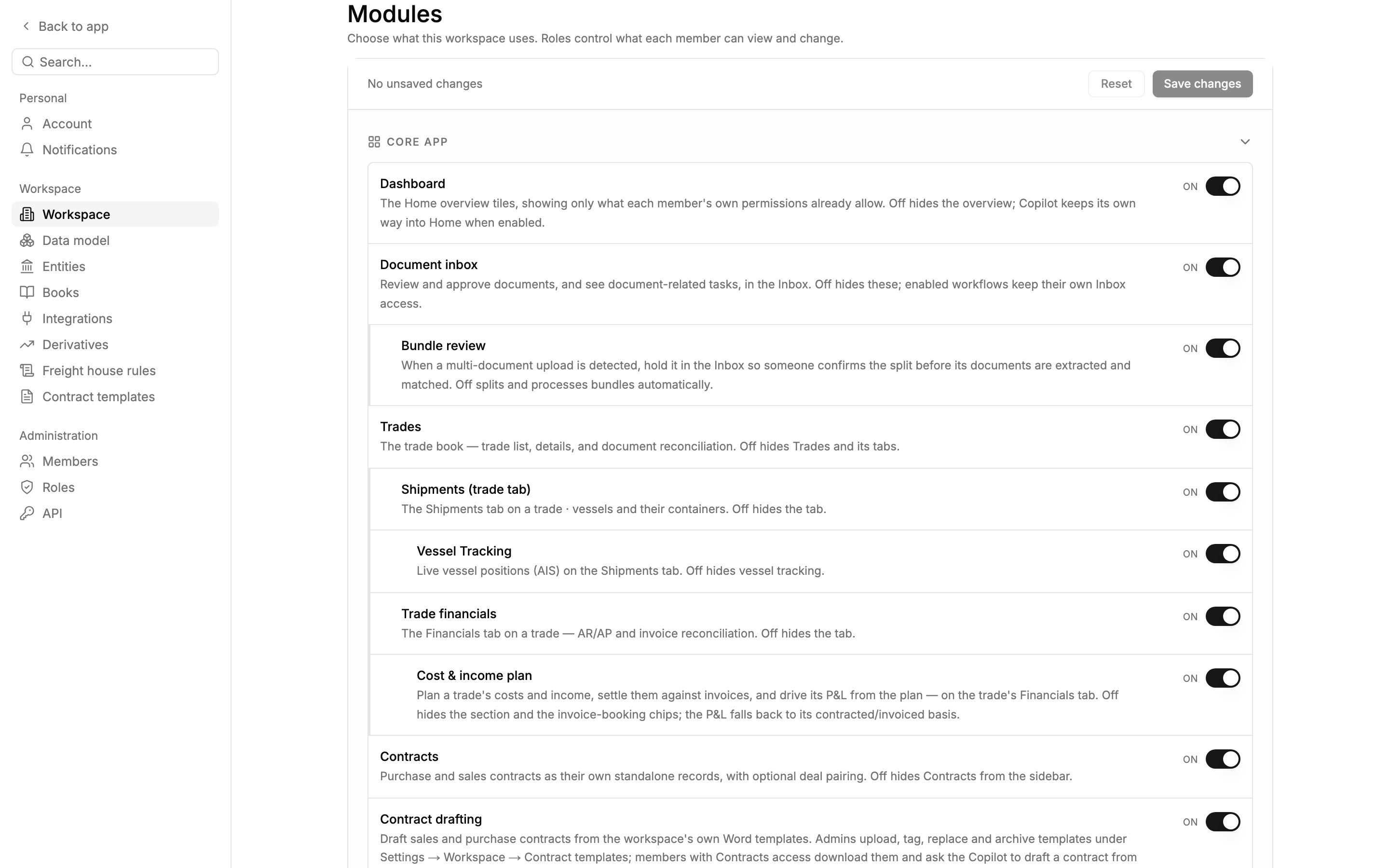
Modules in Veltana Commodities SA. Shipments (trade tab) and Trade financials nest under Trades, with Vessel Tracking and Cost & income plan one level further down.
Core app
A child module marked “On” only takes effect once its parent is on. For example, the three reports are ready as soon as an admin turns on Reports.
Workflows
Each workflow is turned on separately, and its access is granted separately in each role.Shared capabilities
See Integrations for how to connect these systems.
How modules and permissions combine
A module being on doesn’t give everyone access to it. To use a part of Mercora, a member needs both:- The module turned on for the workspace, and
- A role that grants at least View on the matching permission (and Edit to make changes).
- Home appears if the member can use either the overview cards (Dashboard module and permission) or the Copilot (Copilot module and permission).
- Inbox appears if the member has access to any enabled workflow that sends items there: documents, Deal Capture, Freight Rates, Hedging, or automation results.
- Upload appears if the member can upload documents, or can upload freight rate sheets through Freight Rates.
Next steps
Roles and permissions
Decide who can view and change each area you turned on.
Members
Invite your team and give each member a role.
Workspace settings
Company profile, reporting currency and the rest of the Workspace page.