

How the connection is set up
The Agiblocks connection is set up for your workspace by the Mercora team. There is no key to paste. Workspace admins can see it under Settings → Integrations → Agiblocks:- Connection shows the Account Mercora signs in to, that it was Set up by Mercora, and its Status, checked when the page opens: Connected, Not working, Not set up or Off.
- What automations can do with it lists the actions automations and the Copilot may take in Agiblocks, such as Find a contract, Create a contract and Push a supplier invoice. Every action starts off; anything that writes to Agiblocks always asks first. See Integrations.
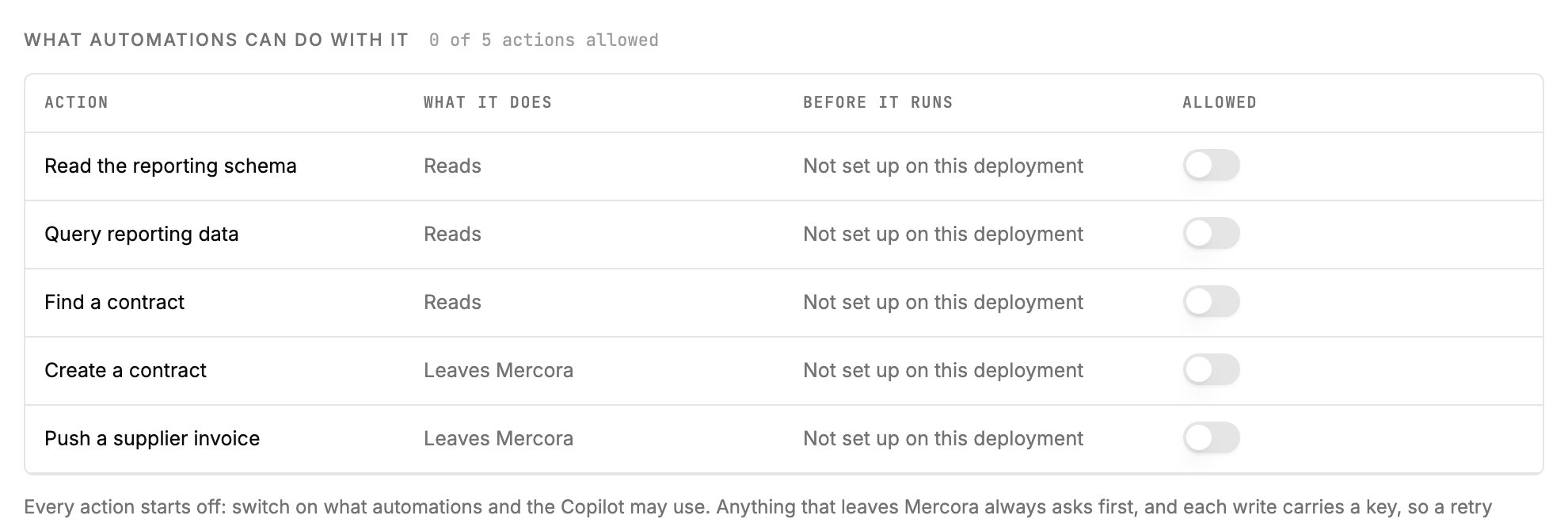
The Agiblocks actions table. Reads run on its own once allowed; creating a contract or pushing a supplier invoice leaves Mercora and always asks first.
Choose which pushes are on
Pushes are controlled by modules. External systems sync is the main switch; each kind of push then has its own switch under it, so you can, for example, push invoices without pushing hedges.Available when the External systems sync module, and the switch for each push below, are turned on for your workspace. Ask your workspace admin. With External systems sync off, no push runs, whatever the switches beneath it say.
Each push also needs the matching permission on the operator’s role: Invoice sync, B/L sync and Contract sync under Documents, and External sync under Deal Capture and under Hedging. See Roles and permissions.
Turning a switch off stops new pushes of that kind. A push that already reached Agiblocks can still be finished and recovered.
What you see on a push
Before you click, the card says what the push will do, for example “Approving creates a draft incoming invoice in Agiboo”. If Agiblocks will need something Mercora doesn’t have yet, the card shows Blocked by: with the missing fields, and offers no push until you fix them. After you click, the push runs in the background. You can move on:
Mercora never retries a push on its own. When a push was interrupted, check in Agiblocks first, because it may have landed:
- For an invoice or B/L, look in Agiblocks, then use Reopen for retry if it isn’t there.
- For a contract, if the create was submitted but couldn’t be confirmed, link the existing contract instead of creating it again. See Deal capture.
- For a hedge, use Retry booking or Retry allocation, which check Agiblocks for Mercora’s own reference first, or Mark as handled if someone booked it by hand. See Hedging.
Agiblocks reporting for the Copilot
The Copilot can also read your Agiblocks reporting data to answer questions and build exports: contracts, deliveries and B/Ls, supplier and sales invoices, cost sheets, positions, hedges and futures, FX deals, the general ledger and counterparty records. For example: “Which purchase contracts did we trade this month?” or “Show freight budget against actual per delivery.” This is read-only. Nothing the Copilot does through reporting can change Agiblocks data.Available when the Agiblocks reporting module, under Copilot, is turned on for your workspace. Ask your workspace admin. Members also need Reports access.
Next steps
Deal capture
Create a captured contract in Mercora and Agiblocks with one click.
The Inbox
Approve the invoices and B/Ls that push to Agiblocks.
Hedging
Book hedge fills as futures in Agiblocks.