

Check an invoice against its contract
Flags an invoice whose price, quantity or currency differ from its contract. An invoice that matches files nothing. When: When a document finishes processing. Types: Invoice. Wait for a trade match: on.
On step 1, open ⋯ › Add what happens if it fails and pick Ask someone, so a failed comparison reaches you instead of ending the run.
Uses: Read on Trades, Contracts, Invoices & costs and Documents.
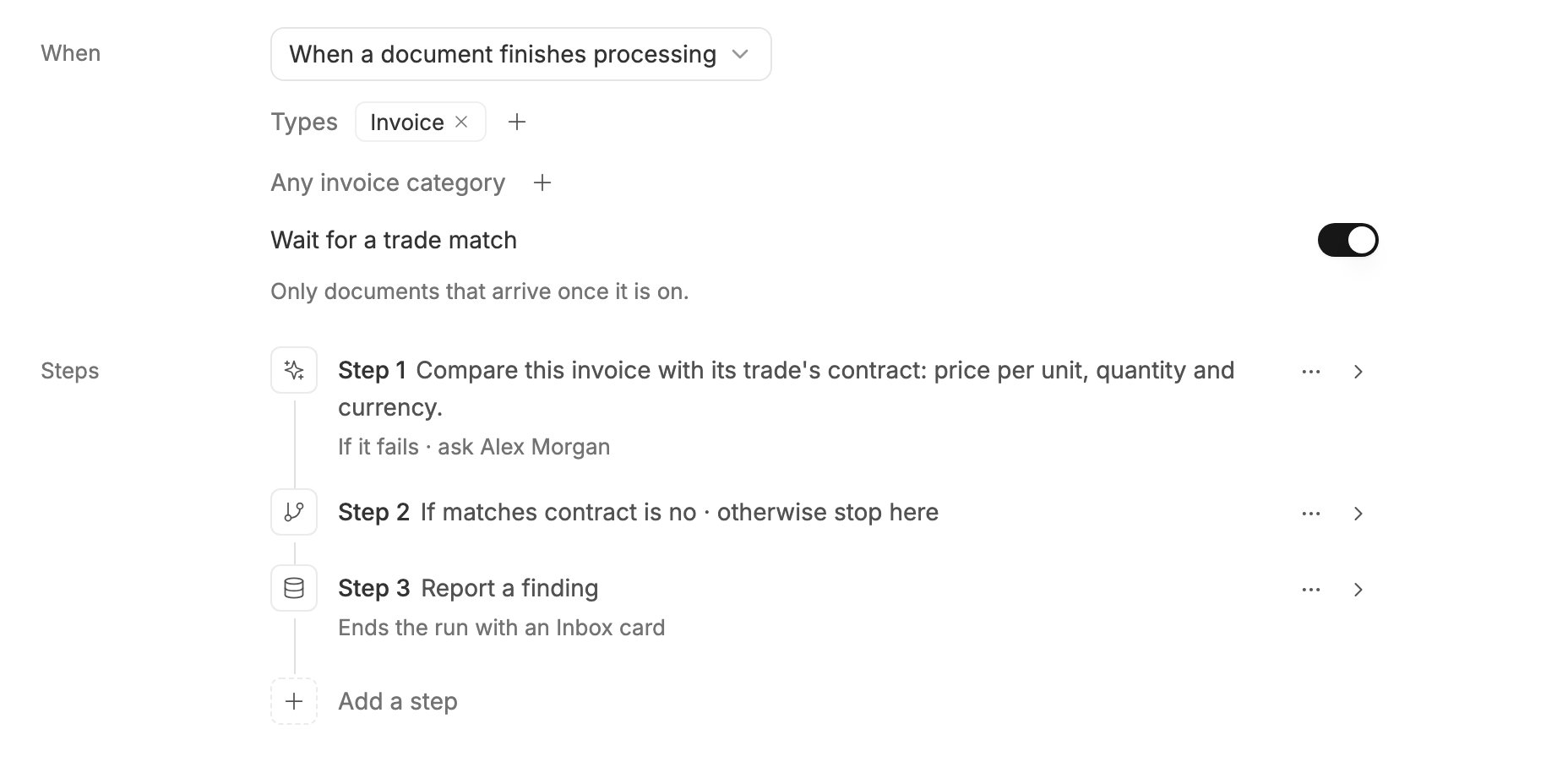
The invoice check: three steps.
Fix an invoice’s due date from its contract
Works out the due date from the contract’s payment terms, and proposes it when the invoice says otherwise. Nothing changes until someone approves. When: When a document finishes processing. Types: Invoice. Wait for a trade match: on.
Uses: Read on Contracts and Documents; Propose changes on Invoices & costs.
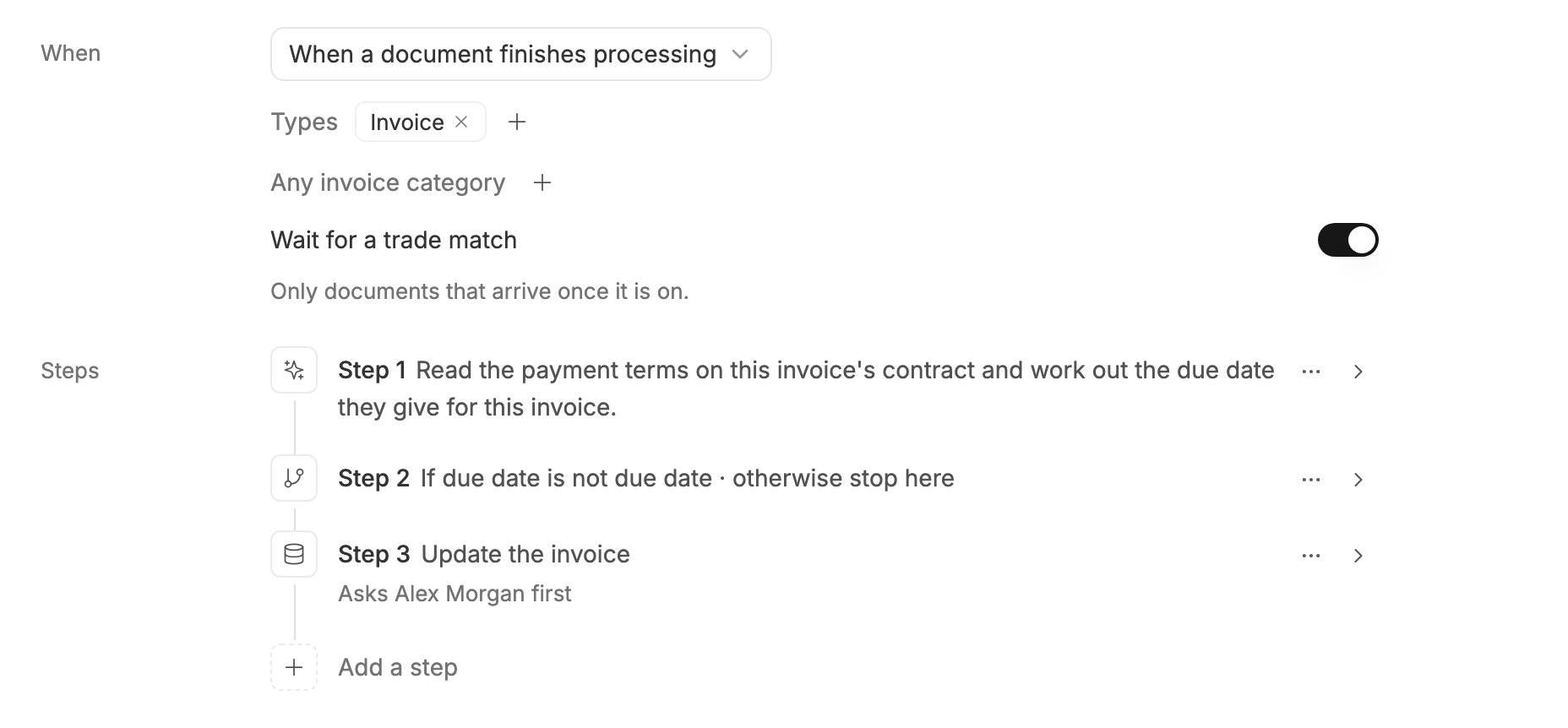
Propose a due date only when it differs from the invoice's own.
Chase a missing B/L
Waits two weeks after a contract for its B/L, and tells you if it never reached the trade. When: When a document finishes processing. Types: Contract (Purchase or Sale). Wait for a trade match: on.
Uses: these steps read no data themselves, so no area is needed.
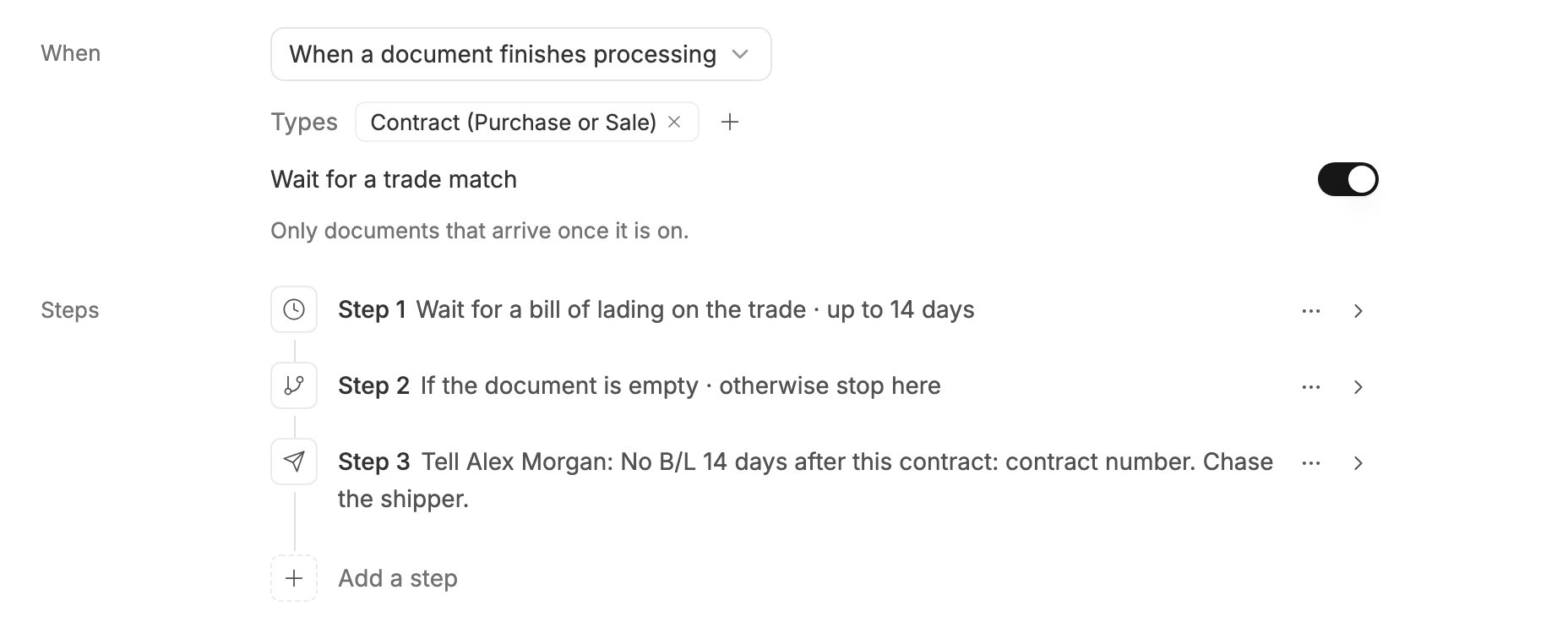
Wait, check, tell.
Draft a hedge order when your ERP asks
Your ERP sends a contract number and a number of lots. Mercora finds the contract, drafts the broker order, and waits for your approval. When: When another system calls. Under Fields it sends, addcontract_number (Text) and lots (Number). Once the steps and Uses are in place, name the automation and click Save: its address then shows under When, for your ERP to call.
Uses: Read on Contracts and Trades.
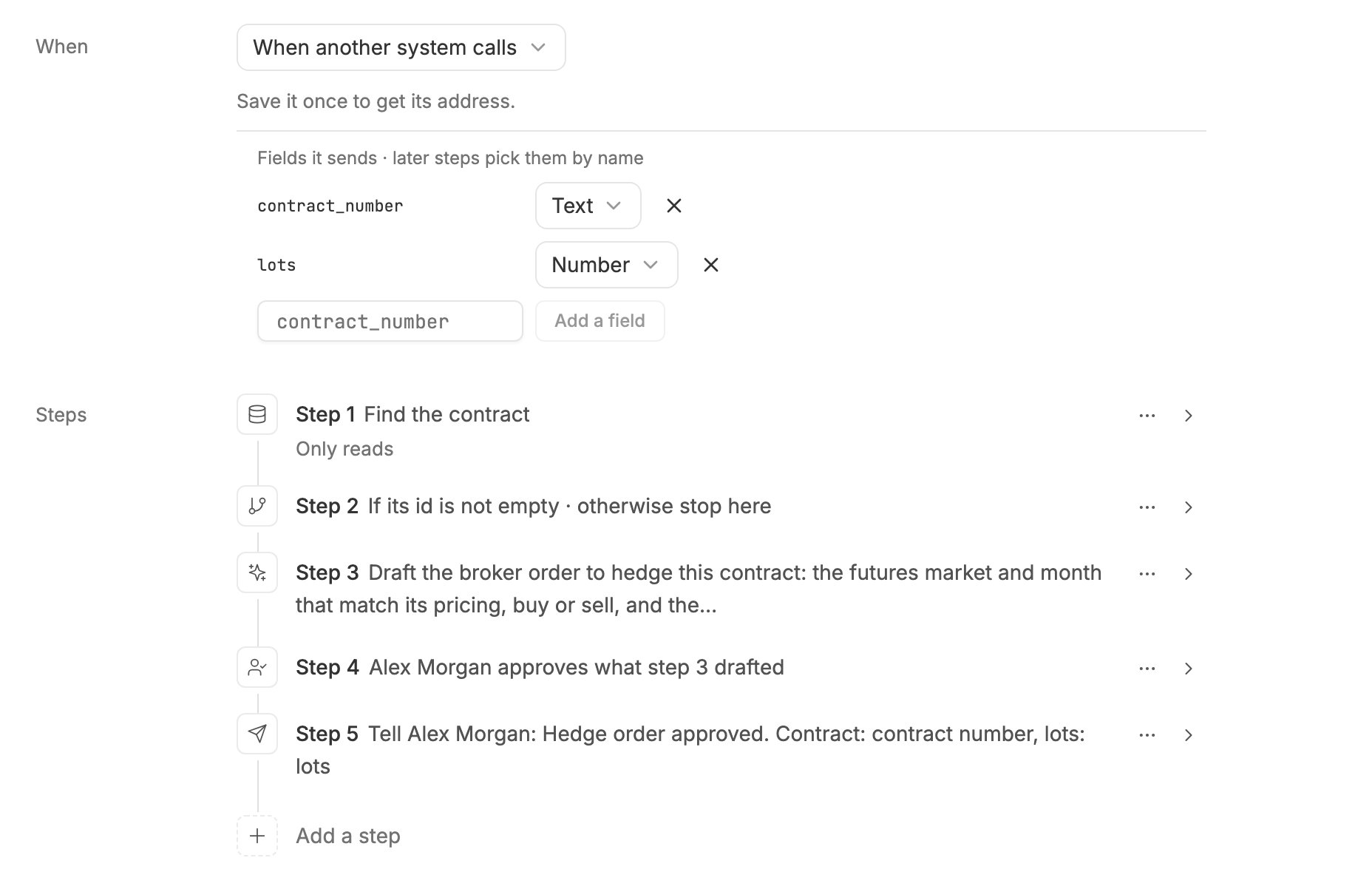
The ERP's request, from finding the contract to the approved order.
Next steps
- Use values from earlier steps: every way a step can take a value.
- Steps: the fields of every step, including app actions that send the order on.