

Before you start: reviewing documents in the Inbox is available when the Document inbox module is turned on for your workspace, and approving needs permission to edit documents. Workflows you use, such as deal capture or hedging, keep their own place in the Inbox even if it’s off. Ask your workspace admin.
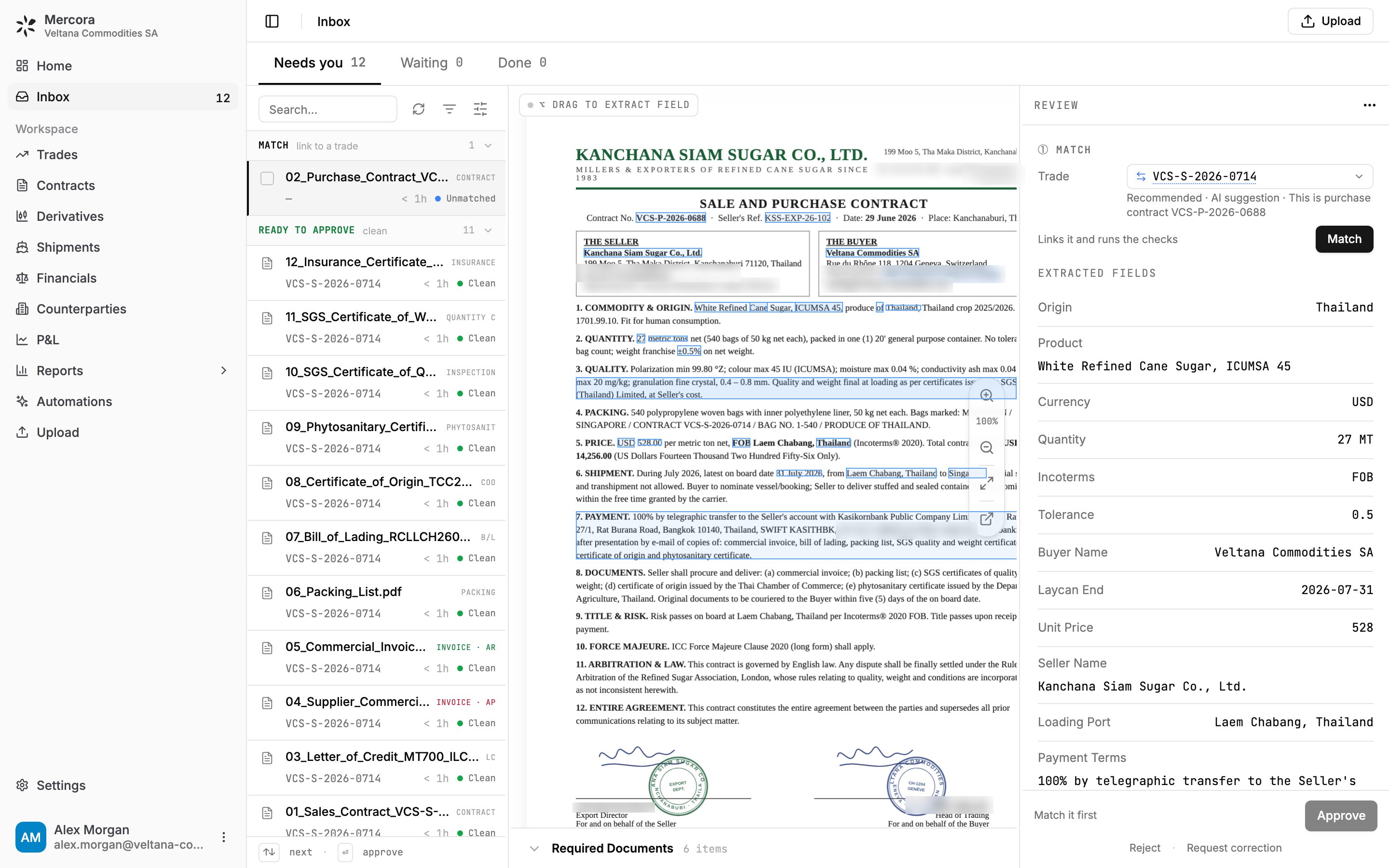
The Inbox for Veltana Commodities SA with the twelve documents of sugar trade VCS-S-2026-0714: eleven ready to approve, and purchase contract VCS-P-2026-0688 waiting to be matched.
- The rail on the left lists the items in the open tab, grouped into sections such as Match and Ready to approve.
- The document in the middle shows the original file, with zoom controls. Lists and tables Mercora read, such as a contract’s Required Documents or an invoice’s charge lines, sit in a bar docked under the document: click it to expand and edit them like a spreadsheet.
- The review panel on the right shows the trade it’s matched to, any discrepancies and the fields Mercora read, with Approve at the bottom.
Tabs
Each tab shows how many items it holds. A Waiting item comes back to Needs you by itself when processing finishes, when a counterparty replies, or when a later check raises a new discrepancy.
The rail
Sections
In Needs you, items are grouped by the kind of attention they need, in this order:
In Waiting, items are grouped into Processing (Mercora is working) and Waiting on a reply (waiting on someone outside, or parked by you).
Click a section header, or press T, to fold or unfold it. Mercora remembers which sections you folded in this browser.
Each row
A row shows the file name, the document type, the trade it’s on, how long it has been waiting and a status, such as Unmatched, 2 disc. or Clean. For example,07_Bill_of_Lading_RCLLCH2607841.pdf reads B/L, VCS-S-2026-0714, < 1h, Clean. See Statuses you see in the Inbox.
Search
Type in Search… to narrow the list by file name, trade reference or document type. Search only narrows what you see in the open tab.Filters
Click the filter icon, or press F, to filter the rail:- Owner: whose items to show. A member’s items are the files they uploaded and the emails they forwarded from their sign-in address. Unassigned holds what arrived with no member attached, for example an email a supplier sent straight to the workspace mailbox. You can choose several owners. With no owner chosen, you see the whole team’s queue. The tab counts follow the same filter.
- Type: Documents or Actions (proposals from workflows). Empty means both.
Ordering
Click the display icon to choose the order within each section: Priority, Date added, Document type, Trade matched or Discrepancies, and to flip the direction. Priority puts documents with critical discrepancies first, then those with warnings or waiting more than a day. Your filters and ordering are saved to your account, so they follow you to another browser. Reset to default goes back to the workspace default. Workspace admins can make their current view the default for everyone with Set as workspace default.Assign several documents at once
In the Match section, tick the box on each document you want to put on the same trade. Shift-click to select a range. The main area changes to Assign selected documents: pick the trade and click Assign N documents. Press Esc or click Cancel selection to stop.Reviewing a document
Open a document from the rail. The review panel works through it from top to bottom.1
Match
The Trade field shows the trade the document is on, or Mercora’s recommendation for you to confirm. Click Match to link it and run its checks. Until then, the footer reads Match it first and Approve is unavailable. See Matching documents to trades.
2
Checked
Once matched, the panel shows Checked with the trade and the number of differences found, or Not checked with a Run checks button.
3
Shipment
For documents that belong to a shipment, such as a B/L or a packing list, a Shipment field shows which shipment the document describes. Mercora fills it only when it’s sure. See Shipments.The Shipment step only shows when your role can see shipments. Changing the shipment needs permission to edit shipments.
4
Discrepancies
Open discrepancies are listed first, then the ones already resolved. See Discrepancies.
5
Fields
The fields Mercora read, such as parties, quantities, prices, dates and ports. When a document has discrepancies, the fields involved are shown with them.
Check a field against the original
Click a field or a discrepancy to highlight where its value appears in the document. A small amber dot next to a value means Mercora was less sure of it, so check it first. When a document came by email, the email shows in a bar above the document. Click it to open the sender, subject and body.Edit a field
1
Open the field
Double-click the field’s value. You can also move to it with Tab and start typing, or press Enter.
2
Change the value
Type the right value. Some fields have a dropdown, a date picker, or a number with a unit.
3
Save
Press Enter or click away to save. Press Esc to cancel.
Read a value straight from the document
If Mercora missed a value or read it wrong, you can draw a box around it on the document:- Hold Option (Alt on Windows) and drag a box around the value. Or click the ⌥ drag to extract field button at the top left of the document first, then drag.
- Mercora reads the value inside the box and suggests which field it belongs to. If you had a field selected, the value goes to that field.
- Check the value, change it if needed, and click Apply. Nothing is saved until you do.
Numbers that can be read two ways
When a printed quantity or weight could mean two different numbers, for example “745,087”, Mercora shows both readings under the field and marks the one that matches the deal. Click the right one.Invoices
For invoices, the panel also shows:- The invoice type: whether it’s an invoice or a credit note. If Mercora couldn’t tell, the row shows Credit note? until you pick.
- The direction: whether it’s a receivable (AR) or a payable (AP). You can set this before the invoice is matched.
Notes
Use Notes at the bottom of the review panel to leave a note on the document for your team. You can also add a note to a single discrepancy with Note….Approving
The button at the bottom of the review panel says what it will do, and the line beside it explains the effect, for example “Links it to the trade · accepts 2 differences”.- Click Approve, or press Enter.
- Approve stays unavailable until the document is matched and its checks have run. The line beside it says Match it first or Run the checks first.
- If the document isn’t on any trade, the button reads Approve without a trade and asks you to confirm. Enter never approves a document that’s linked to nothing.
- Approving accepts the document’s remaining open differences with the trade. Review them before you approve. See Discrepancies.
Contracts and recaps
Approving a contract or a recap opens a short approval flow across the main area, because it can create or change a trade:- Where should this document go? Choose Create a new trade, Match to existing trade, or Don’t attach a trade (under “Doesn’t belong to a trade?”). Mercora marks its recommendation Recommended. With the Contracts module on, Create a new trade is replaced by Create contract, which saves the document as a purchase or sale contract, on its own or starting a new deal. Click Next.
- Should this document create a trade leg? A trade has a purchase leg and a sale leg. Choose Create a new trade leg or link to the existing one, and set the leg type (Purchase or Sale), or choose Save directly to trade to attach it without a leg. Check the leg’s fields, such as buyer, seller, contract number, quantity and unit price.
- Check the summary on the right (Current selection, Trade info and the leg to create) and click Approve document.
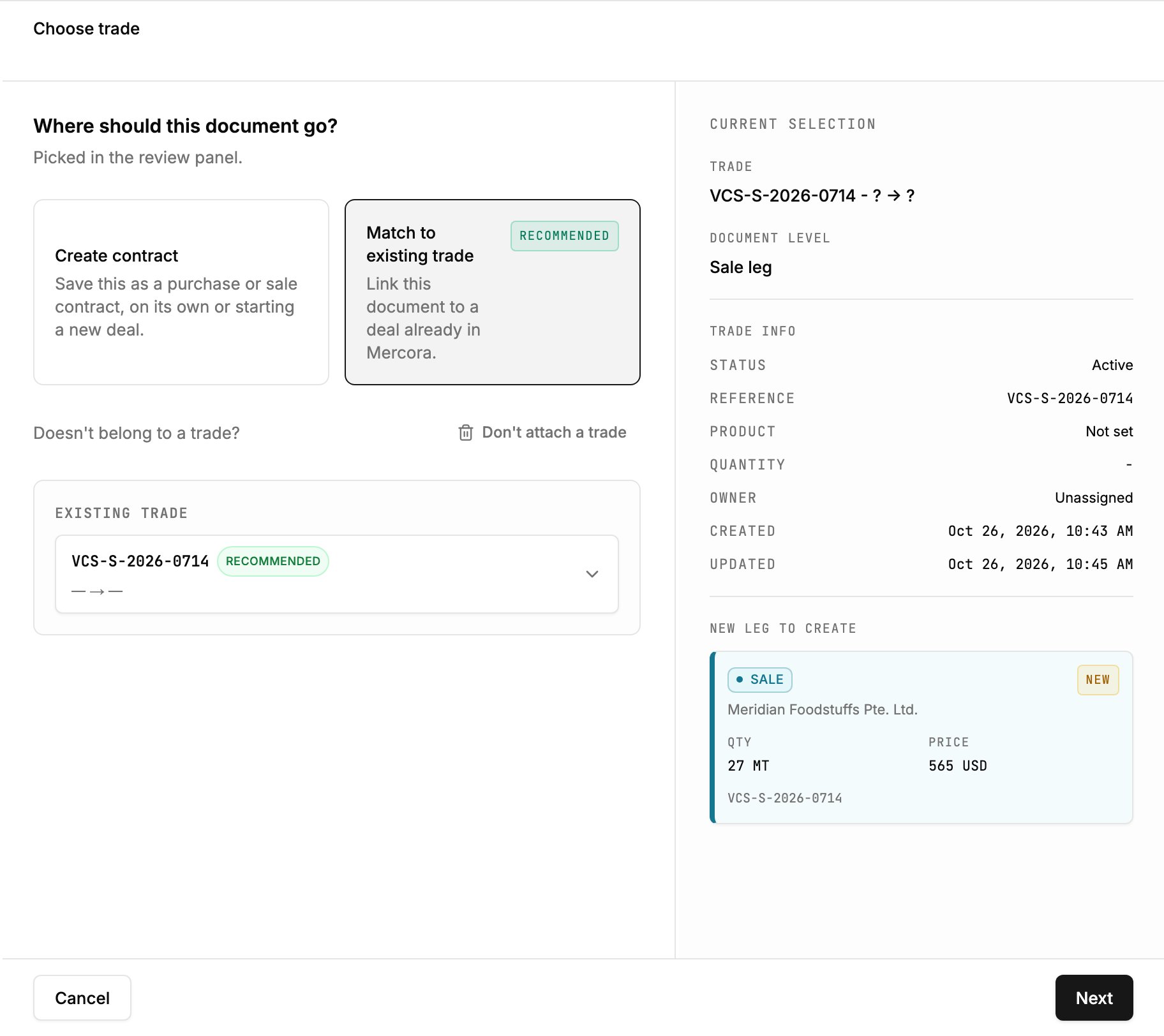
Approving sales contract VCS-S-2026-0714: Mercora recommends Match to existing trade, and the summary shows the sale leg it will create.
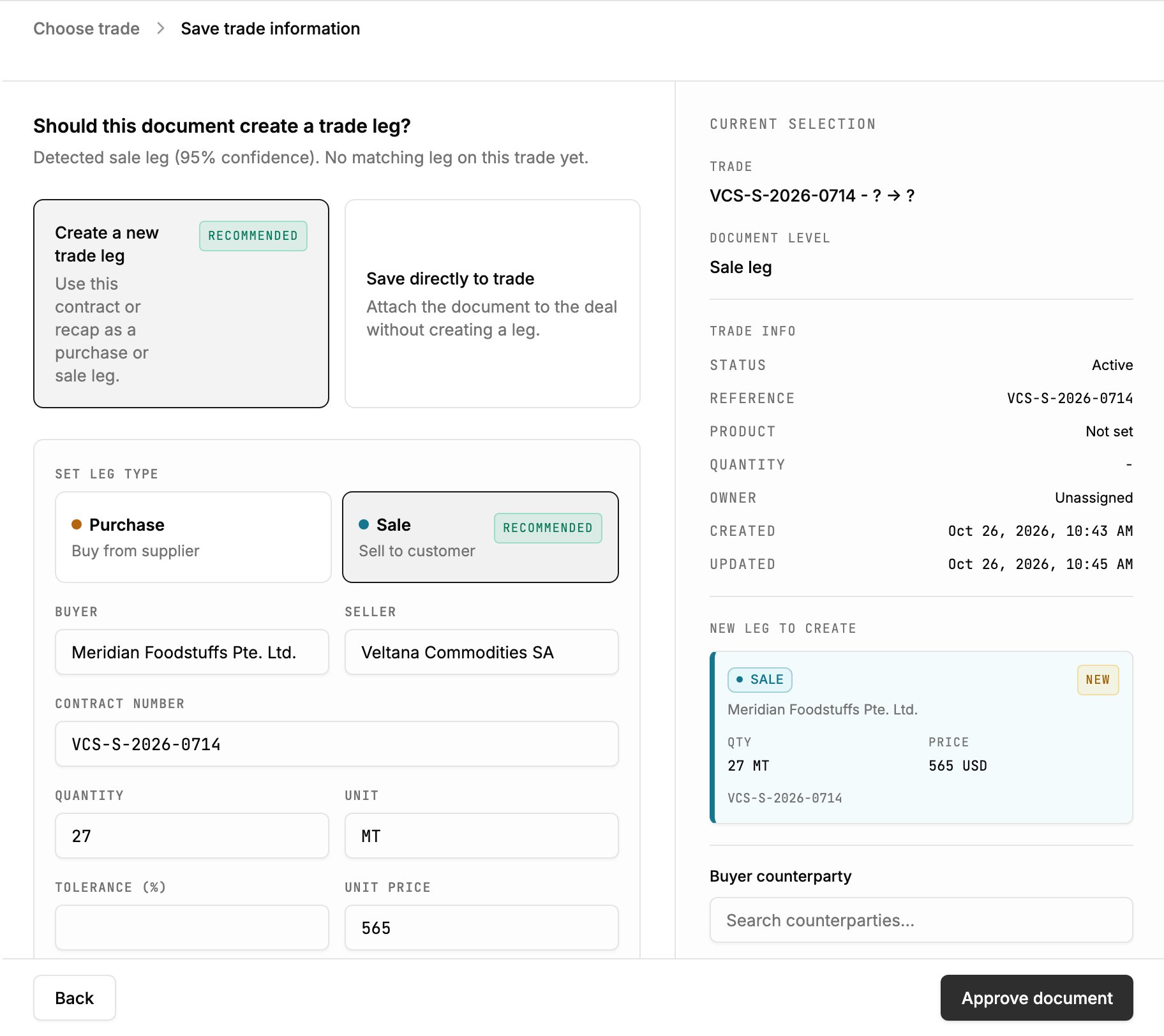
The next step creates the sale leg to Meridian Foodstuffs: 27 MT at USD 565/MT.
Amendments
An amendment opens an Amend panel in place of the usual review. You decide on each changed term there before the final approval. Enter doesn’t skip those decisions.After you approve
The document moves to Done, and the next item opens. Once approved, a document’s information becomes part of the trade’s record, and Mercora re-checks the trade’s other documents that are still under review against it. To move an approved document to a different trade, use Reassign to Trade in the ⋯ menu. See Matching documents to trades.Rejecting
Reject a document that shouldn’t be processed, for example a draft or a copy you don’t need.- Click Reject under the Approve button.
- Click Confirm next to “Reject this document?”.
Request a correction
When a document is wrong at the source, for example a counterparty’s invoice shows the wrong quantity, ask them to fix it.1
Open the correction draft
Click Request correction under the Approve button. A window opens with the document on one side and an email draft on the other.
2
Check what's included
The draft lists the document’s discrepancies. Ones you Declined are listed as corrections required, and open ones are included too. Ones you approved are left out.
3
Check the email
If the document came by email, To is filled in with the original sender. Otherwise, type the recipient. Mercora drafts the message. Edit it, or click Regenerate for a new draft.
4
Send it from your mail client
Click Open email draft. Mercora opens the draft in your own email program and copies the message to your clipboard. Review it and send it from there.
The ⋯ menu
The ⋯ menu at the top of a document has:
Everything except Download needs permission to edit documents.
Keyboard shortcuts
Shortcuts don’t fire while you’re typing in a field or have a menu or picker open.
Other items in the Inbox
Besides documents, the Inbox holds proposals from the workflows your workspace uses. Each one waits for a person to approve, change or decline it. Use the Type filter to show only these.
Each of these appears only when its workflow is turned on for your workspace and your role can use it.
Who can do what
Viewing the Inbox needs permission to view documents. Approving, rejecting, editing fields, matching and the ⋯ menu actions need permission to edit documents. View-only roles see the same panels without the buttons. See Roles and permissions.Next steps
Matching documents to trades
Confirm, change or start the trade a document belongs to.
Discrepancies
Decide what each difference with the trade means.
Walkthrough
Follow one trade from its first document to its P&L.