

Before you start: access to Mercora is invite-only. Your workspace admin invites you with your work email address and a role, and Mercora emails you an invite link. No email yet? Check your spam folder, or ask your admin (see Members).
1. Accept your invite
Mercora emails you the invite, naming the admin who invited you. If it went astray, your admin can copy the link and send it to you directly.1
Open the invite link
The link opens a Welcome to Mercora page that says “This is your sign-up link.”
2
Click Continue
Click Continue to go on and create your password. The extra click is there so that a link preview in a chat app can’t use up your link before you open it.
2. Set your password
After Continue, Mercora asks you to Set a password to continue.1
Choose a password
Enter it under New password. It must be at least 8 characters.
2
Confirm it
Enter it again under Confirm password. A checklist shows when both requirements are met.
3
Click Set password & continue
Mercora saves your password and opens the app.
3. Sign in
Next time, sign in with your email address and password.1
Open your workspace's sign-in page
Enter your Email and Password.
2
Click Sign in
If you’ve turned on two-factor authentication, Mercora asks for a code next (see below).
4. Set up two-factor authentication (optional)
Two-factor authentication (2FA) adds a second step to sign-in: a 6-digit code from an authenticator app on your phone, such as Google Authenticator or Authy. It’s optional and you turn it on for your own account.1
Open your account settings
Go to Settings → Account. You can also open it from the menu under your name at the bottom of the sidebar.
2
Click Enable
In the Two-factor authentication section, next to Authenticator app, click Enable.
3
Scan the QR code
Scan the QR code with your authenticator app. If you can’t scan it, type the code shown under “Can’t scan? Enter this code manually” into the app instead.
4
Enter the code and verify
Type the 6-digit code from your app under Verification code, then click Verify & Enable.
5. Upload your first document
1
Open Upload
Click Upload in the sidebar, or click Upload at the top of the Inbox.
2
Add your files
Drag files onto the upload area, or click it to pick them. You can add several at once, for example the sales contract, B/L and invoices for one shipment. PDF, Word (DOCX), text, JPG and PNG files work, as do saved emails (EML, MSG), up to 50 MB each.
3
Optionally set the type and trade
Leave Document Type on Auto-detect to let Mercora work out what each file is. Leave Associate with Trade on Select trade (or choose Auto-match after processing) to let Mercora find the trade, or pick the trade if you already know it.
4
Start the upload
Click Upload 1 Document (the button counts the files you’ve added). Mercora uploads the files and starts processing them in the background.
6. Open the Inbox
Click Inbox in the sidebar. Your documents appear there as Mercora processes them:- Waiting holds documents Mercora is still working on.
- Needs you holds documents ready for you to review, match to a trade, and approve.
- Done holds documents that have been approved or rejected.
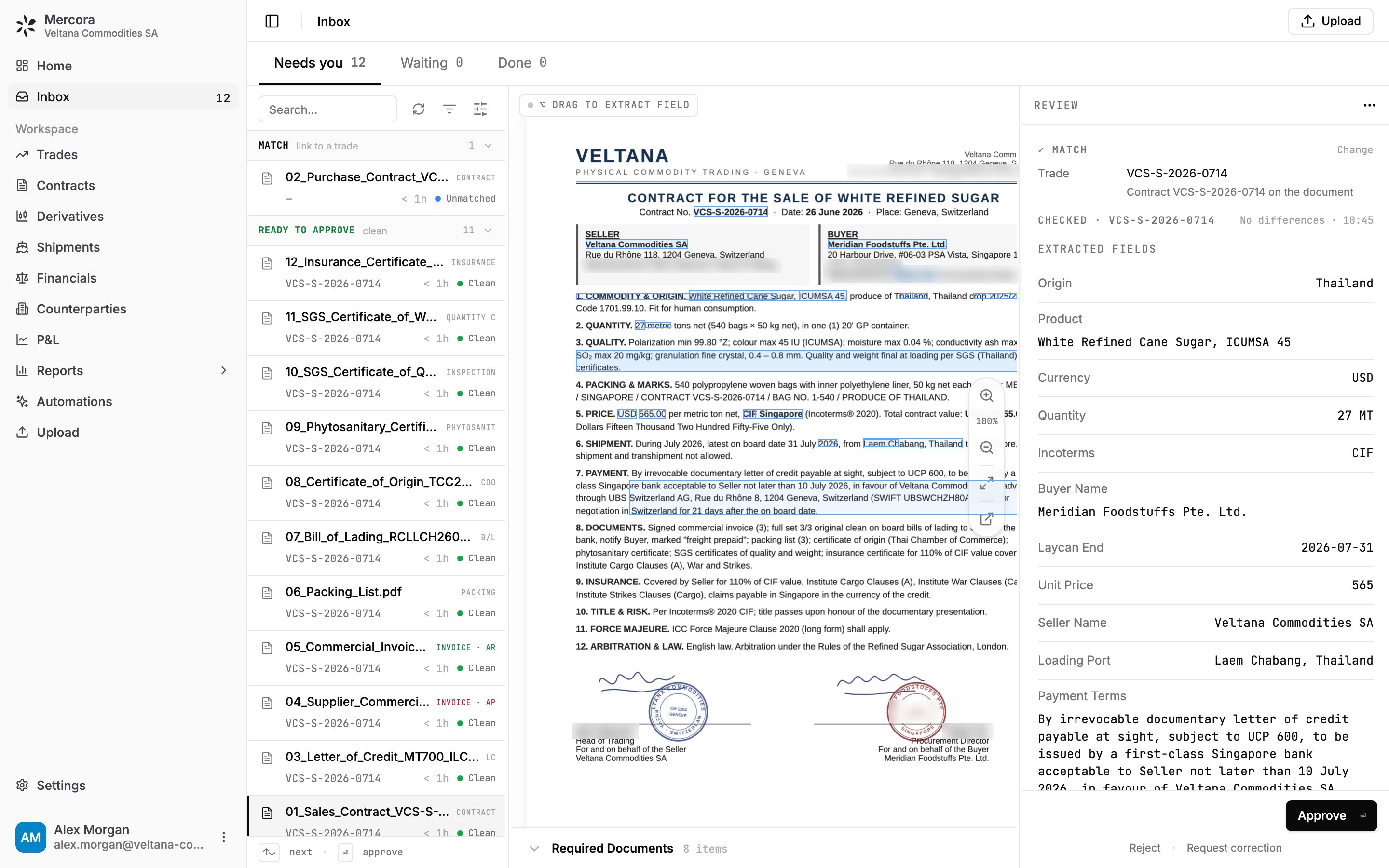
Reviewing sales contract VCS-S-2026-0714: the original in the middle, the trade match, checks and extracted fields on the right.
Don’t see Upload or Inbox in the sidebar? Your workspace may have the Document upload or Document inbox module turned off, or your role may not include access to documents. Ask your workspace admin.
Next steps
Walkthrough
Follow one sugar trade from its documents to the P&L.
Navigating Mercora
Find your way around the sidebar and main areas.
The Inbox
Review, match and approve your documents.