

- Invited means the member hasn’t finished setting up their account yet.
- Active means they have signed in.
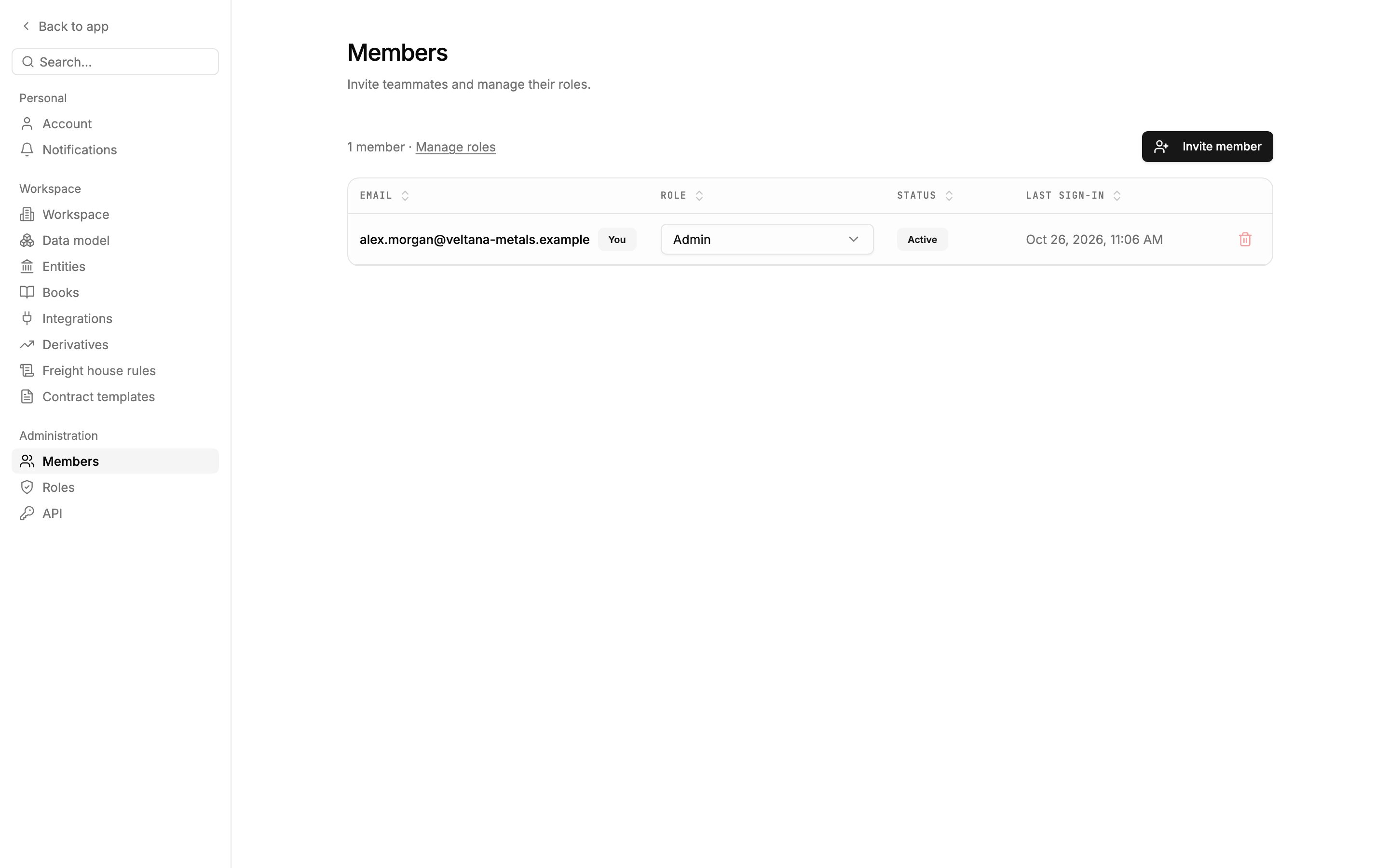
Settings → Members with one active admin. Manage roles opens the roles, and Invite member starts an invite.
Who can do what
Members with User access at View see the list and each member’s role, and can open View roles to see what each role grants, but can’t change anything.
Invite a member
1
Open Members
Go to Settings → Members and click Invite member.
2
Enter their details
Enter their work Email and choose a Role. Each role in the list shows its description. You can set up roles before or after inviting.
3
Click Send invite
Mercora creates the member and emails them the invite, from Mercora, with you named as the person who invited them. Replies to it reach you.
4
Check it went
An Invite emailed window opens with their invite link. If the email doesn’t arrive (a spam filter, a typo), click the copy button next to Invite link and send it to them yourself. Click Done when you’re finished.
Send a new invite link
If an invite link expired, was already used, or got lost, create a new one:- Go to Settings → Members.
- Find the member. Their status is Invited.
- Click New invite link on their row. Mercora emails them the new link, and you can copy it to share it yourself.
Change a member’s role
- Go to Settings → Members.
- In the member’s Role column, choose the new role from the list.
Limits for members with User access
Admins can change anyone’s role. Members whose role has User access at Edit can change roles too, with these limits:- They can’t change their own role.
- They can’t change the role of an admin, or of anyone who also has User access at Edit.
- They can’t give anyone an admin role, or a role with User access at Edit.
Remove a member
- Go to Settings → Members.
- Click the delete icon at the end of the member’s row.
- In Remove this member?, click Remove.
The last admin is protected
A workspace always keeps at least one admin. Mercora stops you from:- Changing the last admin to a role without admin rights: “Cannot demote the last admin. Promote another member first.”
- Removing the last admin: “Cannot remove the last admin. Promote another member first.”
Next steps
Quickstart
Send this to new members: from the invite link to their first document.
Roles and permissions
What each role allows, and how to create your own.
Workspace settings
Company profile, modules and other workspace settings.