

- Modules: the parts of Mercora your workspace admin has turned on. See Modules.
- Your role: an area only appears if your role lets you at least view it. See Roles and permissions.
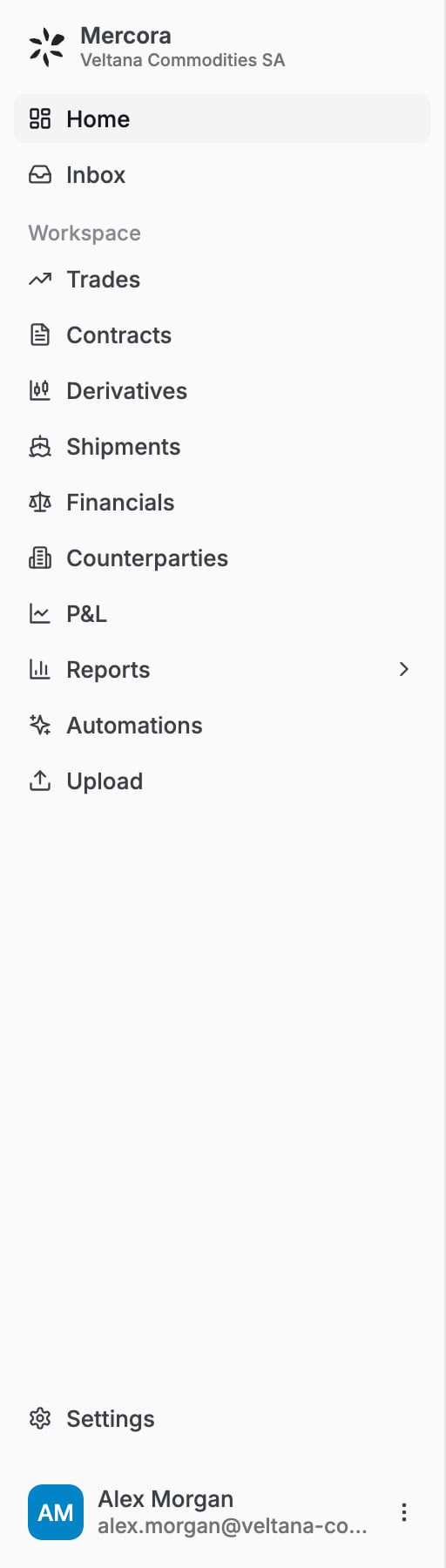
The sidebar for Veltana Commodities SA: Home and Inbox at the top, the Workspace section, then Settings and the user menu at the bottom.
The sidebar at a glance
The sidebar lists areas in this order. Areas whose module starts off in a new workspace are marked “Off”.
Trades through Upload sit under a Workspace heading in the sidebar. Settings sits at the bottom, above the menu under your name.
Home
Home is where you land after signing in. It brings together two things, each with its own module:- Copilot: the Mercora AI box, an assistant you can ask about your trades, documents and numbers, for example “What’s the status of VCS-S-2026-0714?”. It only sees the data your role can already see. See Copilot.
- Overview cards: tiles such as Active trades, Total exposure, Review queue and Contracted margin. They only show data your role can already see. Workspace admins choose which cards appear with Edit cards.
Copilot is available when the Copilot module is turned on for your workspace, and the overview cards when the Dashboard module is on. Ask your workspace admin.
Inbox
The Inbox is your work queue. Documents land here after Mercora has read them, and you review, match and approve them here. Other workflows, such as deal capture, hedging and automations, also send items here for you to decide on. Items are grouped into tabs:- Needs you: you’re the next step, for example to review, match or approve.
- Waiting: Mercora is still processing, or the item is waiting on someone else.
- Done: approved, booked or rejected.
- Filtered: items Mercora set aside as not needing attention. It sits apart from the main tabs.
Trades
Trades is your trade book. Open a trade to see its tabs:- Overview: a summary of the trade.
- Documents: every document matched to the trade.
- Discrepancies: what doesn’t line up between the trade and its documents.
- Financials: receivables and payables (AR/AP) and invoice reconciliation. Shown when the Trade financials module is on.
- Shipments: the vessels and containers carrying the cargo. Shown when the Shipments (trade tab) module is on.
Contracts
Purchase and sales contracts kept as records of their own, which you can pair into deals. See Contracts.Available when the Contracts module is turned on for your workspace. Ask your workspace admin.
Derivatives
The futures ledger: fills from your broker, manual entries, and allocating a fill against a contract. See Derivatives.Available when the Derivatives module is turned on for your workspace. It also needs the Counterparties module for the broker. Ask your workspace admin.
Shipments
Cargo movements across all your trades (vessels, containers and trucks) with a route map and links back to each trade. See Shipments.Available when the Shipments module is turned on for your workspace. Ask your workspace admin.
Financials
The workspace-wide list of invoices, separate from the Financials tab on a single trade. See Financials.Available when the Financials module is turned on for your workspace. Ask your workspace admin.
Counterparties
Your buyers, suppliers, brokers and banks, with KYC (know your customer) details, trading terms and what each one owes you or is owed. See Counterparties.Available when the Counterparties module is turned on for your workspace. Ask your workspace admin.
P&L
Realized and open margin by commodity, book and delivery month, in the currency you choose. See P&L.Available when the P&L module is turned on for your workspace. Ask your workspace admin.
Reports
Reports has up to three parts, each with its own module under Reports:- Operations: pipeline health, how long discrepancies have been open, and document completeness.
- Cashflow: revenue and cost on a cash basis, with a breakdown of ancillary costs.
- Overdue payments: unpaid invoices past their due date, by counterparty.
Available when the Reports module is turned on for your workspace. Ask your workspace admin.
Automations
Automations are standing instructions that read the data they’re allowed to see and report what they find. Anything an automation would change waits for a person to approve. See Automations.Available when the Automations module is turned on for your workspace. Ask your workspace admin.
Upload
Upload documents by hand, one or many at a time. See Uploading documents.Settings
Click Settings at the bottom of the sidebar. What you see depends on your role:- Personal (everyone): Account (your name, password and two-factor authentication), Notifications, and Integrations for your own connections.
- Workspace (admins): Workspace (company profile and modules), Data model, Integrations, and settings for modules your workspace uses, such as Books, Entities, Derivatives, Freight house rules and Contract templates.
- Administration: Members and Roles (admins, and members whose role includes User access), and API (admins).
Your user menu
Click your name at the bottom of the sidebar to open your Account settings, switch between Light, Dark and System themes, or Log out.Next steps
Walkthrough
See these areas at work on one sugar trade, from documents to P&L.
How Mercora works
Follow a document from arrival to approval.
Uploading documents
Get your first documents into Mercora.