

Add a step
Click Add a step under the last step. The menu groups the steps by kind; type in What should happen next? to search. Click one to add it: it opens below the others, ready to fill in.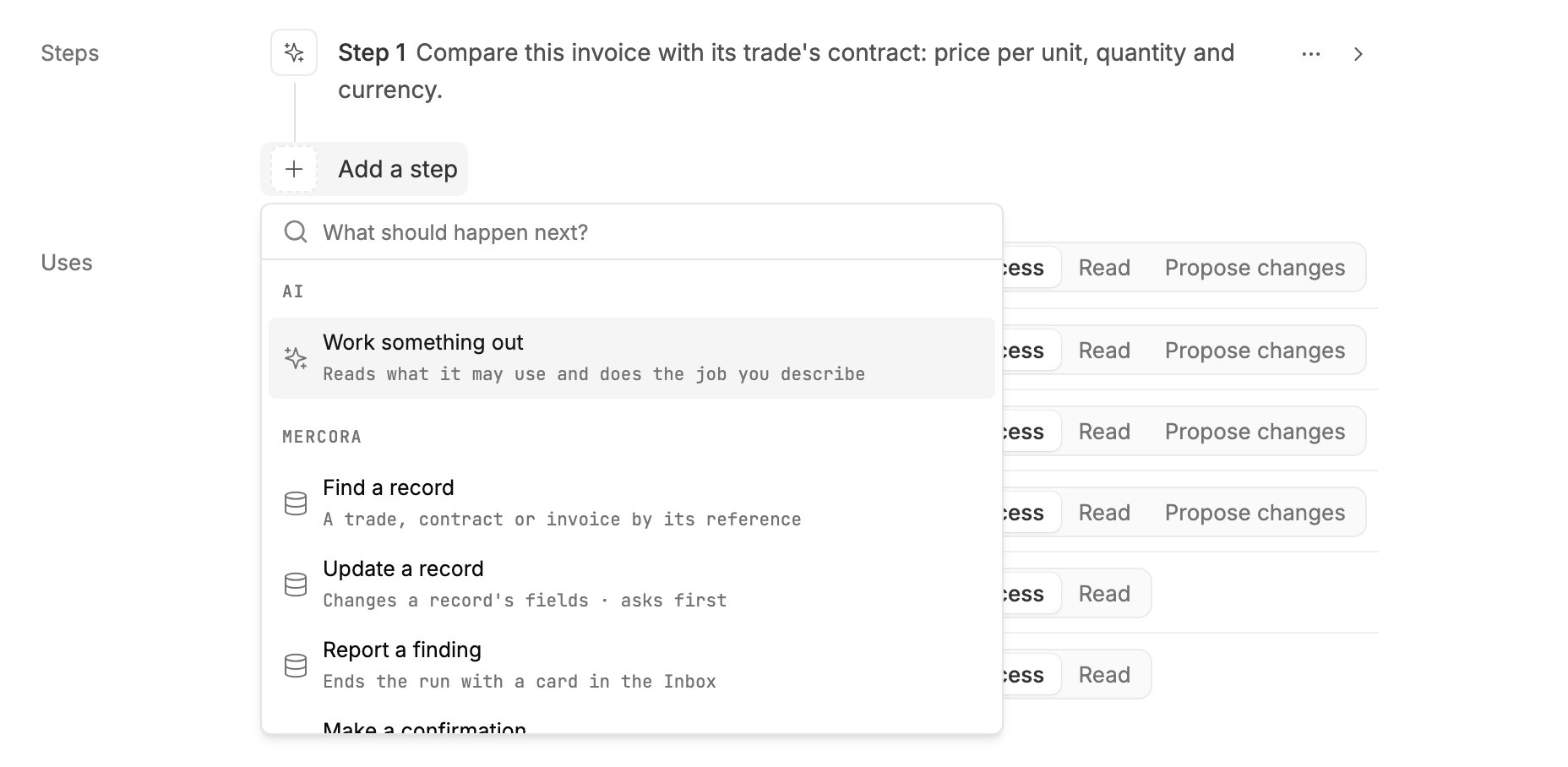
The top of the Add a step menu: the AI step and the Mercora steps.
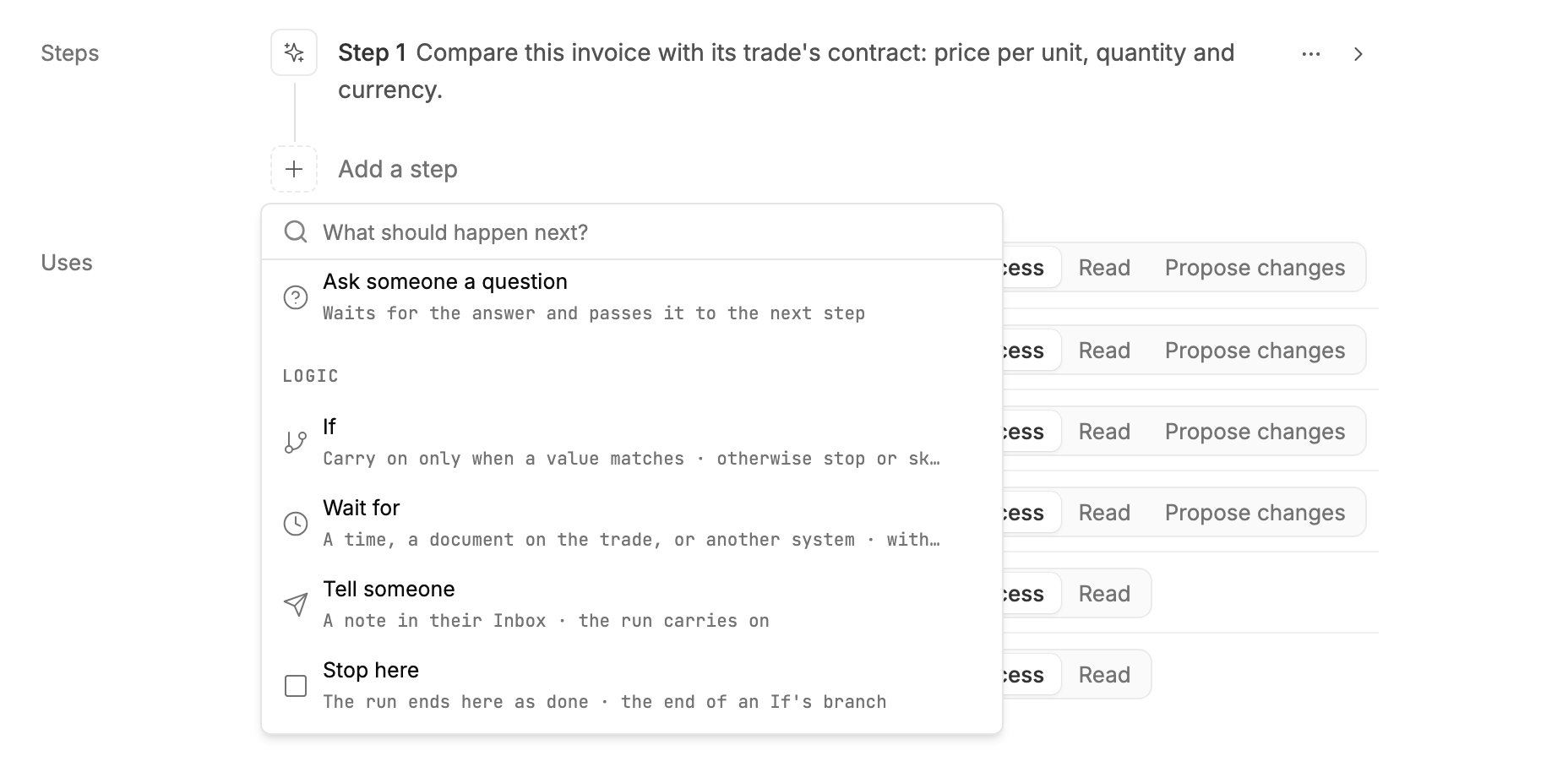
Further down: the People and Logic steps.
AI
Work something out
An AI step does the job its brief describes. It reads what the automation may read under Uses, plus what started the run (the document, the request or the message) and the answer of the step before. Use it where judgement is needed: comparing two documents, reading payment terms, drafting a reply.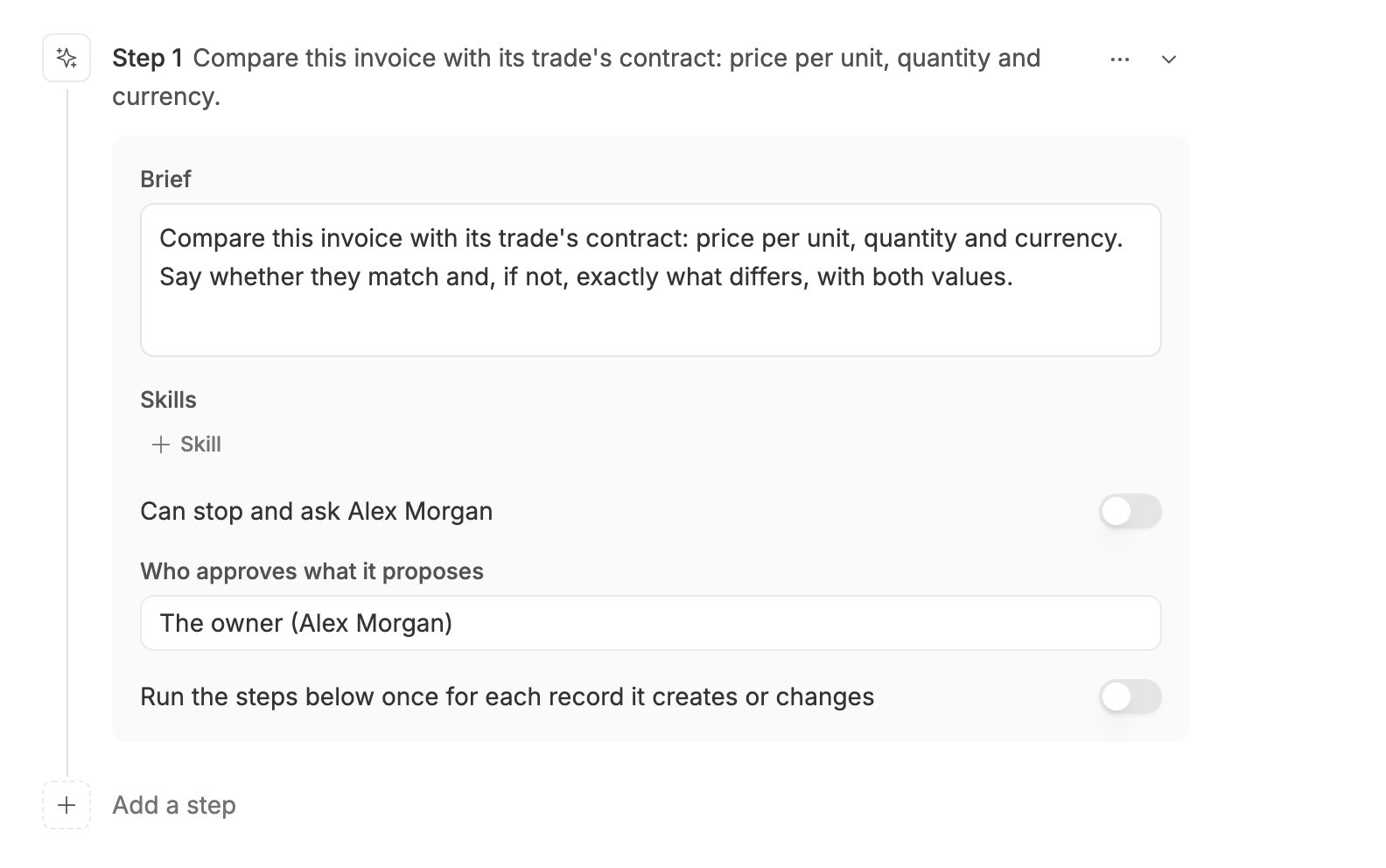
An AI step that compares an invoice with its contract.
Mercora
Find a record
Looks up one trade, contract or invoice by its exact reference. It only reads.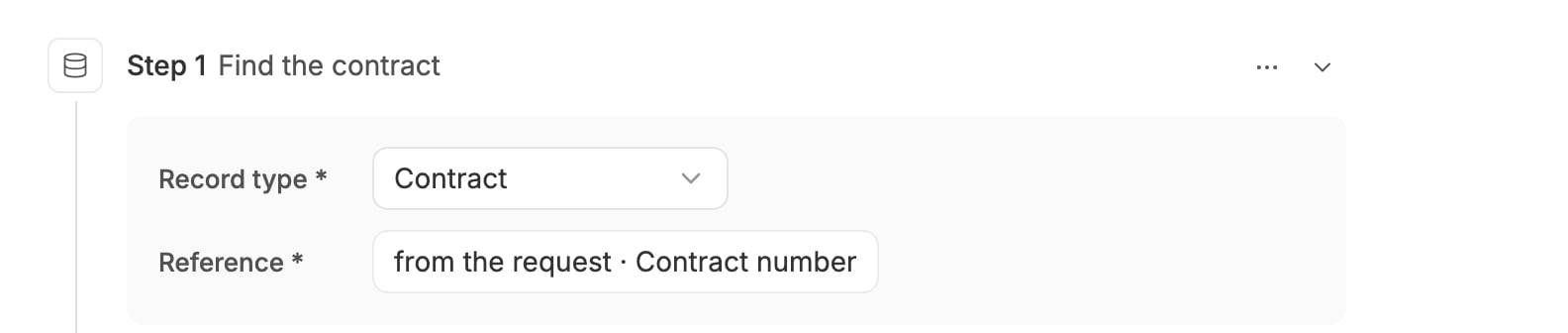
Find the contract whose number another system sent.
Find contacts
Finds the email addresses of the contacts on a trade, an invoice or a counterparty, for a later step that sends an email. Set Trade, invoice or counterparty, and optionally Which side (customer, supplier or both) and Contact role contains. Later steps can pick Their email addresses, Their names, Counterparties and How many. It shows in the menu where the automation can be given the Counterparties area.Update a record
Proposes a change to one trade, shipment, contract or invoice. It always asks first: the person under Approved by sees the exact change in the Inbox and approves, edits or rejects it.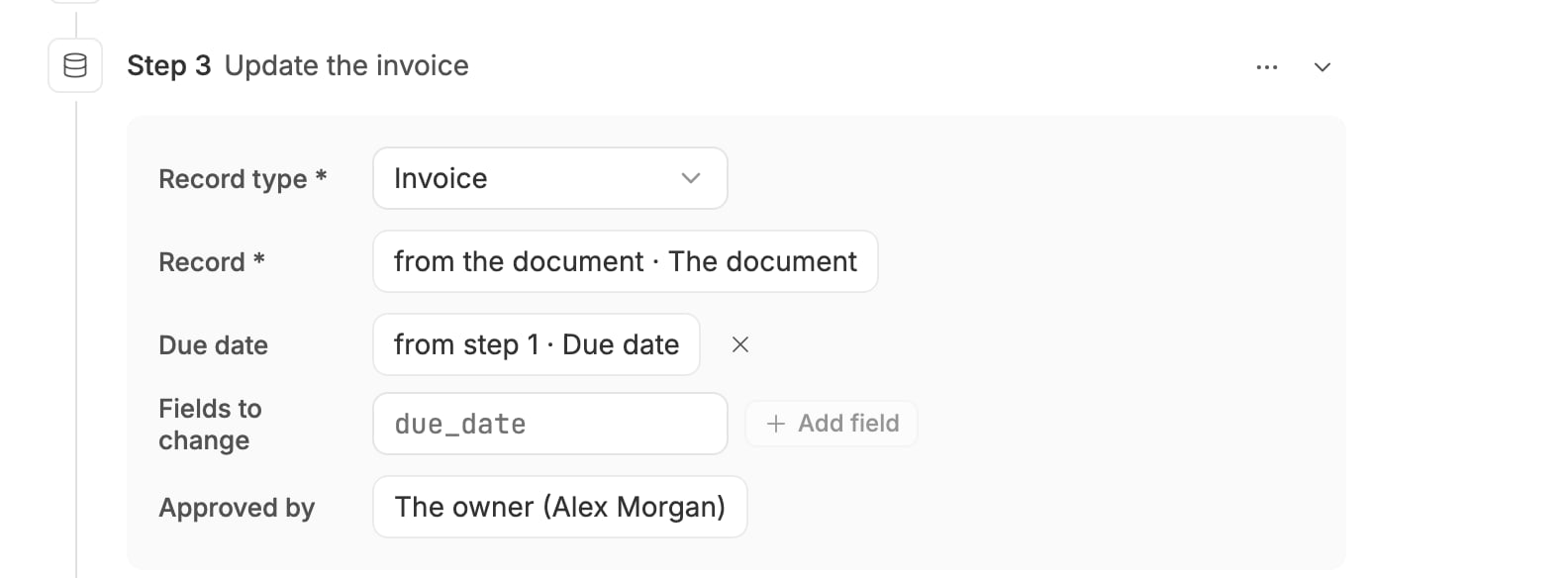
Propose the invoice's new due date, worked out by step 1, for Alex Morgan to approve.
Report a finding
Ends the run with a card in the Inbox under Needs you. Write the Finding as text with values in it: type, click + value to put in a value, and carry on typing in the box after it.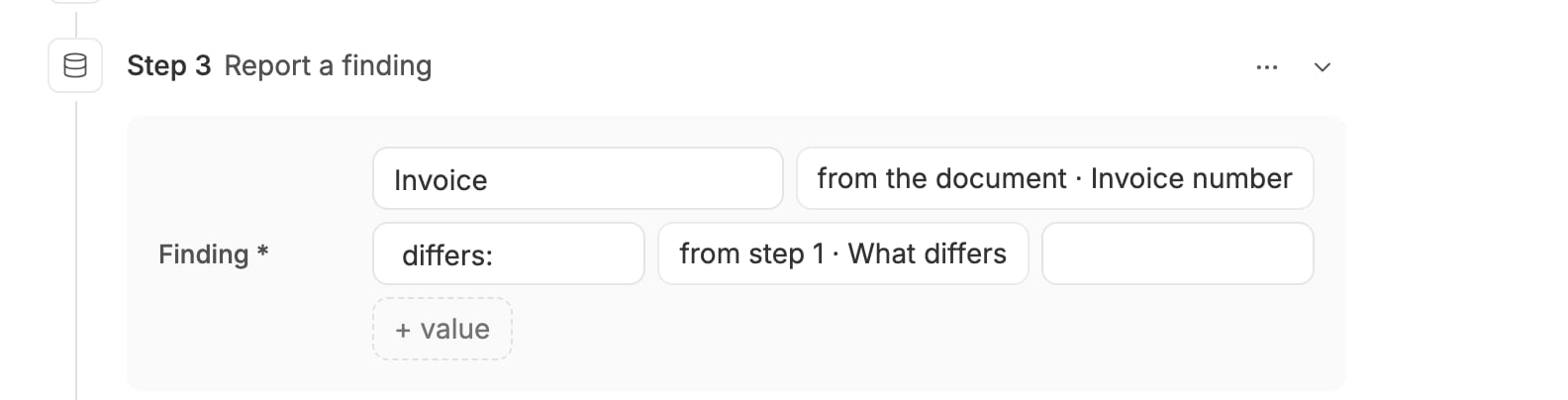
If invoice KSS-INV-26-0288 charged USD 540/MT, the finding would read "Invoice KSS-INV-26-0288 differs: unit price USD 540/MT, contract VCS-P-2026-0688 USD 528/MT".
Make a confirmation
Draws a PDF of a trade’s terms and files it on the trade. Set Trade to the trade’s id, such as “from the document · Its trade”. It asks first; a workspace admin can let it run without review, since the PDF comes from the approved trade and nothing leaves Mercora. Later steps can pick The confirmation (the new document) and Its file name. It needs the Trades area.Apps
App actions
Once an admin connects an app and switches its actions on under Settings → Integrations, the Add a step menu lists them under Apps as app · action, each marked with how it acts:- Only reads: runs straight away, such as finding a contract in your CTRM.
- Asks first: waits for the person under Approved by to approve the exact inputs, then runs once. This is how anything that changes data or leaves Mercora acts, such as sending an email.
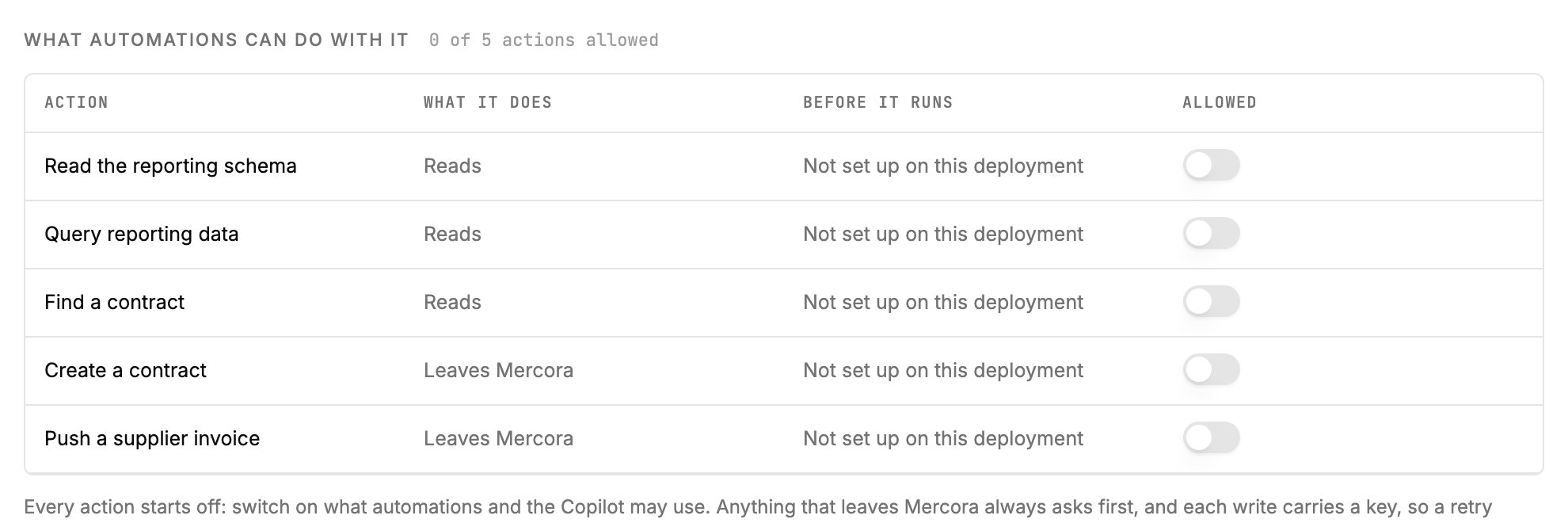
An app's actions, as an admin switches them on for automations in Settings → Integrations.
People
Ask someone to approve
Waits until a person approves, edits or rejects what the step before drafted. Set What person approves (a short title for the card) and Approved by. Rejecting ends the run.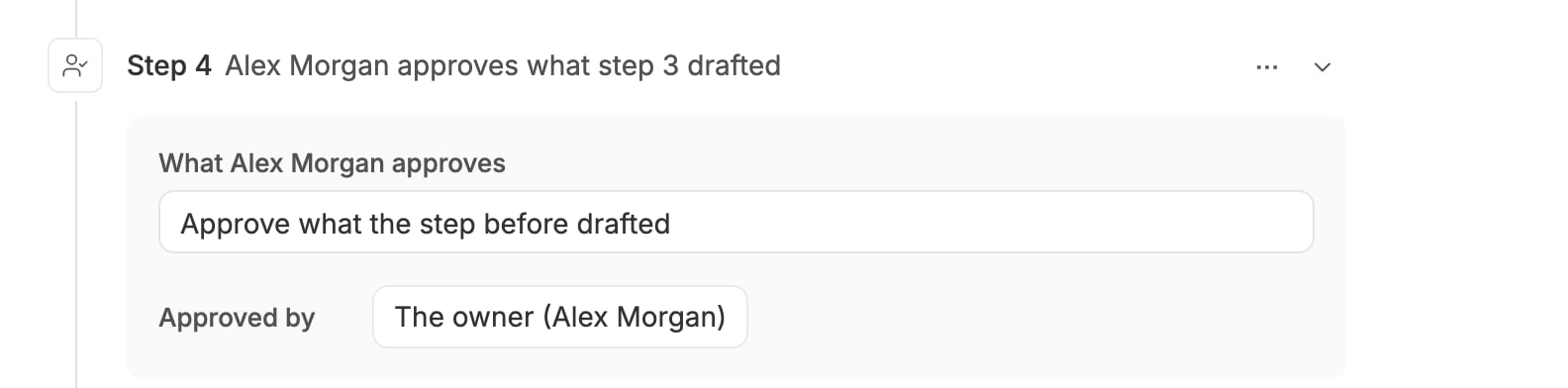
Alex Morgan approves the broker order the AI step drafted.
Ask someone a question
Waits for a person’s answer. Set What person is asked and Answered by. The answer goes to the next step, and any later step can pick it as The answer.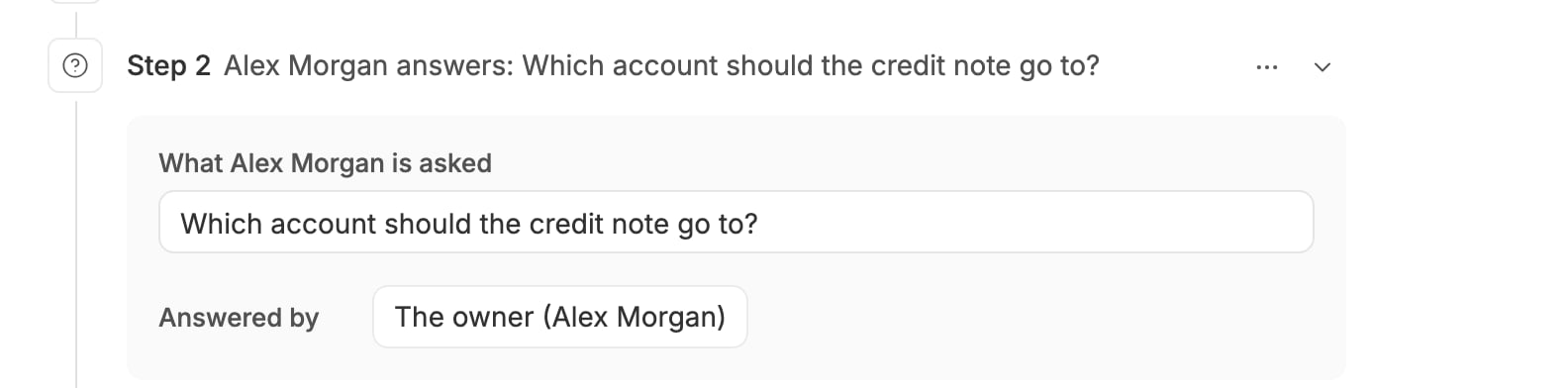
Ask which account a credit note goes to.
Logic
If
Lets the run carry on only when a value matches. Mercora checks the rule itself: no AI decides it.- Click Add a rule.
- Click Pick a value and pick what to check, such as “from step 1 · Matches contract”.
- Pick the test. Tests that compare need a second value: pick it, or type one.
- Under Otherwise, pick what happens when the rule doesn’t hold: Stop here, nothing to report (the run ends quietly) or Skip to step N (a later step).
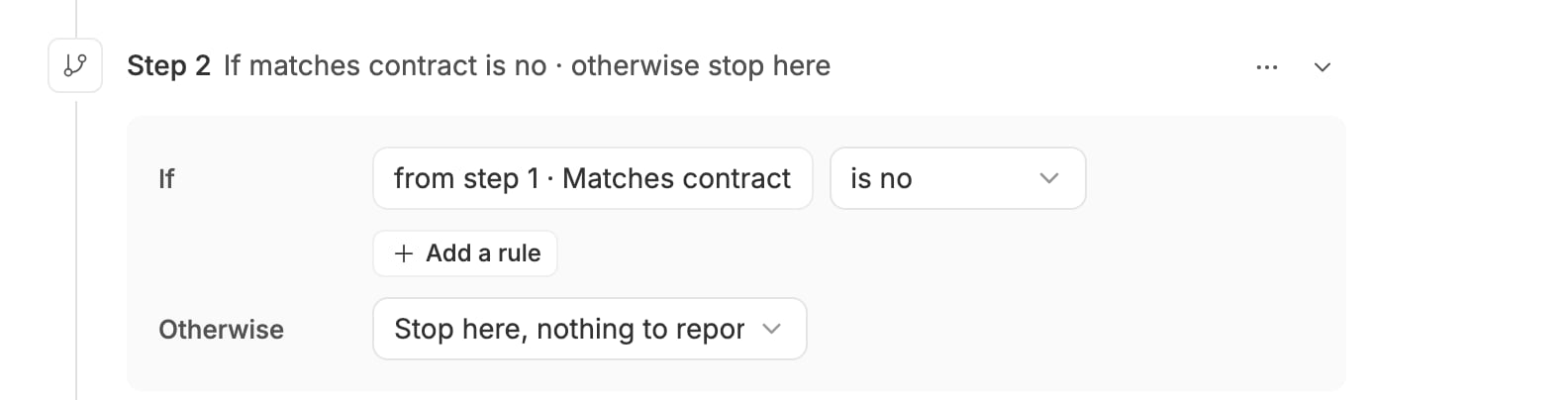
Carry on to the finding only when step 1 says the invoice doesn't match.
1200 or 1200.50; “1,200” is not read as a number.
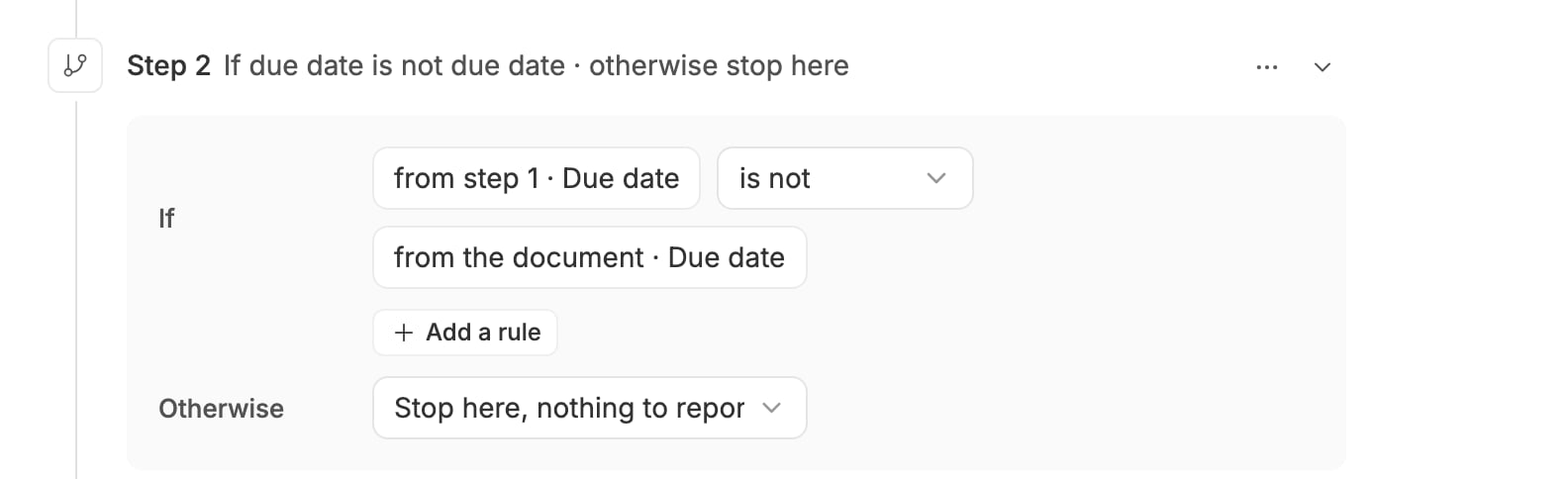
Compare two values: carry on only when the due date step 1 worked out differs from the one on the invoice.
Wait for
Pauses the run. Pick what it waits for under Wait for: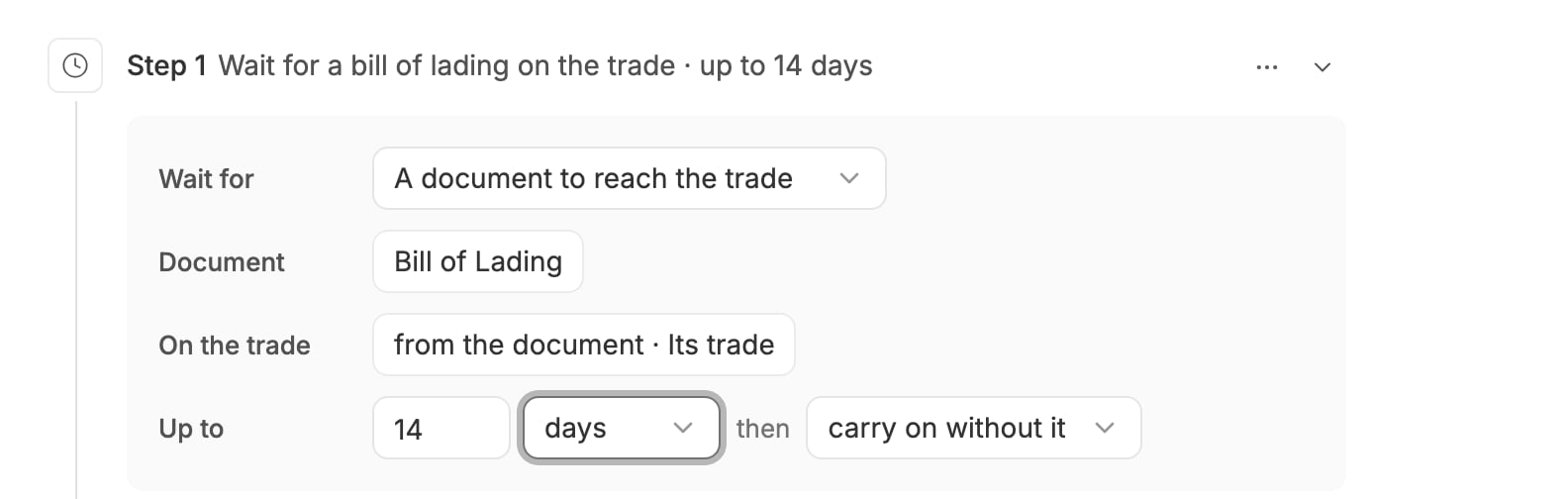
Wait up to 14 days for a B/L to reach the contract's trade, then carry on without it.
Tell someone
Leaves a note in a member’s Inbox, and the run carries on without waiting. Pick who under Tell (the owner by default) and write the Note, with values if you like. Their notification settings can also send it to their email or WhatsApp.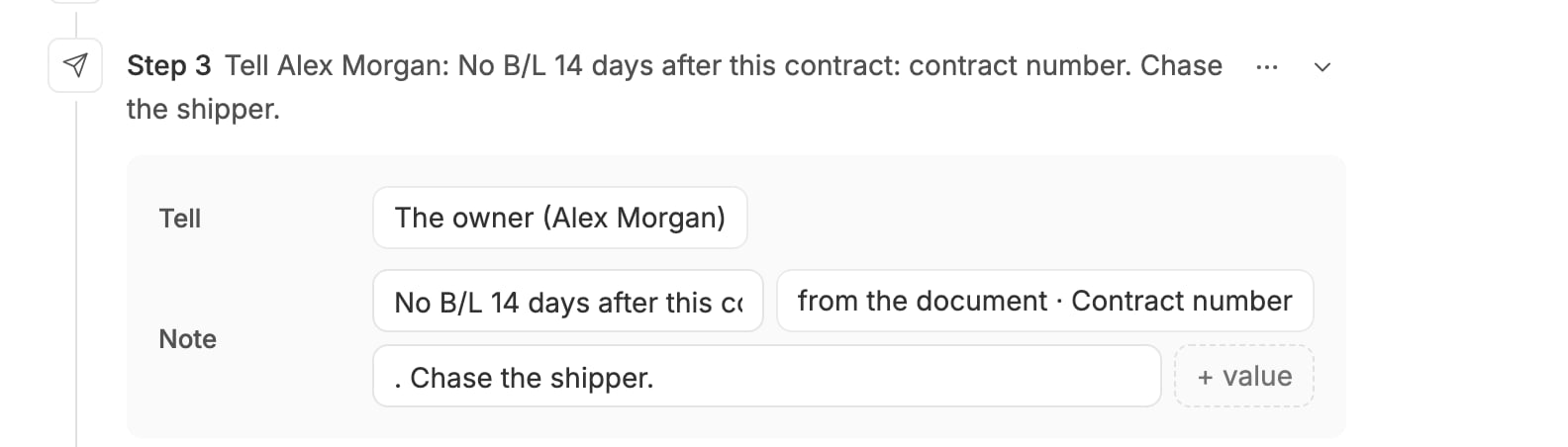
Tell the owner which contract has no B/L yet.
Stop here
Ends the run as done. Use it to end one branch of an If. To run step 2 when a rule holds and step 4 when it doesn’t:- If the rule, otherwise Skip to step 4
- The step for when the rule holds
- Stop here
- The step for when it doesn’t
Who is asked
Every step that involves a person names one member: an AI step’s Who approves what it proposes, an approval, a question, an Update a record or app step that asks first, a Tell someone note, and a failure plan. It’s the owner unless you pick someone else, and the member you pick must be able to see what their card shows. Where the step waits for a decision, that member or a workspace admin decides; a Tell someone note only lands in their Inbox.If a step fails
An AI step, a Mercora or app step, and a Wait for step can each have a plan for when they fail. With no plan, a failed step stops the run: it ends as failed, with the step and the reason, and a card in the Inbox. To change that, open the step’s ⋯ menu and click Add what happens if it fails. An If it fails row appears, set to Ask someone. Pick:- Ask someone: the member you pick sees what failed and chooses Try again, I did it by hand · carry on or Stop the run.
- Tell someone and carry on: they get a note and the run goes on. Not offered when a later step uses this step’s values, since those values would be missing.
- Stop the run: removes the plan again, so a failure stops the run as above.

If the AI step fails, ask the owner. It can't just carry on, because step 2 uses its values.
Next steps
- Use values from earlier steps: fill the steps’ fields with values from the trigger and from each other.
- Examples: four automations that combine these steps.