This page follows one trade through Mercora from start to finish, so you can see how the pieces connect before you read about each one. Every step links to the page that covers it in detail.

The trade

Veltana Commodities SA, a trading house in Geneva, buys white refined cane sugar from a Thai mill and sells it to a food distributor in Singapore. The trade, VCS-S-2026-0714, is already open in Mercora, but carries nothing beyond its reference. Everything else on it comes from its documents. The cargo is 27 MT in one container on the vessel KITI BHUM, under B/L RCLLCH2607841. Meridian Foodstuffs pays under letter of credit ILC26SG04582.
The screens below come from a workspace with every module on. If an area such as Shipments, Contracts or P&L is missing from your sidebar, it’s turned off for your workspace or your role. See Modules.

From documents to P&L

1

Documents arrive

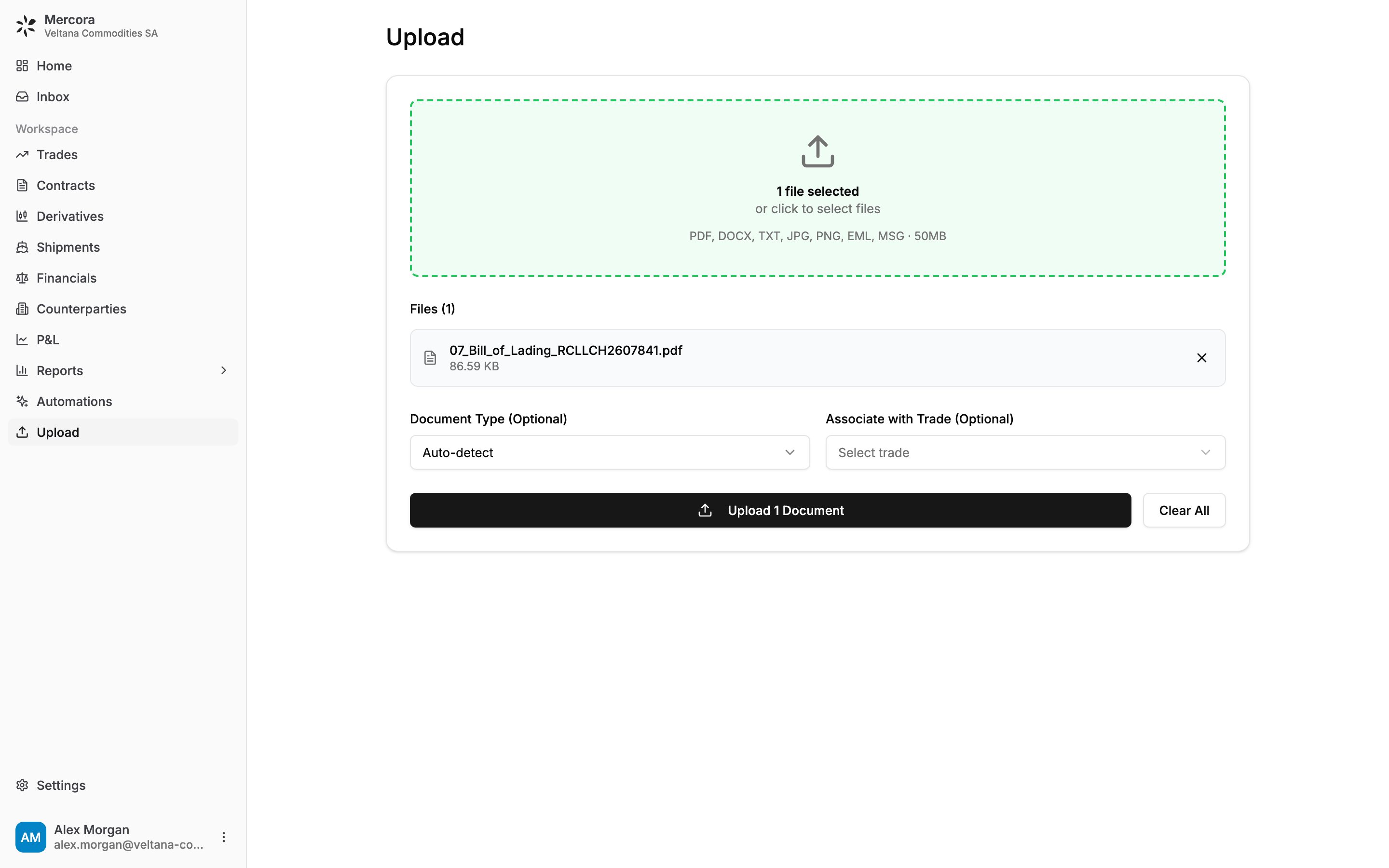
Twelve documents come in for the trade: both contracts, the L/C, two commercial invoices, the packing list, the B/L, the certificates of origin, phytosanitary, quality and weight, and the insurance certificate. Upload them on the Upload page, or let them arrive by email if your workspace has it set up. Leave Document Type on Auto-detect and Associate with Trade empty: Mercora works out both. See Uploading documents.
The Upload page with a file ready to upload

Uploading B/L RCLLCH2607841, with the document type left on Auto-detect and no trade chosen.

2

Mercora reads and classifies them

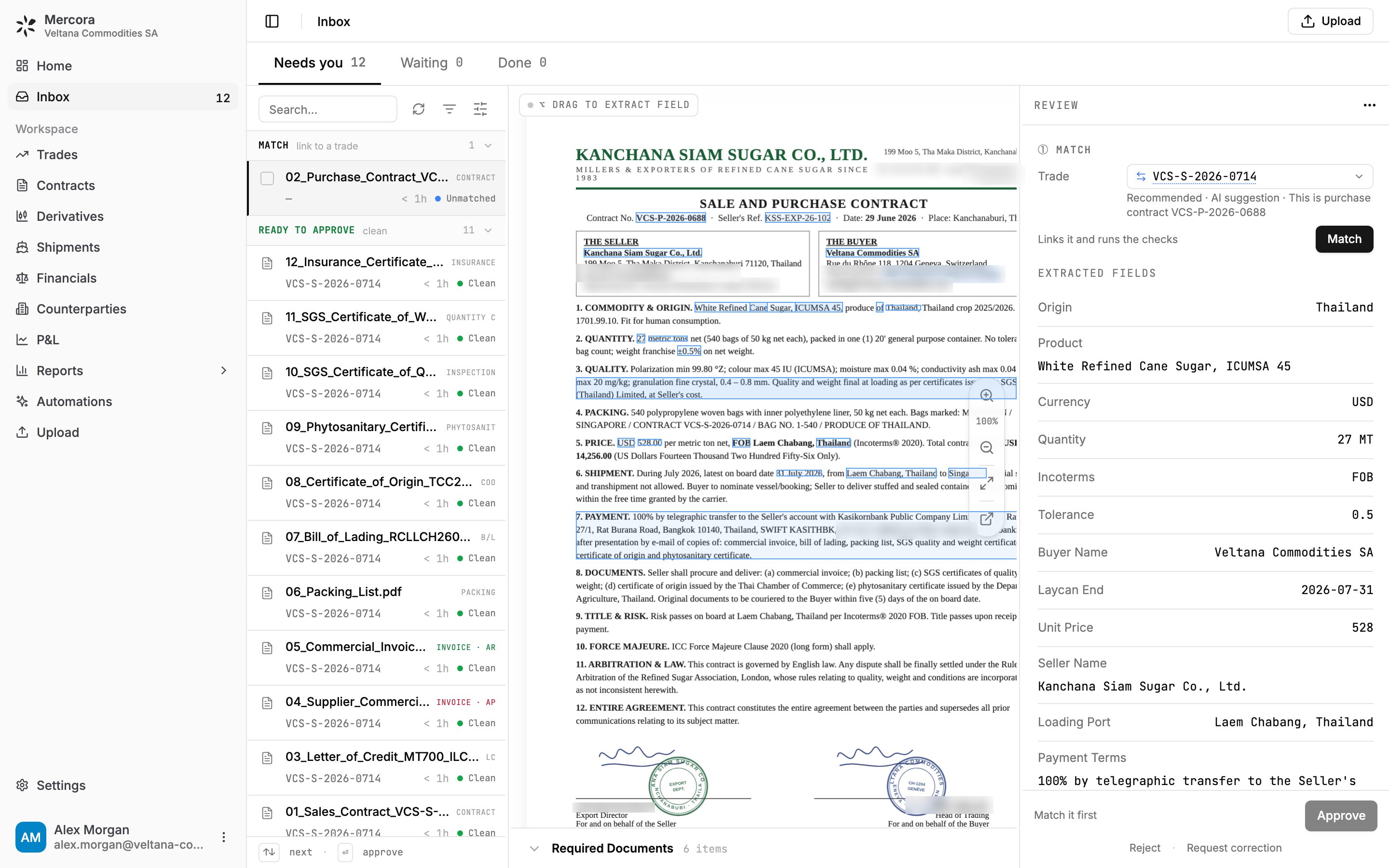
Each document lands in the Inbox, under Needs you, tagged with its type: CONTRACT, LC, B/L, COO, INVOICE · AR for Veltana’s own invoice and INVOICE · AP for the mill’s. Mercora reads each one’s fields, such as parties, quantities, prices, ports and references. Eleven documents cite VCS-S-2026-0714, so they’re already on the trade and wait under Ready to approve, marked Clean. See Processing.
The Inbox with the sugar trade's twelve documents

All twelve sugar documents in the Inbox: eleven ready to approve, one purchase contract to match.

3

Mercora matches them to the trade

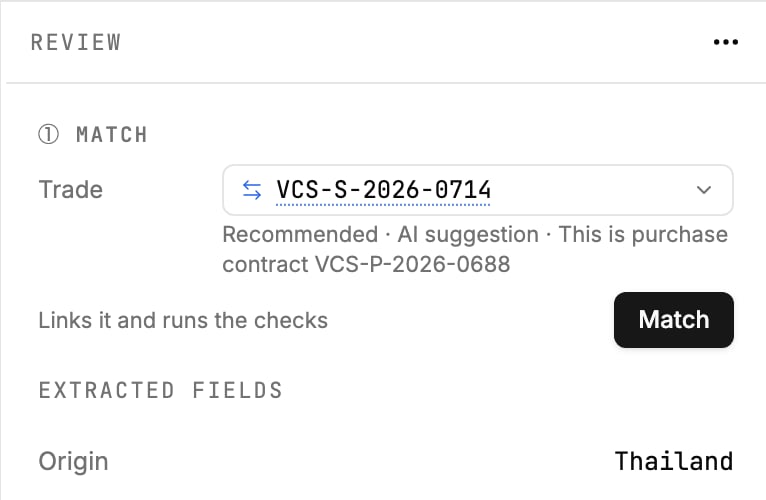
The purchase contract carries its own number, VCS-P-2026-0688, rather than the trade’s, so Mercora doesn’t link it on its own. It recommends VCS-S-2026-0714 instead and gives its reason, and the document waits under Match. Click Match to link it and run its checks. See Matching documents to trades.
The Match step recommending trade VCS-S-2026-0714

Purchase contract VCS-P-2026-0688: Mercora recommends trade VCS-S-2026-0714 and waits for you to click Match.

4

You review the fields beside the PDF

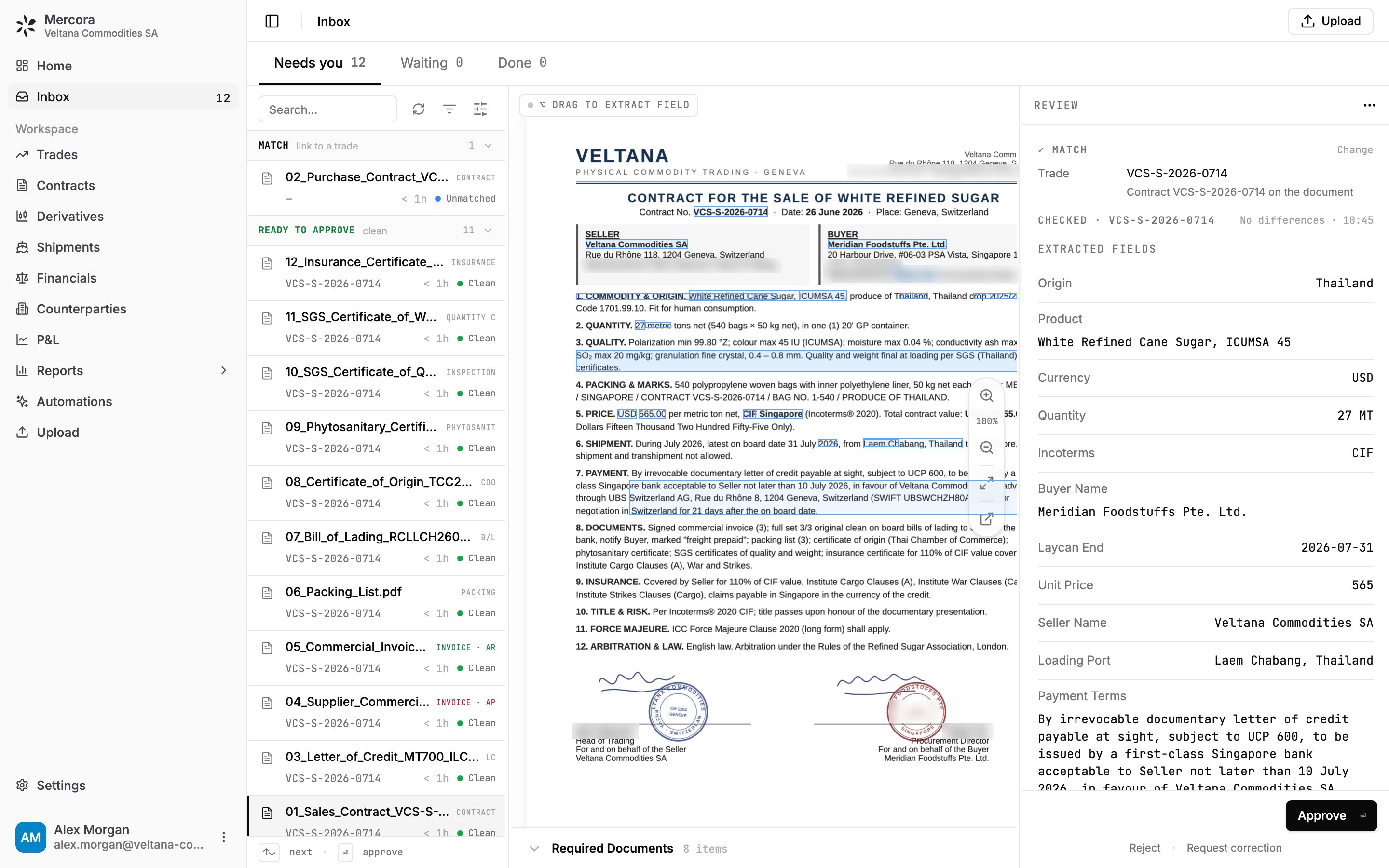
Open the sales contract. The original is in the middle, with a box around every value Mercora read, and the review panel on the right lists the fields: 27 MT, CIF, unit price 565, buyer Meridian Foodstuffs Pte. Ltd. Click a field to find it on the page, double-click it to correct it, or hold Option (Alt on Windows) and drag a box to read a value Mercora missed. See Reviewing a document.
Reviewing the sales contract beside its PDF

Sales contract VCS-S-2026-0714: the original in the middle, the fields Mercora read on the right, matched and checked with no differences.

5

You approve, and the legs are created

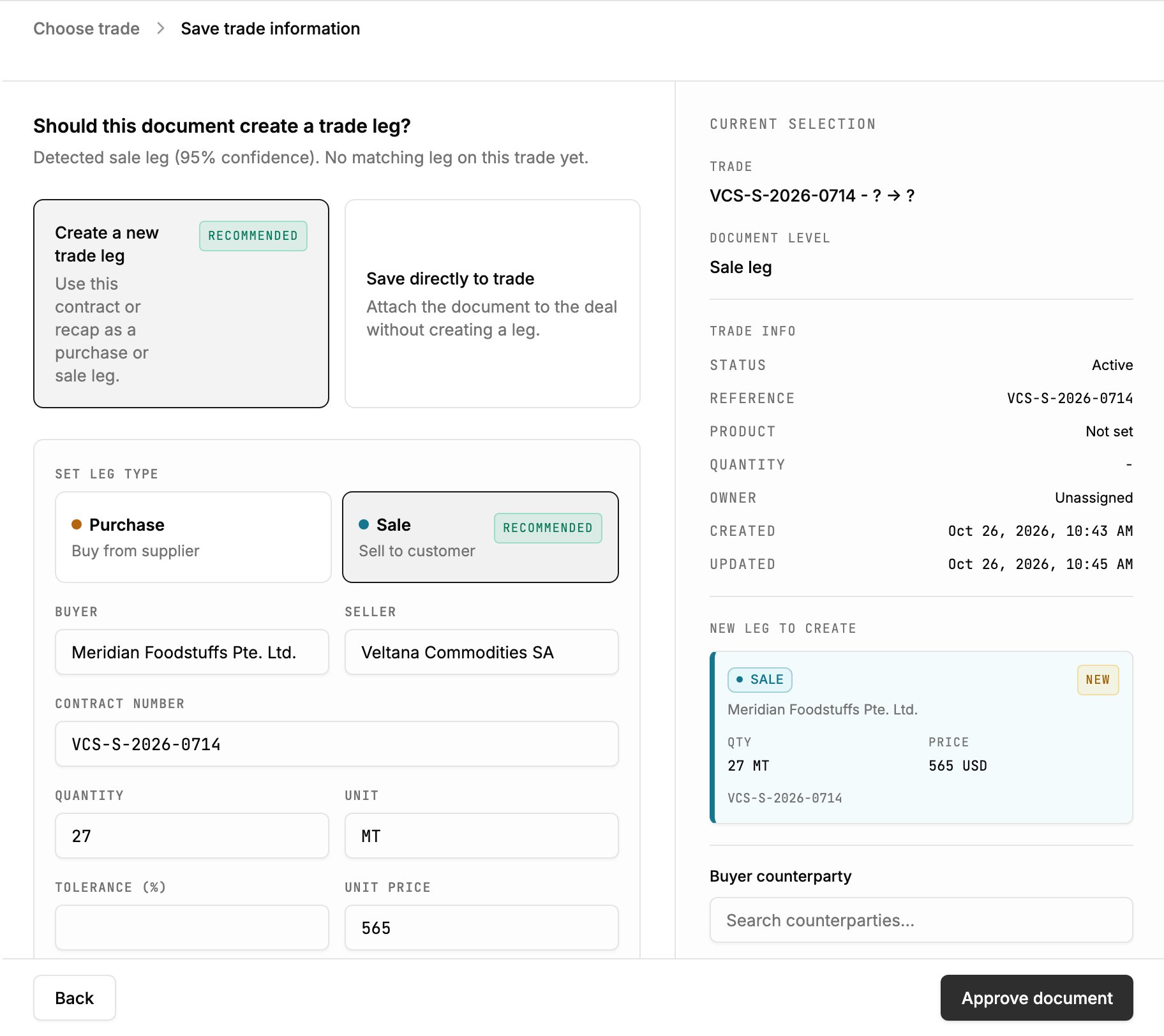
Approving a contract opens a short flow, because it shapes the trade. Mercora recommends Match to existing trade for VCS-S-2026-0714, then proposes a new Sale leg to Meridian Foodstuffs for 27 MT at 565 USD; click Approve document, and approve the purchase contract the same way to add the purchase leg at 528 USD. The other documents approve straight from the review panel with Approve or Enter, and a missing required field, such as an invoice’s due date, is marked in red until you set it. See Approving contracts and recaps.
The approval step that creates a sale leg

Approving the sales contract creates the sale leg to Meridian Foodstuffs: 27 MT at USD 565/MT.

6

Discrepancies are checked

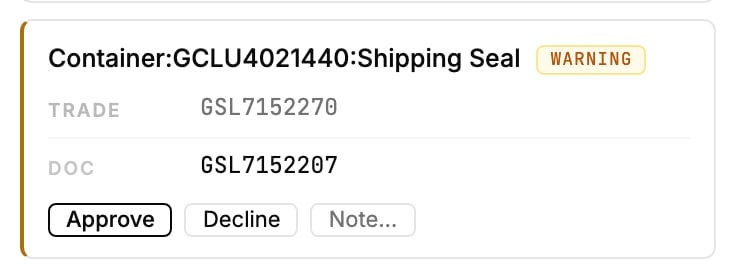
Mercora checks each document against the trade when it’s matched, and again whenever another document on the trade is approved. The sugar documents agree on the weights, container, ports and vessel, and by the end the trade has no open discrepancies. When a value does differ, the review panel shows a card with the trade’s value beside the document’s, and you choose Approve, Decline or Note…, as on the aluminium trade further down this page. See Discrepancies.
A discrepancy card with Trade and Doc values and Approve, Decline, Note…

A discrepancy card, from the aluminium trade: the seal on the weight certificate, GSL7152207, against GSL7152270 on the trade.

7

The trade page: overview and financials
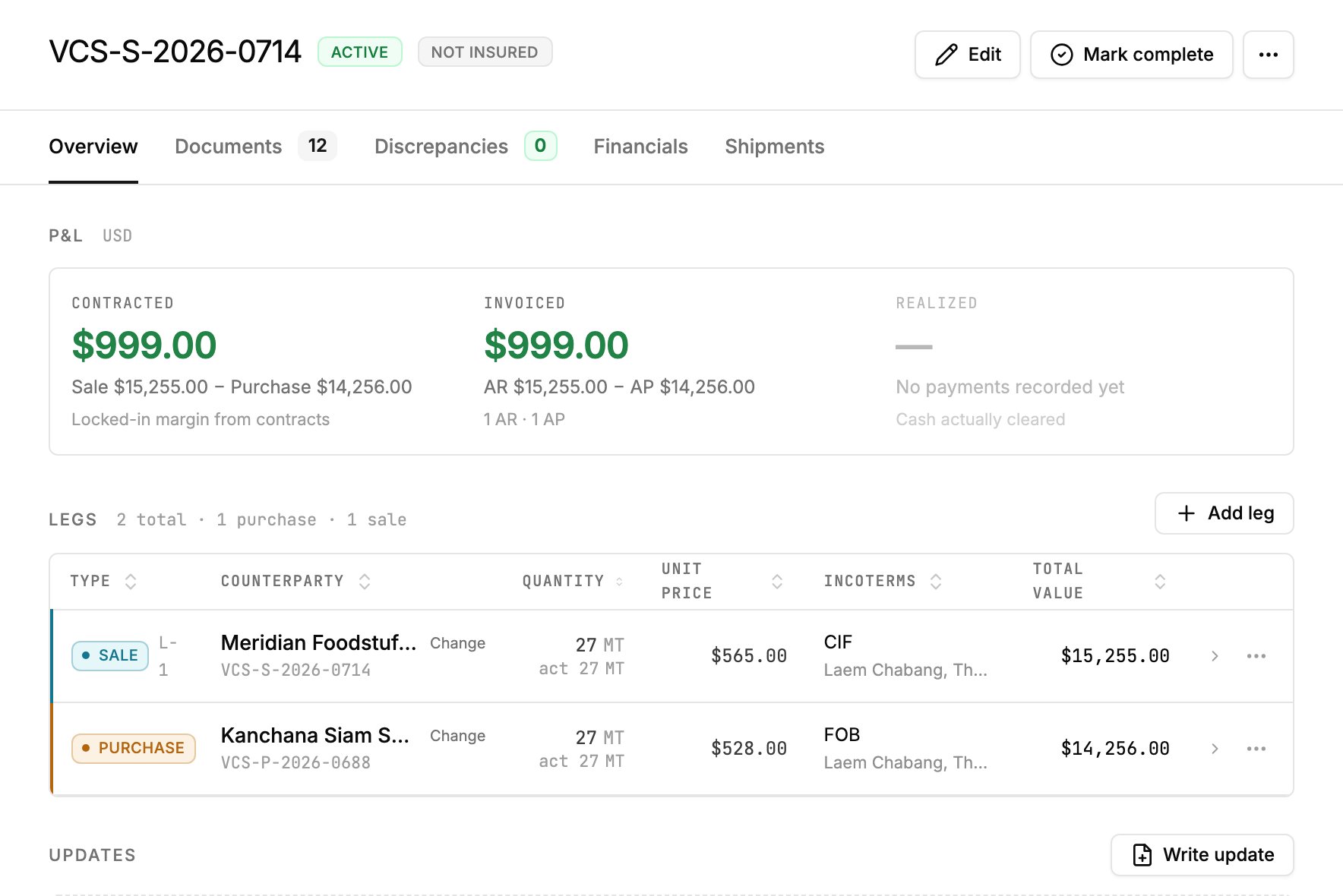
With both contracts approved, VCS-S-2026-0714 has its two legs, and the P&L card on the Overview tab fills in: Contracted $999.00 from the contracts, **Invoiced** $999.00 from the two invoices, and Realized empty until payments are recorded. The Discrepancies tab reads 0. The Financials tab lists the two invoices behind the invoiced figure, $15,255.00 receivable and $14,256.00 payable, and is where you record payments. See Trades overview and Trade financials.
The trade's P&L card and legs

VCS-S-2026-0714 on the Overview tab: $999.00 contracted and invoiced, with the sale and purchase legs.

8

The trade page: documents and the expected-documents checklist
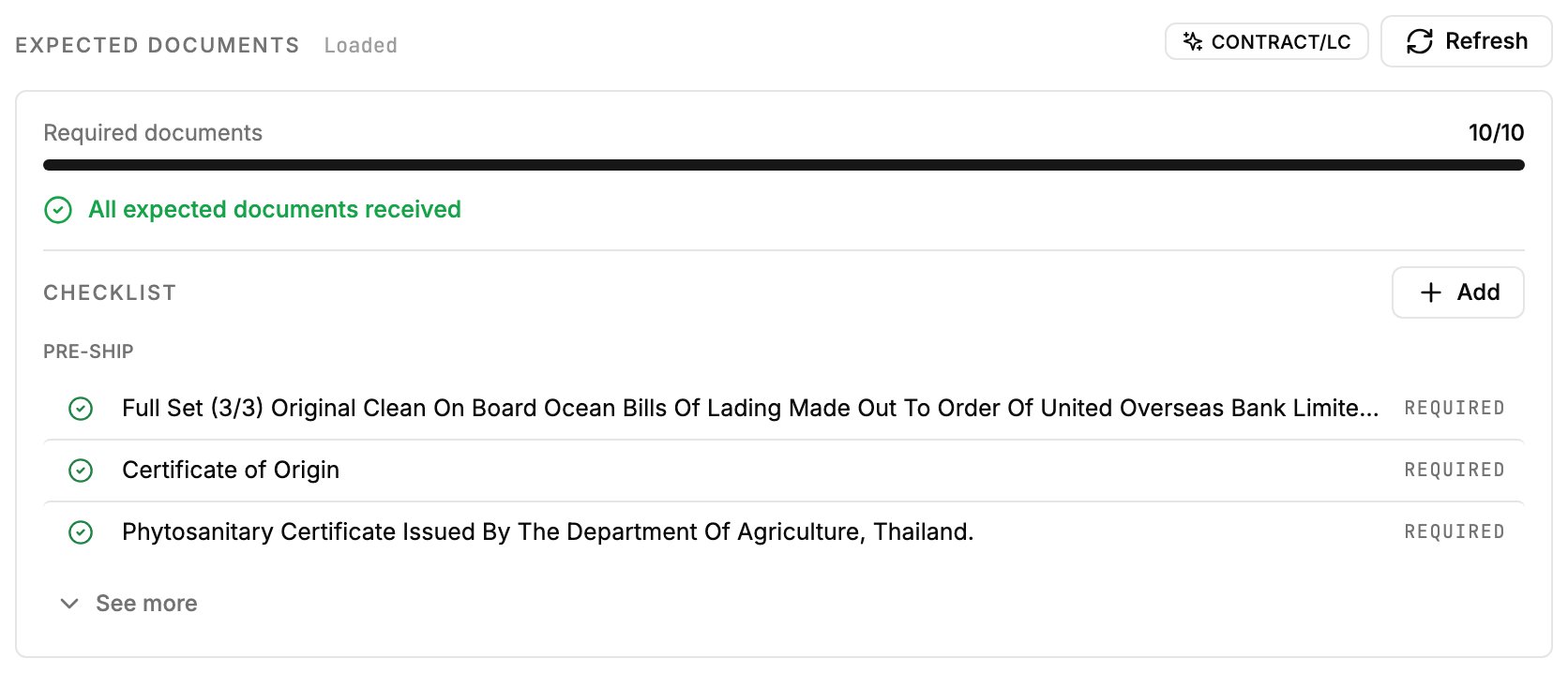
The Documents tab lists all twelve documents, approved and linked to the trade. Above them, Expected documents is the checklist Mercora built from the document requirements in the contract and the L/C, marked Contract/LC. It reads Required documents 10/10 and “All expected documents received”; anything still missing would show here, unticked. See Expected documents.
The Expected Documents card with the checklist

Every document the contract and L/C ask for has arrived: 10/10.

9

The trade page: shipments

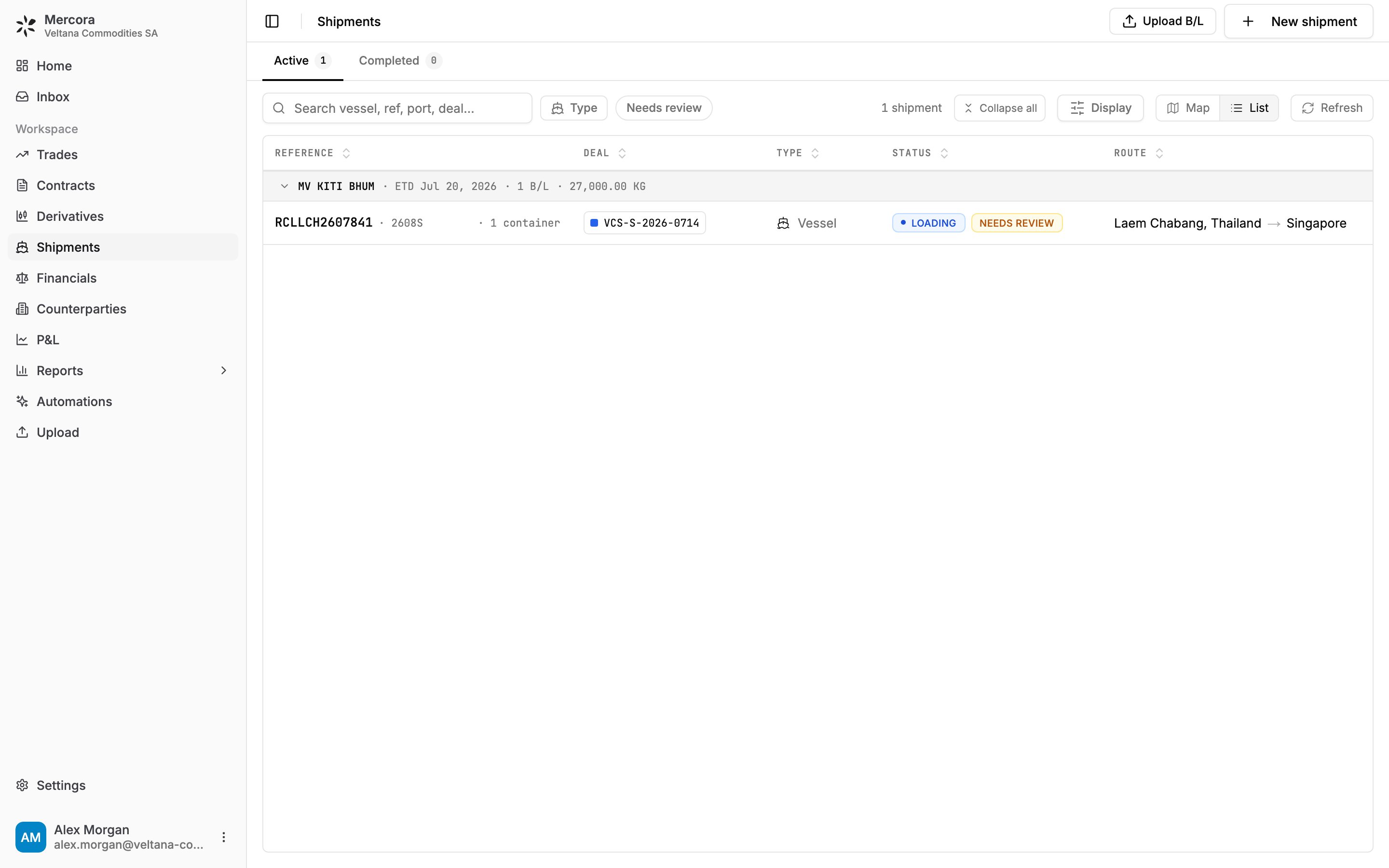
Reviewing the B/L in the Inbox gives the trade its shipment: KITI BHUM, B/L RCLLCH2607841, one container of 27,000 kg, loading at Laem Chabang for Singapore. It shows on the trade’s Shipments tab and on the Shipments page with its status. A Needs review label means something about the shipment is worth a check, and the shipment’s page gives the reason. See Shipments.
The Shipments page in List view

The Shipments page: KITI BHUM, B/L RCLLCH2607841, loading at Laem Chabang for Singapore.

10

The P&L

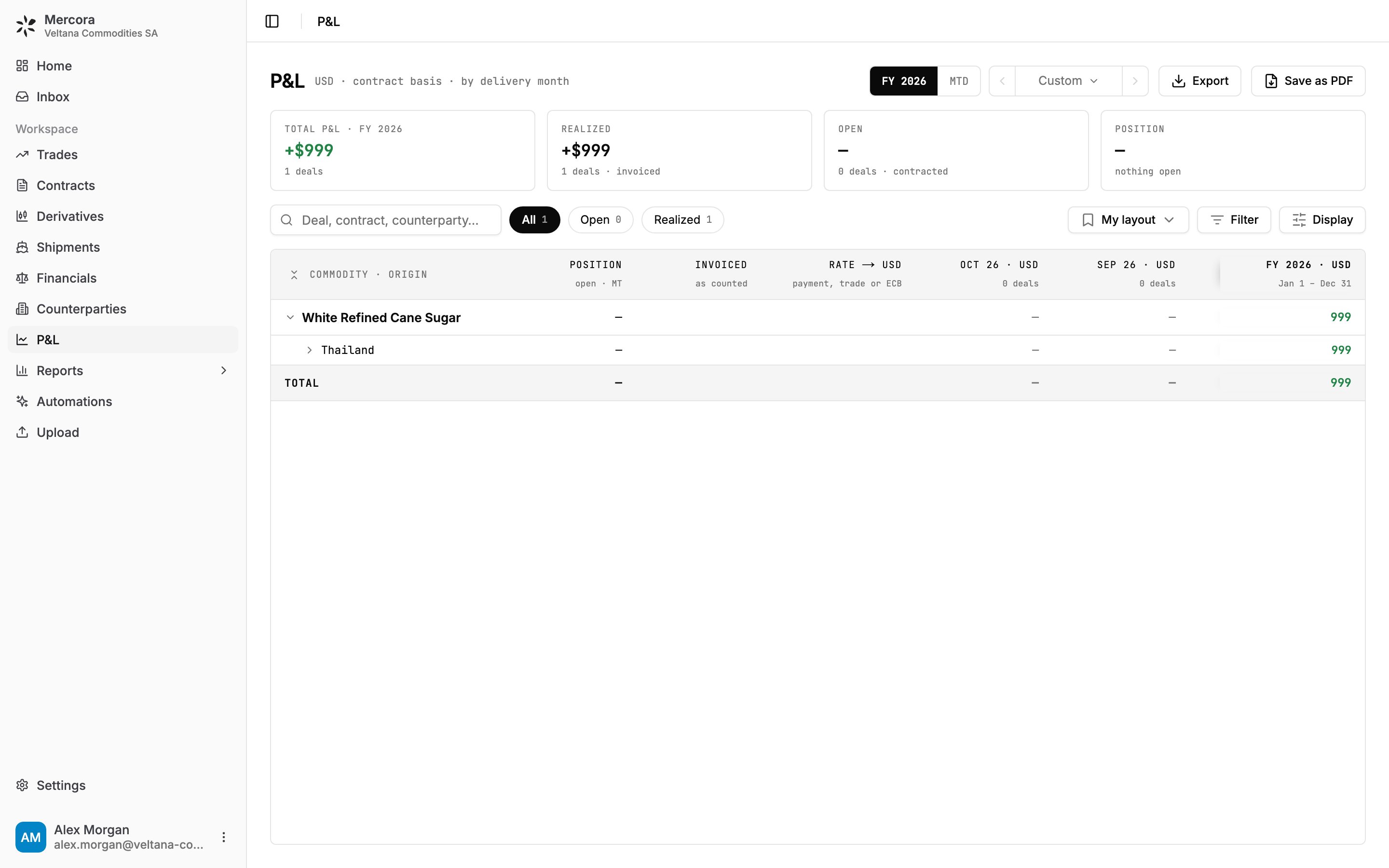
The P&L page shows the margin on every deal in your book. With the B/L approved and invoices on both sides, VCS-S-2026-0714 counts as realized on its invoices: AR $15,255.00 minus AP $14,256.00, +$999 for FY 2026, under White Refined Cane Sugar, Thailand. That’s a gross margin: freight and insurance come off it once their invoices are filed on the trade. See P&L.
The P&L page

The P&L page for FY 2026: +$999, realized on the invoices of VCS-S-2026-0714.

When something doesn’t match

The sugar trade already existed and its documents agreed. Here’s a deal where neither is true. Veltana Metals SA buys 500 MT of primary aluminium ingots from Altamira Metals DMCC at USD 2,540/MT and sells them to Extrunord Metallwerke GmbH at USD 2,585/MT, both CIF, shipping from Jebel Ali to Rotterdam on CORMORANT BAY. No trade exists for it yet.

Create a trade from a purchase contract

Create contract and new deals need the Contracts module. Without it, the approval flow offers Create a new trade instead. See Modules.
1

Mercora proposes a new trade

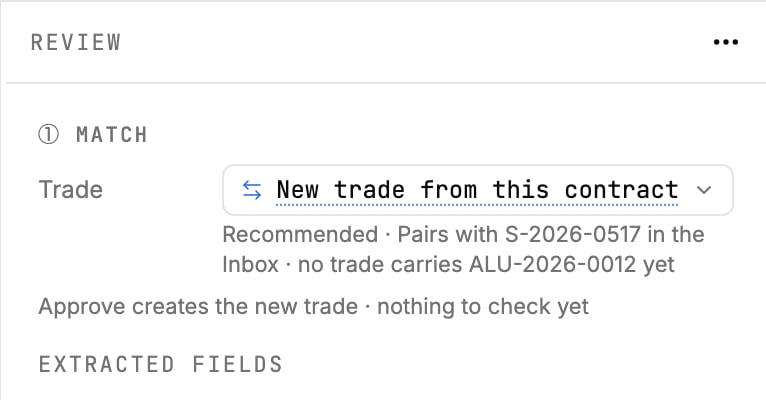
Purchase contract P-2026-0893 carries the reference ALU-2026-0012, but no trade has it yet. So the Match step recommends New trade from this contract, and notes that the other side, sales contract S-2026-0517, is waiting in the Inbox. Click Approve: nothing is created until you finish the approval. See Starting a trade from a contract.
The Match step recommending a new trade from a contract

No trade carries ALU-2026-0012 yet, so Mercora recommends a new trade from purchase contract P-2026-0893.

2

Create the contract and its deal

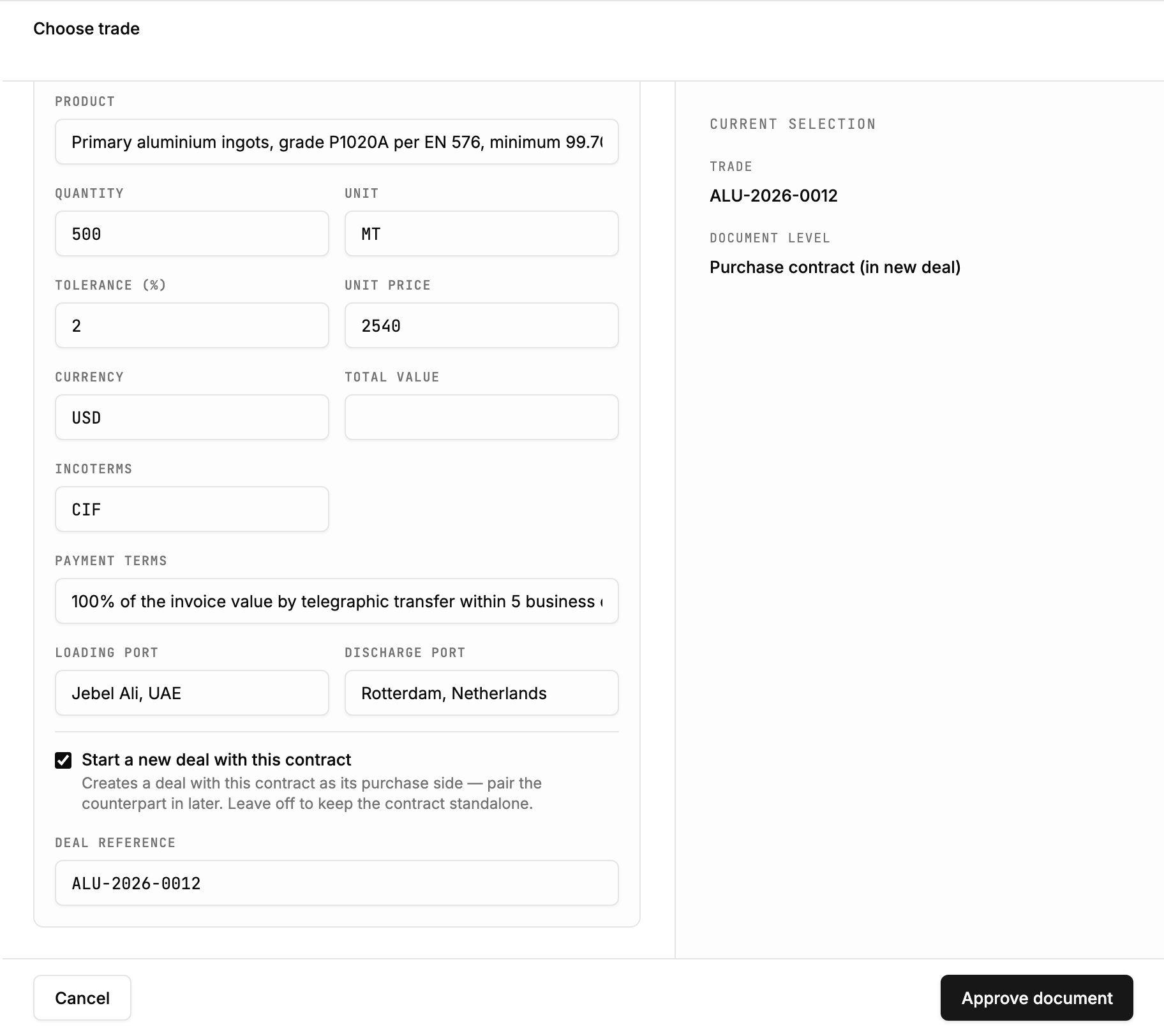
Under Where should this document go?, Create contract is recommended and Purchase is pre-selected, with the contract’s fields filled in: Veltana Metals SA buying from Altamira Metals DMCC, 500 MT at 2540 USD, CIF, Jebel Ali to Rotterdam. Leave Start a new deal with this contract ticked, with deal reference ALU-2026-0012, and click Approve document. Mercora saves the purchase contract and opens trade ALU-2026-0012 around it. See How trades are created.
The new-deal option on the create-contract form

Start a new deal with this contract opens deal ALU-2026-0012 with this purchase as its first side.

3

Approve the sale side

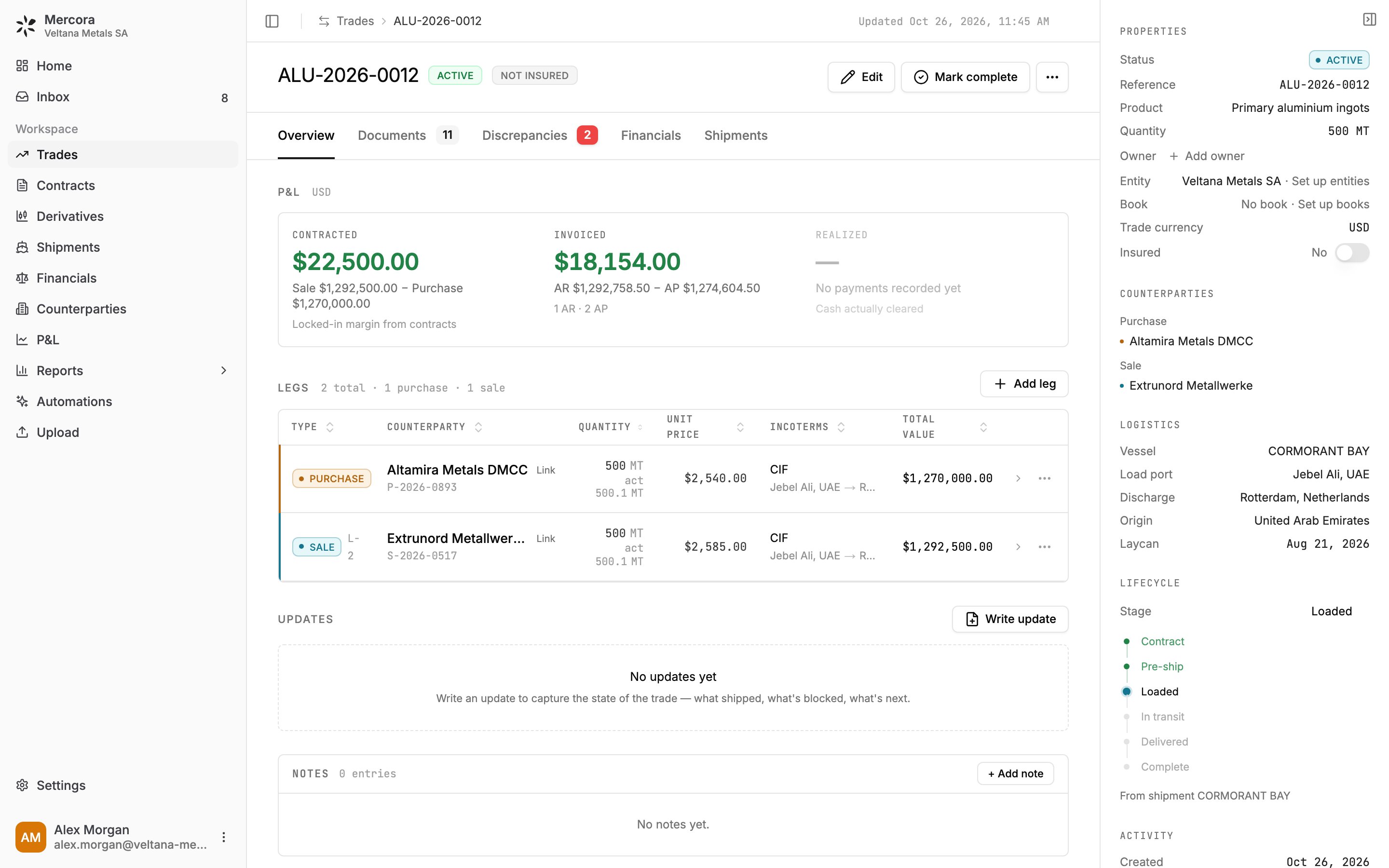
Now sales contract S-2026-0517 has a trade to go to: Mercora finds ALU-2026-0012 for it, and approving it adds the sale leg to Extrunord Metallwerke at USD 2,585/MT. The trade shows both legs and a contracted margin of $22,500.00, and its Discrepancies tab already counts two.
The aluminium trade ALU-2026-0012 after both contracts were approved

ALU-2026-0012 with a purchase at $2,540/MT and a sale at $2,585/MT: $22,500.00 contracted margin.

Resolve a discrepancy

1

See what's open

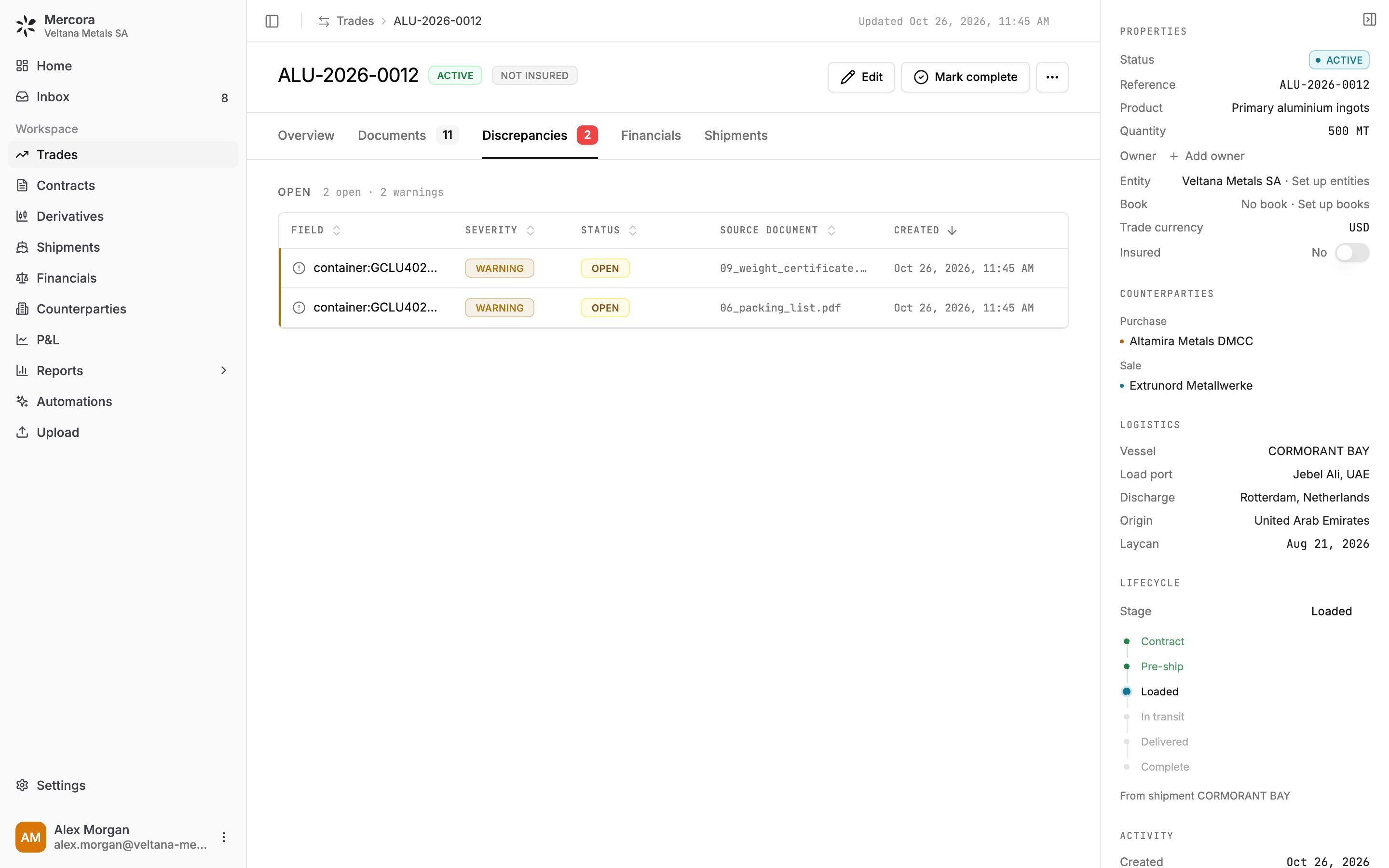
The trade’s Discrepancies tab lists two open warnings, raised by the weight certificate and the packing list on a container seal. Click a row to open that document in the Inbox, where you resolve it. Documents that describe the cargo are also checked against the shipment, so shipment CORMORANT BAY (B/L CBAY-JEA-RTM-88213) keeps its own list on its Discrepancies tab. See Discrepancies on a trade.
The aluminium trade's Discrepancies tab

Two open seal warnings on ALU-2026-0012.

2

Decide on each one

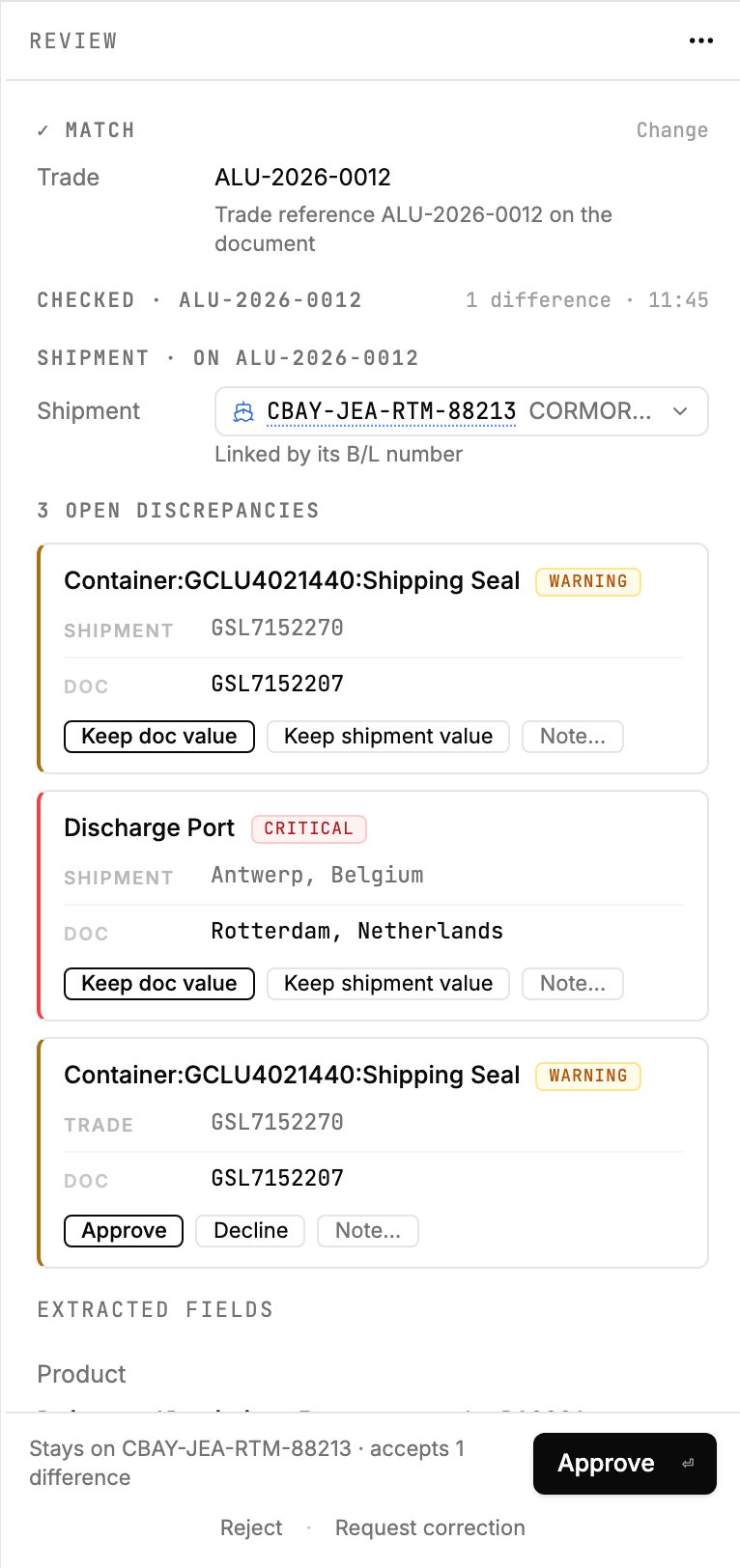
Each card shows the field, its severity and both values: here the weight certificate’s seal GSL7152207 against GSL7152270 on the shipment and the trade, and a discharge port of Rotterdam on the document against Antwerp on the shipment. Against the trade, choose Approve to accept the difference, Decline if the document must be fixed at the source, or Note… to record why. Against the shipment, Keep doc value updates the shipment and Keep shipment value leaves it as it is. Approving the document accepts whatever is still open, and the line beside Approve says how many. See Reviewing discrepancies.
The review panel for the weight certificate

The weight certificate's review panel: its seal checked against the shipment and the trade, and its discharge port against the shipment.

Next steps

Upload your documents

Start your own trade the same way: with its documents.

The Inbox

Everything about reviewing, approving and correcting documents.

Mercora by role

What to read next for your job.