

Before you start: only workspace admins manage keys, under Settings → API in the Administration section.
The API page
Settings → API has two sections. Connection shows what a developer needs to connect:- Base URL: your workspace’s API address.
- Authentication: the header to send on every request,
Authorization: Bearer <key>. - API reference: links to an interactive reference (Swagger UI) and the machine-readable openapi.json.
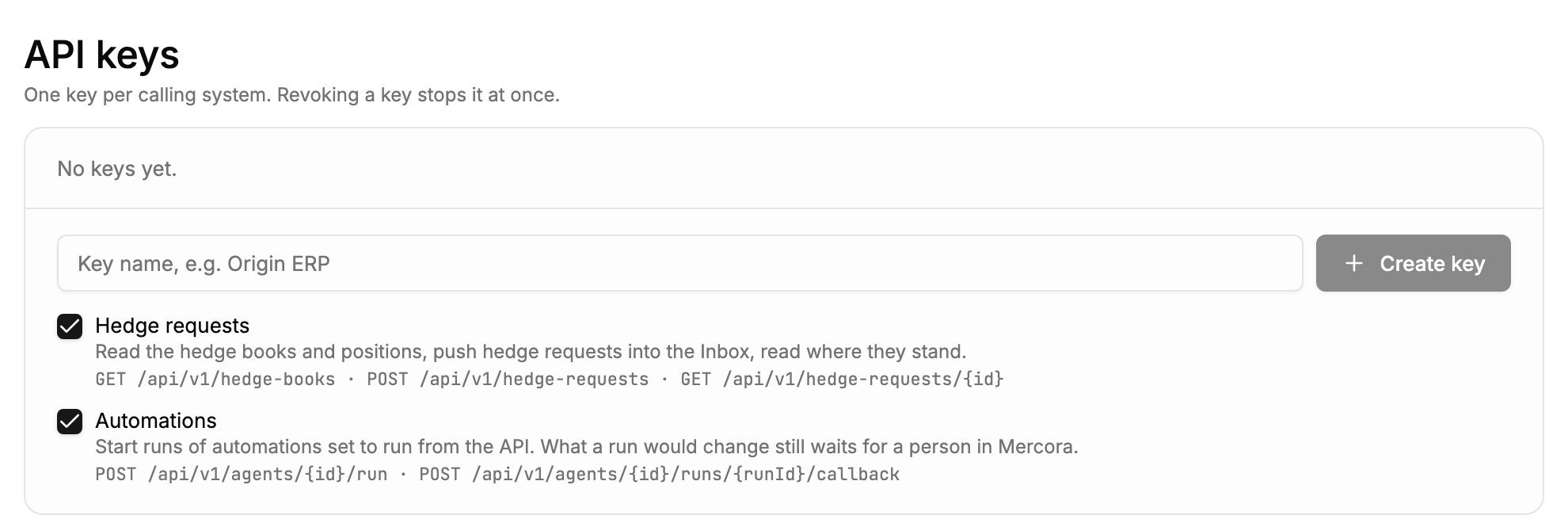
The API keys section before any key exists: name the key, keep or untick its scopes, then click Create key. Each scope lists the endpoints it opens.
Scopes
A key can only call what its scopes allow. You choose the scopes when you create the key.
Under each scope, the page lists the endpoints it opens.
A key never gains a scope it wasn’t given. If Mercora adds a new scope later, your existing keys don’t get it: create a new key that includes it.
Some calls also need a module. Sending a hedge request needs the Hedging module, and starting or continuing an automation run needs the Automations module. While the module is off, those calls are refused. Ask your workspace admin.
Create a key
1
Open the API page
Go to Settings → API.
2
Name the key
In the API keys section, enter a name for the key, for example “Origin ERP”. Names can be up to 80 characters.
3
Choose its scopes
Every scope is ticked to start with. Untick anything this system shouldn’t reach. A key needs at least one scope.
4
Click Create key
The button becomes available once the key has a name and at least one scope. Mercora creates the key and shows it once.
5
Copy the key
Copy the key with the copy button and store it somewhere safe, such as your password manager or your system’s secret store. Click Done when you have it.
mk_. Treat a key like a password: anyone who has it can call Mercora as your workspace, within its scopes.
Review your keys
Each key in the list shows:- Its name, and an Active or Revoked badge.
- The first characters of the key, so you can tell keys apart.
- Its scopes.
- When it was created.
- When it was last used, or Never used.
- When it was revoked, if it has been.
Revoke a key
Revoke a key when the system that uses it is retired, or if you think the key has been exposed.1
Find the key
Go to Settings → API and find the key in the API keys list.
2
Click Revoke
Click Revoke next to it.
3
Confirm
Click Revoke again to confirm. Requests sent with the key fail from then on.
Next steps
API introduction
Base URL, authentication, errors and idempotency.
Hedging
How hedge requests are reviewed and sent from the Inbox.
Automations
Set an automation to run from the API.