

Before you start: discrepancy checks run on documents matched to a trade, so they need the Trades module. Resolving discrepancies needs permission to edit documents. Ask your workspace admin.
What Mercora compares against
Each trade builds up a record of its agreed terms and facts: the contract or recap, the trade’s legs, and what the trade’s approved documents have already established. A new document is compared field by field with that record. The checks run when the document is matched to the trade, and again when:- you edit one of the document’s fields,
- you click Run checks on the document,
- another document on the same trade is approved, which can change the trade’s record.
What gets checked
The core commercial documents get a full check: contracts, recaps, amendments, invoices, letters of credit, documentary credit advices, B/Ls and railway B/Ls. Their parties, product, quantities and weights, prices and amounts, ports, dates, terms and references are compared. Every other document type, such as certificates, packing lists and insurance certificates, is compared only on the physical facts it carries: product, quantity and weights, loading and discharge ports, and vessel. Container seal numbers are compared on every document that lists containers.Severity
Prices and amounts must match exactly. Quantities and weights are allowed the trade’s quantity tolerance, taken from its contract or letter of credit. If the contract doesn’t state a tolerance, Mercora allows 5%.
When Mercora holds back
A wrong warning wastes your time and a wrong “all clear” is worse, so when Mercora can’t be sure a comparison is fair, it skips the check rather than guess. In practice:- Wording differences don’t count. “Santos” and “Port of Santos, Brazil”, or a company name written two ways, are treated as the same when they mean the same thing. A discrepancy is raised only when the values actually conflict.
- Number formats don’t count.
1.234,56,1,234.56and12'500are read the way they’re printed. When a number could be read two ways, the check passes if either reading fits. - Units are converted. Kilograms, pounds and metric tonnes are compared on the same basis. If a unit isn’t recognized, the check is skipped rather than assumed to be tonnes.
- Weights are only compared with weights. A gross weight is never compared with a contract quantity.
- Multi-leg trades. When a trade has several legs with different quantities and the document doesn’t say which leg it’s for, quantity checks are skipped.
- Document dates aren’t compared. Each document has its own issue date, so differences there aren’t discrepancies.
- Purchase and sale contracts. The sale contract is the reference. A purchase contract is compared only on product, quantity, ports and dates, never on price, incoterms, payment terms or parties, because those differ by design: that’s your margin.
- B/L numbers. A trade can have several B/Ls. A document is only flagged for a B/L number the trade doesn’t know about yet.
Reviewing discrepancies in the Inbox
Open discrepancies appear at the top of a document’s review panel in the Inbox, under a heading such as 3 open discrepancies, above the extracted fields. Documents with open discrepancies sit in Needs you, under Review, with a status such as 2 disc. Each discrepancy is a card with the field, its severity, and two values: the value on the document (Doc) and the value it was compared with. Click a card to highlight the value on the document. What the card compares with, and the buttons it offers, depend on what it checks:
A document that belongs to a shipment, such as a B/L, packing list or weight certificate, can carry both kinds. The same container seal can be flagged twice: once against the shipment and once against the trade.
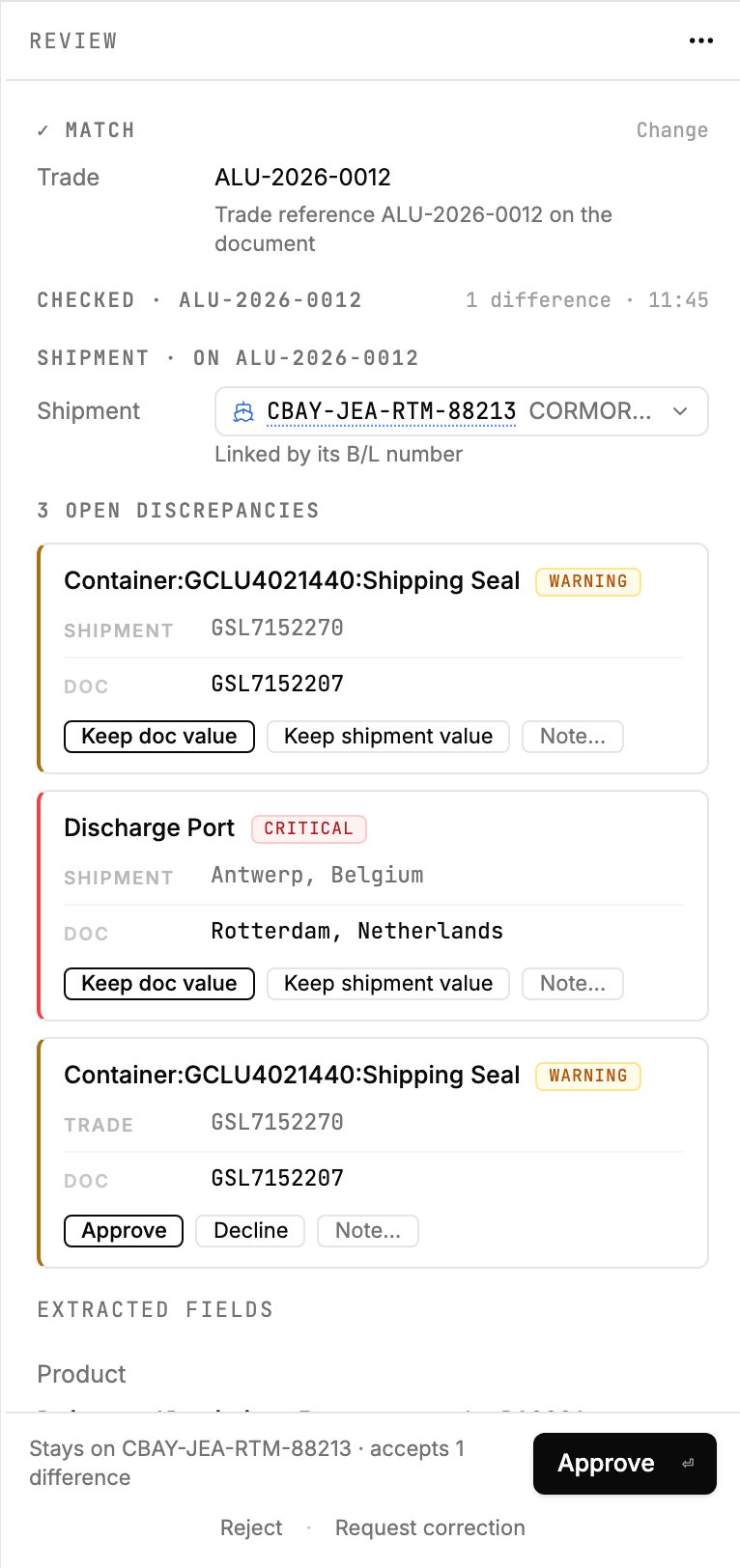
The weight certificate for ALU-2026-0012 with both kinds of card: two shipment discrepancies (seal and discharge port) and one trade discrepancy on the same seal.
Trade discrepancies: Approve, Decline, Note…
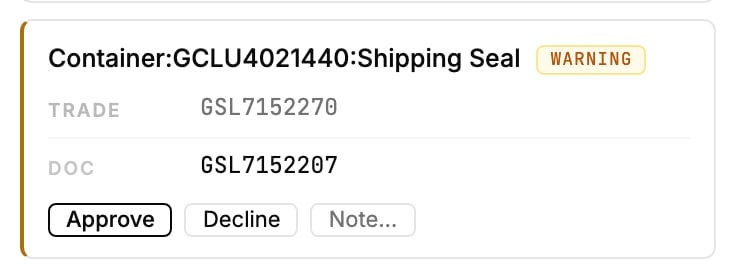
A trade discrepancy: the weight certificate's seal for container GCLU4021440 differs from the trade, GSL7152207 against GSL7152270.
Shipment discrepancies: Keep doc value, Keep shipment value, Note…
Documents that belong to a shipment are also checked against that shipment’s record. These cards are labelled Shipment instead of Trade, and you decide which value is right.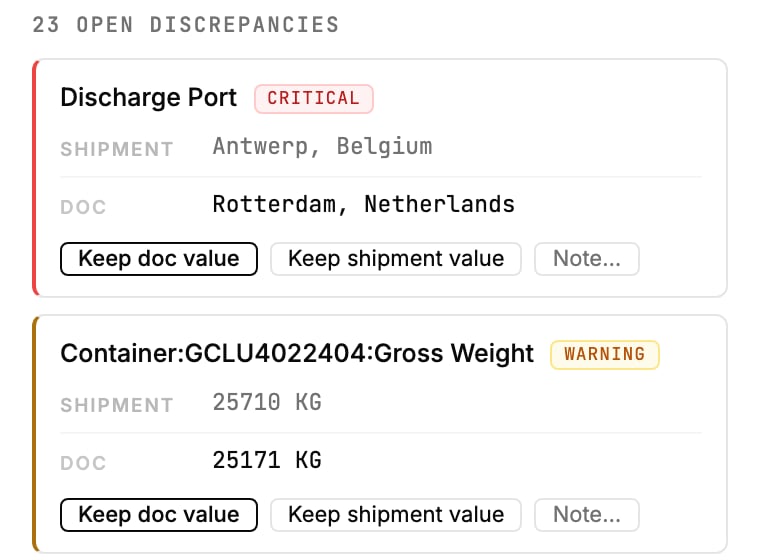
A critical shipment discrepancy: the shipment says Antwerp, Belgium; the packing list and contract say Rotterdam, Netherlands.
In the example above, choosing Keep doc value moves the shipment’s discharge port to Rotterdam, Netherlands.
Resolved discrepancies of both kinds stay listed, muted, under the open ones, so you can see what was decided. Click Undo on one to put it back to open.
If Mercora misread the document
Sometimes the document is right and Mercora read it wrong. Double-click the Doc value to correct it, then press Enter. Mercora checks the document again, and the discrepancy disappears if the corrected value matches. Container seal values can’t be edited this way.Approving the document
When you approve a document, its open trade discrepancies are accepted with it. The line next to Approve says so, for example “accepts 2 differences”. Review each one before you approve. Open shipment discrepancies aren’t accepted by approving. They stay open on the shipment, where you can resolve them later. In the example below, the packing list has 23 open discrepancies, but the line reads “Stays on CBAY-JEA-RTM-88213 · accepts 1 difference”: only the one trade discrepancy is accepted.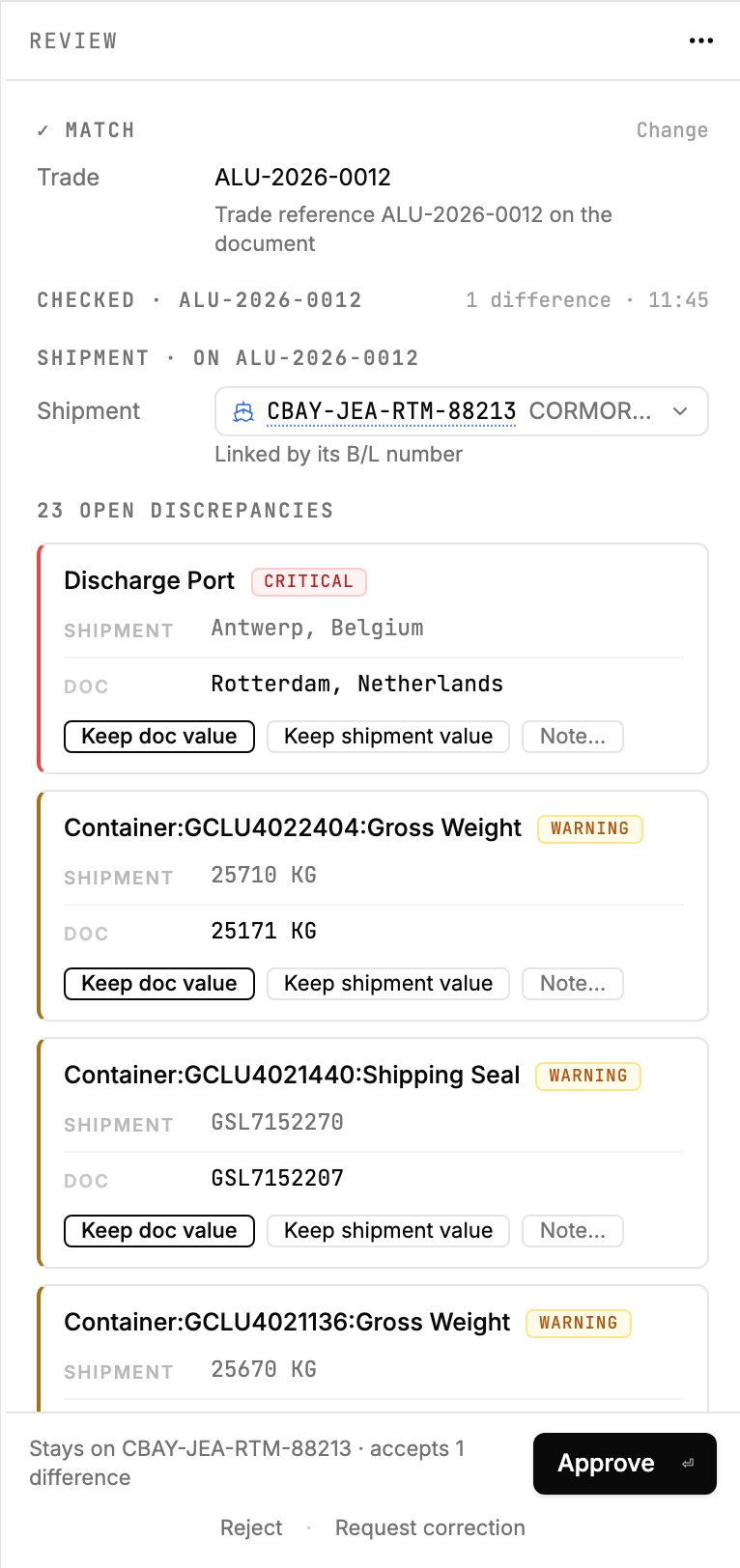
The packing list for ALU-2026-0012 disagrees with shipment CBAY-JEA-RTM-88213 on the discharge port and on container weights and seals.
Discrepancies on a trade
A trade’s Discrepancies tab lists the trade discrepancies raised on the trade’s documents, under Open and Resolved. Each row shows the field, its severity, its status, the source document and when it was raised. Click a row to open the document in the Inbox, where you resolve it. When everything has been handled, the tab says “All discrepancies on this trade have been handled.” Shipment discrepancies are listed on the shipment’s own Discrepancies tab instead. Click a row there to open its card and choose Keep doc value or Keep shipment value without going back to the Inbox. See Shipments and Trades overview.Expected documents
A trade’s Documents tab also has an Expected Documents checklist: the documents the trade still needs, so you can see at a glance what’s missing.- Where the list comes from. Mercora builds it from the document requirements written into the trade’s contract and letter of credit. It’s marked Contract/LC when it was built that way. Click Generate, or Refresh after a new contract or L/C arrives.
- Ticking items off. When a document is approved on the trade, Mercora ticks off the requirement it fulfils, even if the document’s type is general, for example a phytosanitary certificate read as a compliance certificate.
- Progress. The card shows how many required documents have arrived, for example “Required documents 10/10”, and “All expected documents received” once the list is complete.
- Editing the list. Click an item’s status icon to mark it Pending, Satisfied or Not needed, or to Remove it. Click Add to add a document the contract doesn’t mention, with its stage and whether it’s required.
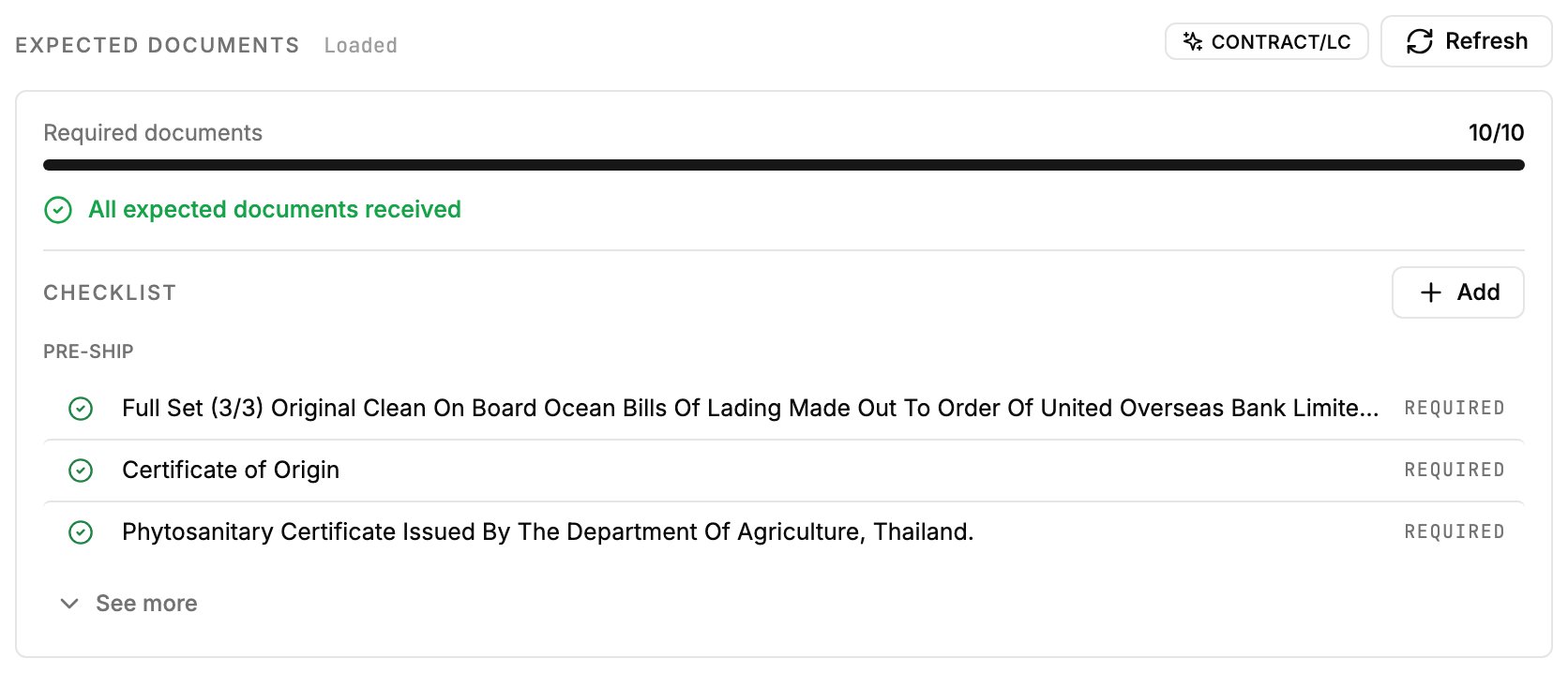
Every document the contract and L/C require for sugar trade VCS-S-2026-0714 has arrived: 10/10.
Who can do what
Approving, declining and noting discrepancies, keeping a document or shipment value, and correcting document values need permission to edit documents. See Roles and permissions.Next steps
Trades overview
See the trade your approved documents built: legs, documents and discrepancies.
Trade financials
Follow the invoices and payments on the trade.
Shipments
Work through a shipment’s discrepancies and cargo.