

- When it’s sure, it links the document itself and shows you why.
- When it’s less sure, it recommends a trade and waits for you to click Match.
- When a reference could point to more than one trade, it doesn’t guess.
Matching is available when the Trades module is turned on for your workspace. Without it, documents complete on their own and there’s nothing to match. To see or change the trade a document is on, your role needs access to trades. Ask your workspace admin.
What Mercora links on its own
Mercora links a document to a trade without asking in two cases:- An exact reference that identifies exactly one trade. Mercora looks for the trade reference, the contract number, the deal reference that ties a purchase and a sale contract together, and the B/L (bill of lading) number. If one of these matches exactly one trade, the document goes on that trade.
- Strong evidence across the document. When there’s no exact reference, Mercora weighs the rest of the document, such as the parties, product, quantity, vessel and dates, against your open trades. If the evidence clearly points to one trade, it links the document to it.
- “Trade reference ALU-2026-0012 on the document”
- “B/L RCLLCH2607841 on the document”
- “AI match · Shipping marks explicitly cite CONTRACT VCS-S-2026-0714”
Recommended trades
When Mercora has a likely trade but isn’t sure, it doesn’t link the document. Instead, it pre-selects that trade in the Trade field with a Recommended label and a short reason, for example “Recommended · AI suggestion · This is purchase contract VCS-P-2026-0688”. The line beside the button reads “Links it and runs the checks”. Nothing is linked until you click Match. For a contract or a recap that no trade carries yet, Mercora may recommend New trade from this contract (or from this recap) instead. See Starting a trade from a contract. If Mercora has nothing to recommend, the field is empty and the document sits in the Match section of Needs you with the status Unmatched. A note under the field may say why nothing was recommended.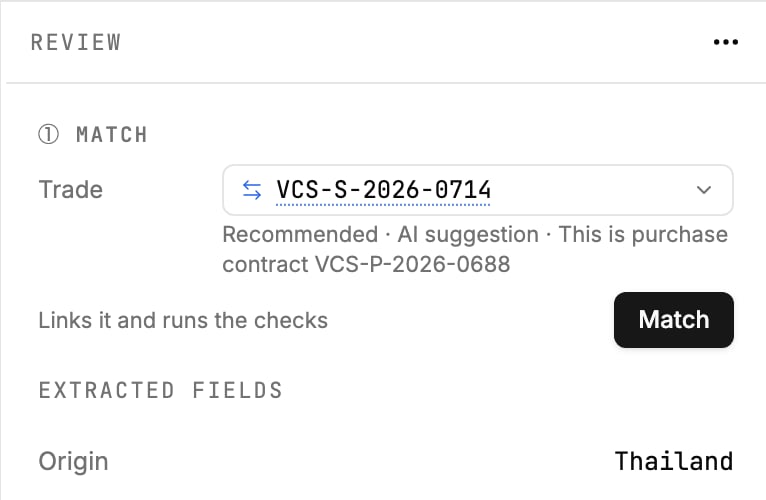
Purchase contract VCS-P-2026-0688 from Kanchana Siam Sugar arrives unmatched, and Mercora recommends sugar trade VCS-S-2026-0714.
Match a document yourself
1
Open the document
Open it from the Inbox. Unmatched documents are in Needs you, under Match.
2
Choose the trade
Click the Trade field. The list puts the likeliest trades first:
- Suggested: what Mercora recommends, with its reason.
- Same vessel and Same product: open trades that share the document’s vessel or product.
- Other trades: everything else. Type to search them by trade, contract, counterparty, product or vessel.
3
Click Match
The line beside the button says what it does: “Links it and runs the checks”. Mercora links the document and checks it against the trade. When it’s done, the step shows ✓ Match and Checked, with the number of differences found.
A document that belongs to no trade
Some documents don’t belong to any trade, for example a general certificate or a document for a deal you don’t track in Mercora. Choose No trade at the bottom of the list and click Match. This “Records that it belongs to no trade · nothing to check”. When you approve it, the button reads Approve without a trade and asks you to confirm: “It won’t be on any deal or shipment.”Several documents at once
To put several unmatched documents on the same trade, tick them in the Match section of the rail (shift-click selects a range), choose the trade in Assign selected documents, and click Assign N documents. See The Inbox.Choosing the trade when you upload
If you pick a trade in Associate with Trade (Optional) when you upload, or upload from a trade’s Documents tab, the documents go straight onto that trade and Mercora doesn’t try to match them elsewhere.Starting a trade from a contract or recap
A contract or a recap is often the first document for a deal. When no trade carries it yet, the Trade list offers New trade from this contract (or New trade from this recap), and Mercora may pre-select it as its recommendation. The line under the field reads “Approve creates the new trade · nothing to check yet”. Click Approve: the approval flow opens and creates the trade from the document. Nothing is created until you approve.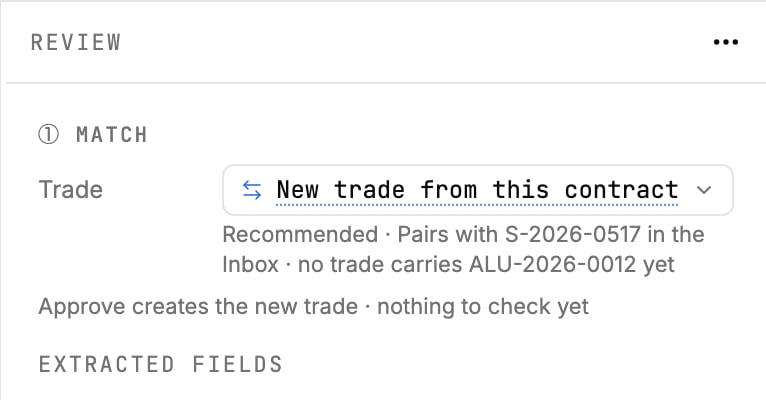
Veltana Metals SA: no trade carries ALU-2026-0012 yet, so Mercora recommends a new trade from purchase contract P-2026-0893, and notes the matching sale contract S-2026-0517 waiting in the Inbox.
Trade legs
A trade usually has a purchase leg (buying from your supplier) and a sale leg (selling to your customer). Mercora never puts a document on a leg by itself. You set the leg for a contract when you approve it, in the approval flow’s Should this document create a trade leg? step. Other documents sit on the trade as a whole. See The Inbox.If your workspace uses the Contracts module, a document whose contract number matches a standalone contract is kept on that contract, shown as “On contract number · no trade”. Ask your workspace admin.
Change the trade before approving
On a matched document, click Change next to ✓ Match, pick another trade (or No trade), and click Match. Click Cancel to keep the current trade. If you’ve already resolved discrepancies against the current trade, moving the document drops them, because they were about that trade. The panel warns you, for example “Leaving trade drops 2 resolved differences”, and the button reads Match anyway.Move or unmatch an approved document
Once a document is approved, the Match step is fixed. To move it:- Open the ⋯ menu at the top of the document.
- Choose Reassign to Trade.
- Pick the new trade (the current one is marked Current), or choose Unmatched (remove from trade) to take it off its trade.
When trades change
If a trade is created or changed while documents are still waiting for a match, Mercora tries to match them again. While it does, the Trade field says “Matching it again after a trade changed…”.Next steps
Discrepancies
What Mercora checks once a document is on a trade, and how to resolve differences.
Trades overview
A trade’s documents, discrepancies and legs.