

Available when the Copilot module is turned on for your workspace. Ask your workspace admin.
Who can use it
Each member needs two things:- The Copilot permission on their role (shown as Use).
- Permission to see the data they ask about. The Copilot works with your role’s access, never more. If your role can’t see financials, the Copilot can’t read invoices for you either.
Ask a question
1
Open Home
Click Home in the sidebar. With the Copilot on, the page is titled Mercora AI: “Ask about the workflows and records available to your role.”
2
Type your question
Type into the message box (“Ask about trades, shipments, invoices…”) and press Enter. Use Shift + Enter for a new line. Or click one of the suggested questions, such as “Which invoices are overdue?” or “What’s the status of VCS-S-2026-0714?”.
3
Follow the answer as it is written
The Copilot shows what it is doing while it works. You can leave the page, reload or close the tab: the answer keeps being written and is there when you come back. Only Stop ends an answer early.
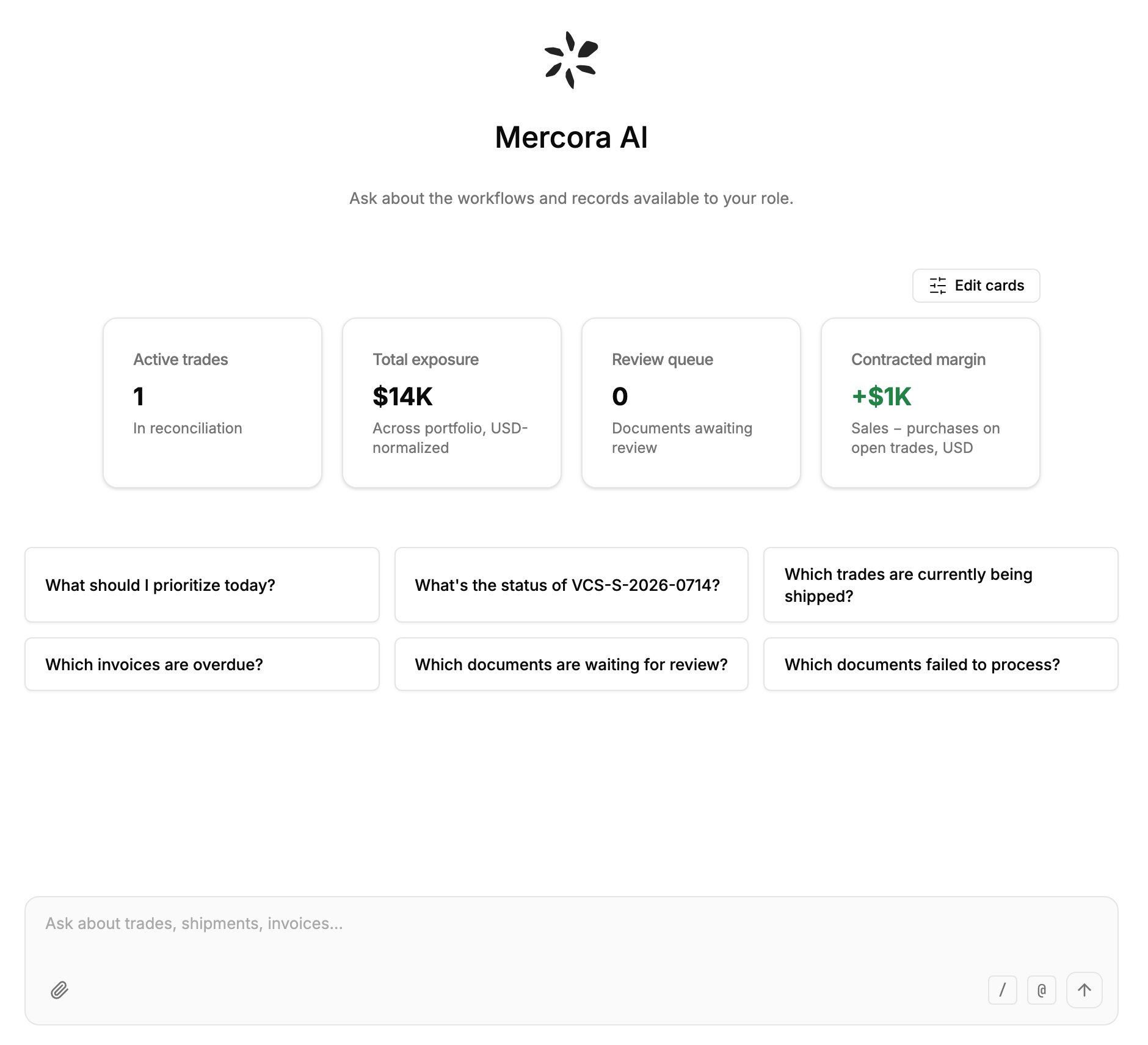
Home with the Copilot on: suggested questions above the message box, which has buttons to attach files, use a skill (/) and mention a record (@).
- “Which trades are currently being shipped?”
- “Which documents failed to process this week?”
- “Show me margin by commodity for open trades as a chart.”
- “Draft a reminder to Meridian Foodstuffs about invoice VCS-INV-2026-0731 on VCS-S-2026-0714.”
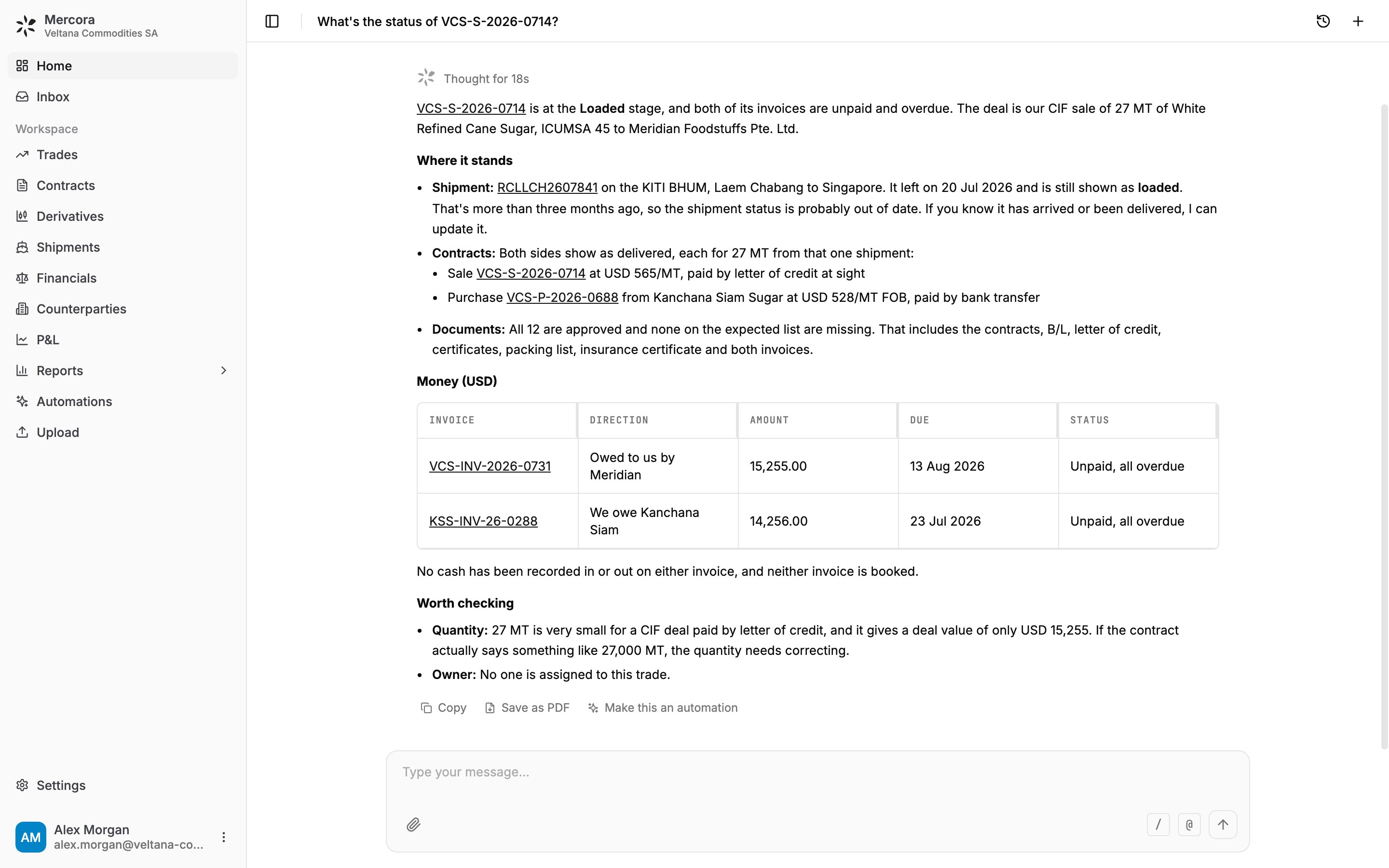
The answer for Veltana's sugar trade: where it stands, the money on each invoice, and what is worth checking.
Point the Copilot at a record with @
Type @ in the message box, or click the @ button, to search for a trade, shipment, contract, counterparty or document. Pick one, for example the trade VCS-S-2026-0714 or the counterparty Kanchana Siam Sugar, and it becomes a chip in your message, so the Copilot looks up exactly that record instead of searching by name. You only see the record types your role can view.Attach files
Drag files onto the chat, or click the paperclip (Attach files). The Copilot reads them for that conversation, for example to compare a supplier’s invoice with the contract or to pull the fields out of a certificate.
Each file can be up to 30 MB. With Freight Rates on, you can also attach .xls, .ods and saved emails (.eml) as freight sources. See Freight rates.
Skills and the / menu
Type / in the message box, or click the / button (Use a skill), to open the skill menu. Skills are saved instructions that teach the Copilot a particular job. The menu lists:- Recent: skills you picked lately.
- Personal skills: skills you made for yourself.
- Workspace skills: skills your admins made for everyone.
- System skills: skills that come with Mercora.
- Commands: flows you start, such as /trade (capture a deal from a recap you paste, see Deal capture) and /feedback (send a message to the Mercora team).
Files, charts and documents
Ask for the output you need, and the Copilot builds it. You get a link to download the file, and the link only opens for members signed in to your workspace.
Under each answer, Copy copies the text and Save as PDF makes a PDF of that answer.
With the Contract drafting module on, the Copilot can also draft a sales or purchase contract from your firm’s own Word templates. See Draft contracts from your templates.
Changes wait for your Approve
The Copilot can propose changes to records your role can edit: trades, shipments, contracts, invoices, payments and adjustments. It never makes them on its own. Instead, the answer stops on a review card that shows exactly what will happen, such as the field’s value before and after, or the values of a new record.1
Read the card
The card shows the change and waits. Nothing is written yet.
2
Decide
- Approve runs exactly what the card shows.
- Edit lets you change the values first, then Save and approve.
- Reject writes nothing. You can add a reason.
3
See the receipt
The card settles into what happened: Applied, Edited, Rejected or Not applied with the reason. The Copilot then writes a short closing line.
A deal you hand to the Copilot is different: it goes straight into the Inbox as a Deal Capture item, and the review there is the approval. See Deal capture.
Work on an Inbox item with the Copilot
Some Inbox items have an Ask Copilot button, for example a freight change waiting for confirmation. It opens a chat on Home that already knows the item, so you can ask about it or have the Copilot rework it. If you already have a chat about that item, it reopens that one.Automations from a chat
If your role can manage automations, each answer also shows Make this an automation. The Copilot drafts an automation from what the chat did and shows it on a card with Review and switch on, Edit steps and Not now. Nothing runs until you switch it on. The Copilot can also start an existing automation for you when you agree. See Automations.Your chat history
Your chats are saved, and they are the same on every browser and device.- Chat history (the clock button at the top) lists your newest chats. Search them by title, rename one, or delete it.
- New chat starts a fresh conversation.
- Clear all history removes all of your chats.
Send feedback
Type /feedback followed by your message, or pick Send feedback under Commands in the / menu. Your words go to the Mercora team as you wrote them, and the Copilot confirms with “Sent to the Mercora team. Thanks.”The Copilot outside Mercora
You can reach the same Copilot, with the same access, from your phone or from Teams.Link your number and message Mercora. Changes wait for your typed yes.
Microsoft Teams
Chat with Mercora in Teams. Changes wait on a card with Approve, Edit and Reject.
Next steps
Deal capture
Paste a recap with /trade and review the deal in the Inbox.
Automations
Turn a question you ask every day into a standing instruction.
Walkthrough
Follow Veltana’s sugar trade from upload to P&L.