

Workspace and personal connections
The Integrations page has two halves.
Some workspace connections are set up by the Mercora team for your workspace, rather than with a key you paste, for example WhatsApp and Agiblocks. Their pages show whether the connection works and let admins choose what Mercora may do with it.
Each tile shows where it stands on the right:
Some tiles read Coming soon until a workspace module is turned on. For example, QuickBooks Online stays Coming soon, and its page can’t be reached, until an admin turns on the QuickBooks Online module. See QuickBooks Online.
What Mercora may do with a connection
Connecting an app doesn’t let Mercora do everything with it. On an app’s page, What automations can do with it lists each action Mercora can take, and whether it:- Reads, and then Runs on its own, or
- Changes Mercora or Leaves Mercora, and then Always asks first: a person approves each call.
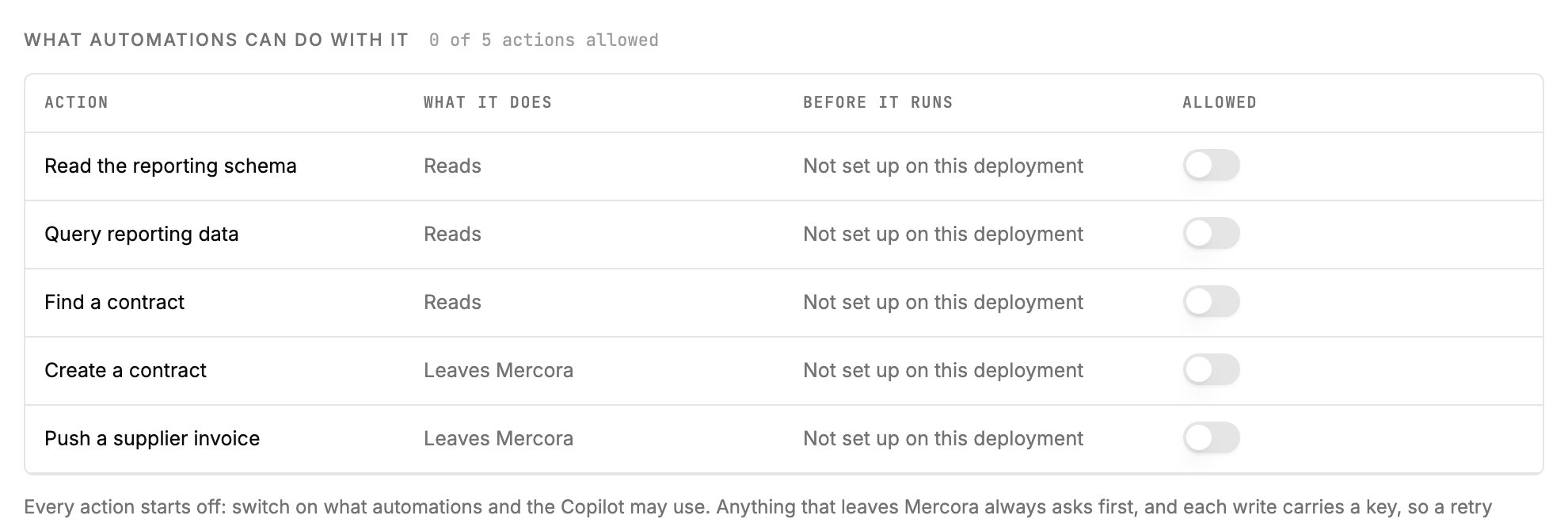
The Agiblocks actions before the app is connected: every action starts off, and each row says whether it only reads or leaves Mercora.
Available integrations
Microsoft 365
Email, SharePoint files and Teams for the Copilot and automations, as your workspace or as each member.
The Copilot on your phone, deal capture, hedge requests and approvals from WhatsApp.
Google Sheets
A shared hedge sheet that Mercora appends to and completes with fills.
QuickBooks Online
Connect your QuickBooks Online companies to Mercora.
External systems (Agiblocks)
Push invoices, B/Ls, contracts, deals and hedges to your CTRM, and let the Copilot read its reporting data.
Who can use what
Connecting an integration is the first step. Using it also depends on:- Modules. Many features behind an integration have their own module, such as Deal Capture, Hedging or External systems sync. See Modules.
- Permissions. Each member still needs the role permissions for the data and actions involved. See Roles and permissions.
Next steps
Microsoft 365
Most workspaces start here: mailboxes, SharePoint files and Teams.
Automations
Put a connection to work in a standing instruction.
Modules
Turn on the workflows that use your integrations.