

Available when the Contracts module is turned on for your workspace. Ask your workspace admin.
The contract list
Open Contracts in the sidebar.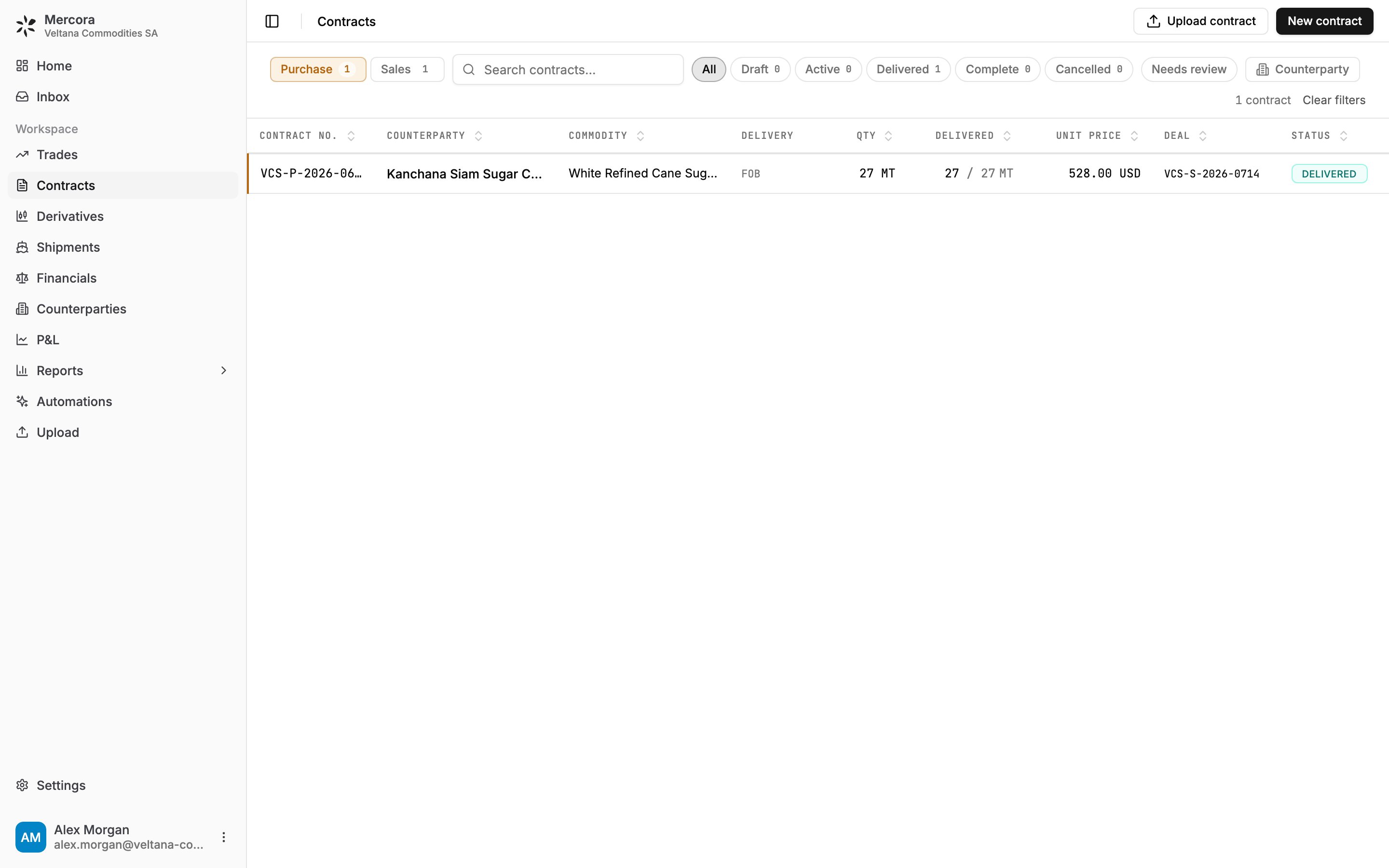
The Purchase side with All selected: VCS-P-2026-0688 from Kanchana Siam Sugar, 27 of 27 MT delivered, paired into deal VCS-S-2026-0714.
- Purchase and Sales switch between the two sides, each with its count.
- Status pills filter by Draft, Active, Delivered, Complete and Cancelled, each with its count. You can switch on several at once. The page opens with Active selected, so click All to see contracts in every status, such as a purchase that’s already Delivered.
- Needs review shows contracts with a document waiting for review in the Inbox.
- Counterparty and the search box narrow it further.
Contract documents you’ve uploaded that are still being processed or waiting for approval are listed above the table until they’re approved.
Contract status
Mercora works out the status from what it knows about the contract:
Click the status pill to pin a different status, or choose Auto to go back to the one Mercora works out. A cancelled contract stays listed but no longer counts as running. Its deal is untouched.
Add a contract
There are two ways in:- Upload a contract document. Click Upload contract or drop files anywhere on the Contracts page. They go to the Inbox, and approving one there creates the contract. See Reviewing documents in the Inbox.
- Enter it by hand. Click New contract, pick Purchase or Sale, and fill in the contract number, the seller or buyer, product, quantity (MT), tolerance (%), unit price, currency, Incoterms and payment terms. Copy from previous… starts from an existing contract. A contract number and a counterparty are required.
Pair contracts into a deal
1
Open the contract
Open a standalone contract and click Pair into deal.
2
Pick the counterpart
Search contracts and deals. Matches that share a deal reference are marked deal ref match.
3
Pair
Pick a standalone contract on the other side to create a new deal from the two. Pick an existing deal to add this contract to it.
- New deal on the Trades page links several contracts at once. See Create a deal from contracts.
- Add leg on a trade’s Overview tab links a standalone contract to that deal.
A contract’s page
A contract’s page shows its terms, its status, the deal it’s paired into, and its Documents. Drop files anywhere on the page to attach them to this contract. Edit changes the terms. When the Derivatives module is on, the page also lists the futures fills allocated to this contract. See Derivatives.Amendments
When an amendment to a contract arrives, it’s reviewed in the Inbox. You pick the contract it changes, then for each change choose Apply amendment or Keep current, and approve. See Reviewing documents in the Inbox.Draft contracts from your templates
Available when the Contract drafting module is turned on for your workspace. You also need Contracts access in your role. Ask your workspace admin.
What admins set up
Workspace admins upload the Word templates (.docx) your team drafts from under Settings → Contract templates. Each template is tagged with its Side and, where your team keeps separate forms, the Entity, Incoterm and Commodity it’s for. Left as Any, a template fits every deal. Notes tell the drafter how to fill it in, for example your contract numbering scheme or which arbitration clause to use. See Contract templates. Members with Contracts access can see the templates and Download them.Ask the Copilot to draft
1
Ask
In the Copilot, ask for the contract you need, for example “Draft the sales contract for P-2026-118”.
2
Confirm the template
The Copilot matches your templates against the contract’s side, entity, Incoterm and commodity. If exactly one fits, it says which and why. If several fit, or none, or the contract doesn’t make it clear, it asks you to choose.
3
Check the draft
The Copilot fills the template only with the contract’s data in Mercora and what you tell it in the conversation. Anything it can’t confirm is left as a highlighted placeholder to fill in, rather than a guess.
4
Download and finish
Download the draft, review it and complete it. Nothing is saved to the contract or sent to anyone.
Next steps
Trades
Work the deal your contracts are paired into.
Counterparties
The companies on your contracts, with their terms and balances.
Walkthrough
Follow one trade from its contracts to its P&L.