

Before you start: uploading is available when the Document upload module is turned on for your workspace, and your role must allow you to edit documents. Ask your workspace admin.
Where to upload
You can upload from three places. All of them take the same files and work the same way.- Upload in the sidebar opens the upload page.
- Upload at the top of the Inbox opens the same form in a dialog, so you don’t leave your work queue.
- A trade’s Documents tab lets you upload straight onto that trade. The trade is already filled in and can’t be changed. See Trades overview.
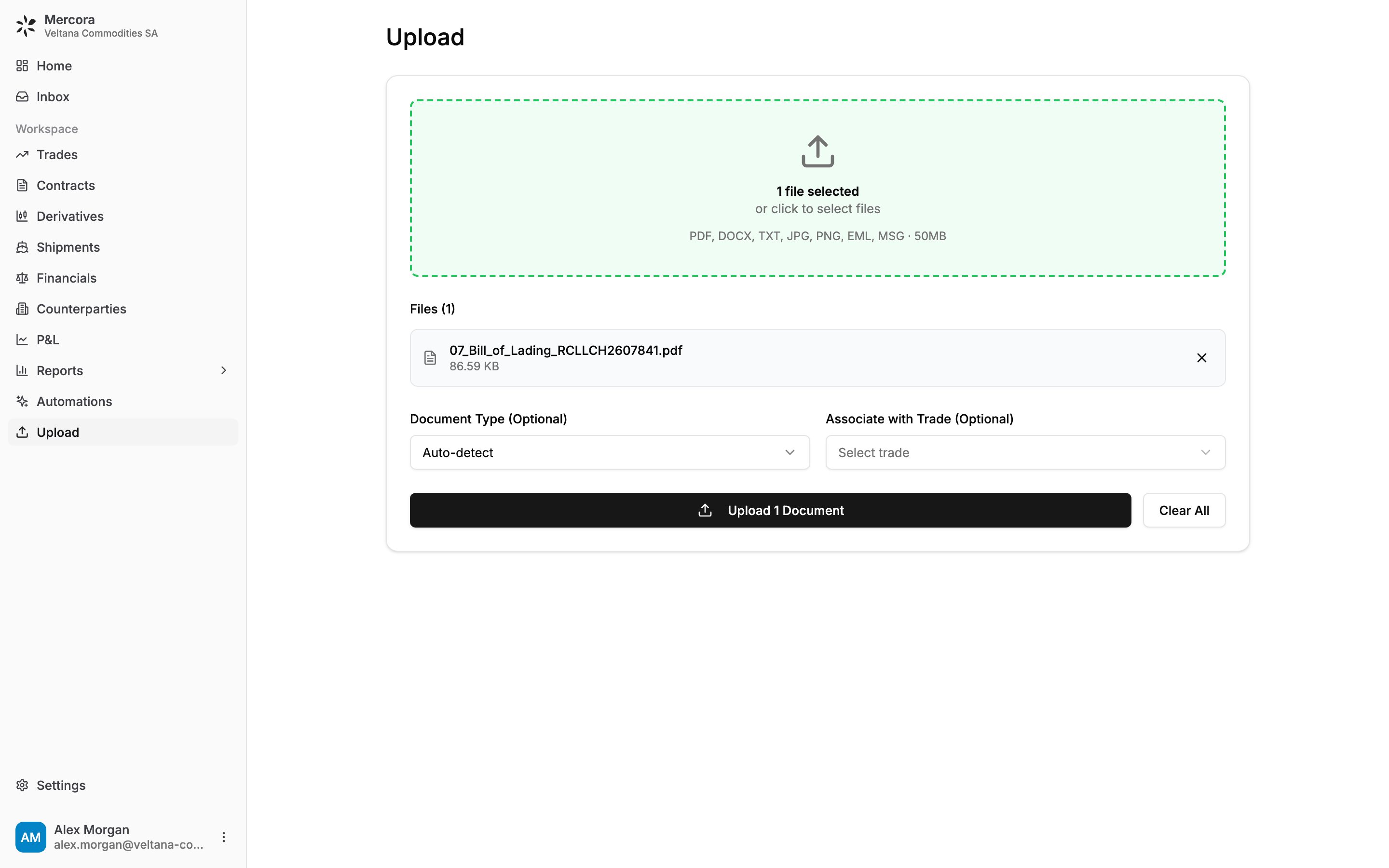
The Upload page with the B/L RCLLCH2607841 for the Veltana Commodities sugar trade selected, ready to upload.
Upload files
1
Add your files
Drag files onto the drop zone, or click it to choose files. You can add as many files as you like, and add more before you start. Each file appears under Files with its size, for example
07_Bill_of_Lading_RCLLCH2607841.pdf. Click the × next to a file to remove it.2
Choose a document type (optional)
Leave Document Type (Optional) on Auto-detect and Mercora works out what each document is. If you pick a type, Mercora uses it for every file in this upload instead of detecting it. Only pick a type when all the files are of that type.
3
Choose a trade (optional)
Leave Associate with Trade (Optional) empty (it reads Select trade), or choose Auto-match after processing, and Mercora looks for the right trade after reading each document. If you already know the trade, for example VCS-S-2026-0714, pick it here: the documents go straight onto that trade and Mercora doesn’t try to match them elsewhere. See Matching documents to trades.This field only appears when your workspace uses the Trades module and your role can see trades.
4
Upload
Click Upload N Documents (Upload 1 Document for a single file). Files are sent one at a time, with a progress bar. Each file shows Uploaded — processing in background when it’s in. You don’t need to wait on the page: processing carries on, and the documents appear in the Inbox.If some files fail, Mercora tells you how many succeeded and how many failed. Click Upload again to retry only the failed files. The files that already went in aren’t sent twice.
Supported files
Each file can be up to 50 MB.
If your workspace uses the Freight Rates module and your role can edit freight rates, the upload form also takes carrier rate sheets as spreadsheets (
.xlsx, .xlsm, .xls, .ods, .csv). These don’t become trade documents: they go to the freight workflow for review in the Inbox. Pick Carrier rate sheet as the document type to send a PDF there too. See Freight rates.Saved emails
When you upload a saved email (.eml or .msg), Mercora opens it the same way it opens mail that arrives in your workspace mailbox. Each attachment becomes its own document, and the email itself shows above the document when you review it. The email body is also checked for work your enabled workflows handle, such as a deal recap. See Email ingestion.
If nothing usable comes out of the email, for example because it has no attachments Mercora can read, it appears in the Inbox as Nothing captured from this email, with the reason. Reject it to clear it, or delete it from the ⋯ menu.
Multi-document packs (bundles)
A single PDF often holds several documents, for example a shipping pack with an invoice, a B/L (bill of lading, the carrier’s receipt for the cargo), a packing list and a few certificates. Mercora recognizes a pack like this and splits it into separate documents, each with its own page range. Each part is then read, matched and checked on its own. By default, Mercora splits the pack and carries on processing the parts automatically.Confirming the split with Bundle review
If your workspace uses Bundle review, Mercora doesn’t create the parts straight away. It holds the pack in the Inbox, marked Split review, and shows the documents it found with their page ranges. Nothing in the pack is read or matched until someone confirms the split.Available when the Bundle review module is turned on for your workspace. It’s off unless your admin turns it on. Ask your workspace admin.
1
Open the pack
Find the pack in Needs you, under Review. The panel on the right lists the documents Mercora found, for example “Document 1 · pp 1–3”.
2
Check each boundary
Click a document to show only its pages in the viewer. Click View whole pack to see every page again.
3
Fix any wrong boundary
- To split a document that holds two, click the scissors icon (Split into two documents) and choose the page the second document starts on.
- To join two documents that belong together, click the merge icon (Merge with the document below).
- Click Reset to go back to Mercora’s proposal.
4
Approve or reject
Click Approve split (or Approve edits if you changed anything). Mercora creates the documents and processes each one. To discard the pack, click Reject, then Confirm reject.
Correcting a split later
Once a pack has been split, you can still correct its parts from the trade’s Documents tab, where they’re grouped under the pack. Open the ⋯ menu on a part and choose Split pages or Merge with.Duplicates
Before storing a file, Mercora checks whether exactly the same file is already in your workspace, whether it was uploaded by hand or arrived by email. Only an identical file counts. A rescan or a re-saved copy of the same document is a different file. If a file is a duplicate, it isn’t uploaded. Its row is marked with a warning and says where the existing copy is, for example “Already uploaded on Oct 26, 2026 to VCS-S-2026-0714”, or “Already on this deal” when you’re uploading onto the trade that already has it. If the existing copy was filtered out or rejected, the line says so. For each duplicate, choose:- Skip to leave it out.
- Upload anyway to add a second copy.
What happens next
Once uploaded, each document goes through processing: Mercora works out what it is, reads its fields, matches it to a trade and checks it against the trade. While that happens, the document sits in the Inbox under Waiting. When it’s ready for you, it moves to Needs you.Next steps
Document processing
What Mercora does with each file, and what to do if one fails.
The Inbox
Review what Mercora read and approve the document.