

Members, roles, API keys and integrations are covered elsewhere: see Members, Roles and permissions, API keys and Integrations.
Use the search box at the top of Settings to jump to a page.
Workspace profile
Settings → Workspace → Company profile holds three settings that affect numbers across the product.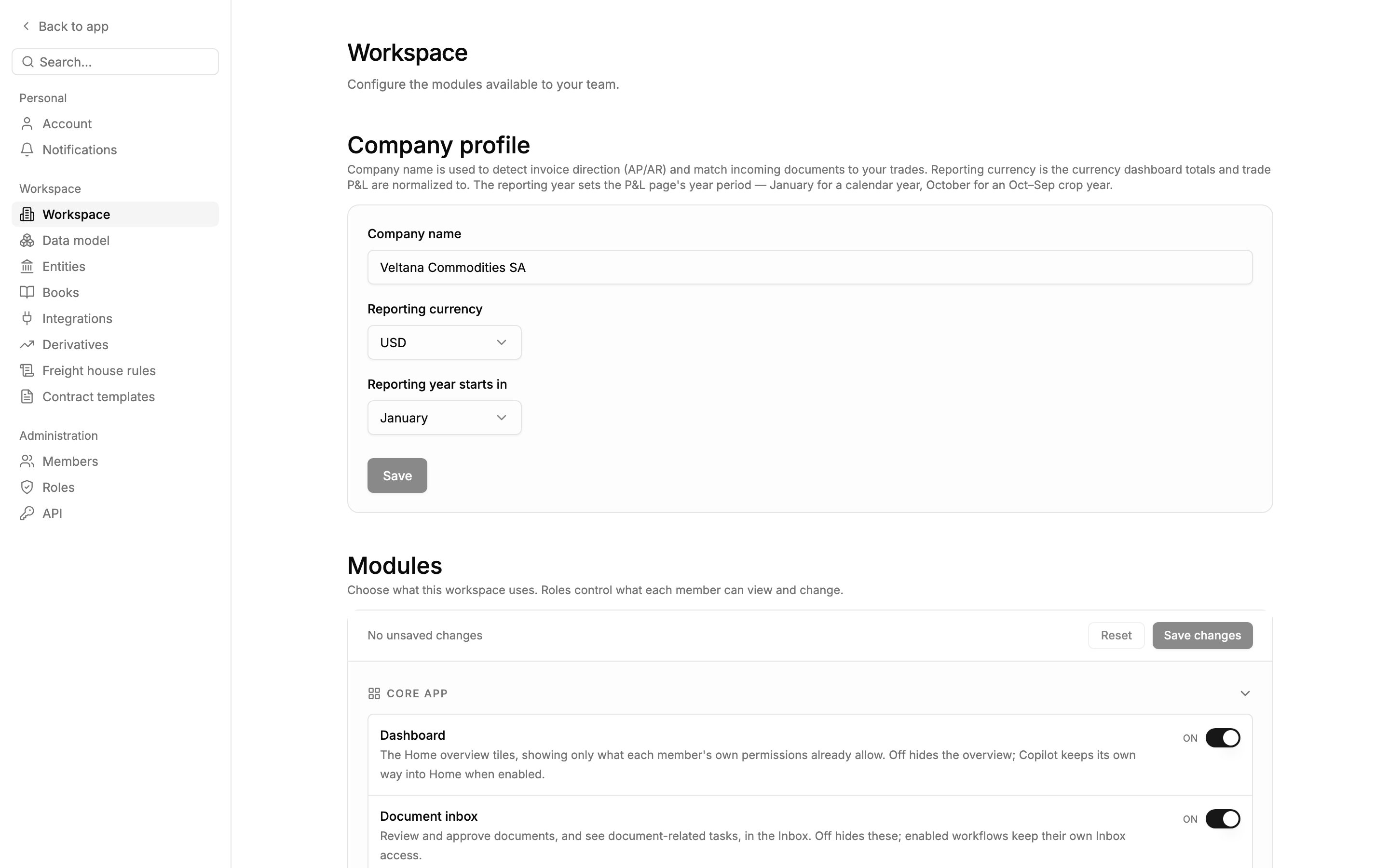
Workspace settings for Veltana Commodities SA, reporting in USD on a calendar year, with the Modules list below.
Click Save after changing them.
Modules
Settings → Workspace → Modules is where an admin turns parts of Mercora on and off for the whole workspace. Most modules start off, and some sit under a parent: a child switch only takes effect while its parent is on. For example, Cost & income plan needs Trade financials, which needs Trades. Turning a module on makes it available. Each member still needs the matching access in their role to see it. Click Save to apply your changes. See Modules for what each module does.Books
Available when the P&L module is turned on for your workspace.
- its reference ends in one of the book’s codes, or
- someone picks the book on the trade. A pick always wins over the code.
Legal entities
Available when the P&L module is turned on for your workspace.
- a Name;
- an optional Code, such as the prefix your references use;
- Also written as: other spellings your contracts use for the same company, one per line.
Custom fields
Settings → Data model lists the records Mercora keeps: Contracts, Trades, Shipments, Counterparties, Invoices and Derivatives. Open one to see its fields. The Fields tab lists Mercora’s own fields, with where each one’s value comes from (Filled from) and whether Mercora fills it in, suggests a value, or leaves it to you (AI fill: Auto, Suggest or Off), followed by your workspace’s own fields. Create a field.1
Open the record type
In Data model, open the record you want to add a field to, such as Trades.
2
Create the field
Click Create field. Give it a Name and an optional Description.
3
Pick the type
Choose Text, Number, Decimal, Date, Select or Checkbox. A Decimal field takes a Unit shown after every value, such as % or MT. A Select field takes a list of options. The type and unit can’t be changed after creation.
Invoice categories
Every invoice is filed under one category, such as Cargo, Freight or Insurance. Categories drive the Category column on invoices, the cost and income plan, and the cost breakdowns in reports. Open Settings → Data model → Invoices → Category to manage them. Your workspace starts on Mercora’s standard list: Cargo, Freight, Inspection & Analysis, Insurance, Demurrage, Despatch, Port & Terminal, Customs & Duties, VAT, Bank & Finance, Brokerage & Commission, Claims & Adjustments, and Other. Your first change makes the list your own. Each category sits in one of four kinds, and the kind decides how reports treat it:- Add category: give it a name, a kind, and a description under When does an invoice belong here? Mercora reads that description when it files new invoices, so the clearer it is, the better invoices are filed.
- Rename or re-describe a category at any time.
- Change a category’s kind and every invoice filed under it moves to the new kind in every report. Mercora asks you to confirm.
- Switch a category off to retire it: invoices already filed under it keep it, but it’s no longer offered for new ones. The fallback category, marked Fallback (Other in the standard list), can’t be switched off. It’s where an invoice goes when no other category fits.
- Reset to go back to Mercora’s standard list. Categories you added disappear from pickers, and invoices filed under them read as Other in reports until they’re re-filed.
Contract templates
Available when the Contract drafting module is turned on for your workspace.
1
Upload
Click Upload template and choose a .docx file.
2
Name and tag it
Give it a Name and a Side (sales or purchase). These two are required. Set an Entity, Incoterm or Commodity only where your team keeps a separate form for it. Left as Any, the template fits every deal.
3
Add drafting notes
Write down how to fill it in, for example “Number as S + YYYYMM + deal number” or which clause to use for arbitration. The Copilot follows these notes for layout and wording. They never supply deal values.
Futures instruments
Available when the Derivatives module is turned on for your workspace.
Notifications
Notifications are personal: each member sets their own under Settings → Notifications, in the Personal group. A notification tells you when an Inbox item lands for you. Every channel starts off.- Browser: shows a notification while Mercora is open in a tab. Your browser asks for permission the first time.
- WhatsApp: messages your linked number when an automation needs your decision. See WhatsApp.
- Email: can be switched on, but its page shows Not sending yet: no emails are sent today.
Freight house rules
Available when the Freight Rates module is turned on for your workspace.
Next steps
Members
Invite people and assign roles.
Modules
What each module does and what it needs.
P&L
See the reporting currency, year, books and entities at work.