

Before you start: creating and editing roles is for workspace admins. A role can only open areas whose module is turned on, so decide your modules first.
Permission levels
Each permission has one of three levels:
Some permissions only go up to View because there is nothing to change: Dashboard and Reports. Copilot is either None or Use.
Permissions
Permissions are grouped the same way as modules.Core app
Workflows
Shared capabilities
Administration
A permission shown indented under another only takes effect while its parent is at least View. In the role editor it reads “Requires” followed by the parent’s name until then. Each kind of push to an external system is its own permission, so you can, for example, let someone push invoices without letting them push contracts.
Built-in roles
Every workspace starts with three built-in roles:
User access, Email and Files are left out of Operator and Viewer on purpose: managing members, and acting as the whole workspace in its shared mailboxes and files, are things an admin grants deliberately.
You can adjust the permissions of a built-in role. You can’t delete a built-in role or change whether it’s an admin role.
Custom roles
Admins can create roles for the way your team works, such as “Trade finance” or “Logistics”.1
Open Roles
Go to Settings → Roles and click New role.
2
Name the role
Give it a Name (up to 60 characters) and, optionally, a Description.
3
Choose a starting point
Under Copy permissions from, pick No access — start empty, or an existing role to copy its permissions once. Later changes to that role don’t carry over. Copying never turns on Workspace admin, and copying an admin role leaves User access at None.
4
Set the permissions
Choose None, View or Edit for each permission. Use Set all to… on a group to set every permission in it at once, or Search permissions… to find one. Until you grant something, the dialog reminds you that the member won’t see Home or the Inbox without Dashboard, Copilot or a workflow permission.
5
Create the role
Click Create role. You can then assign it to members under Settings → Members.
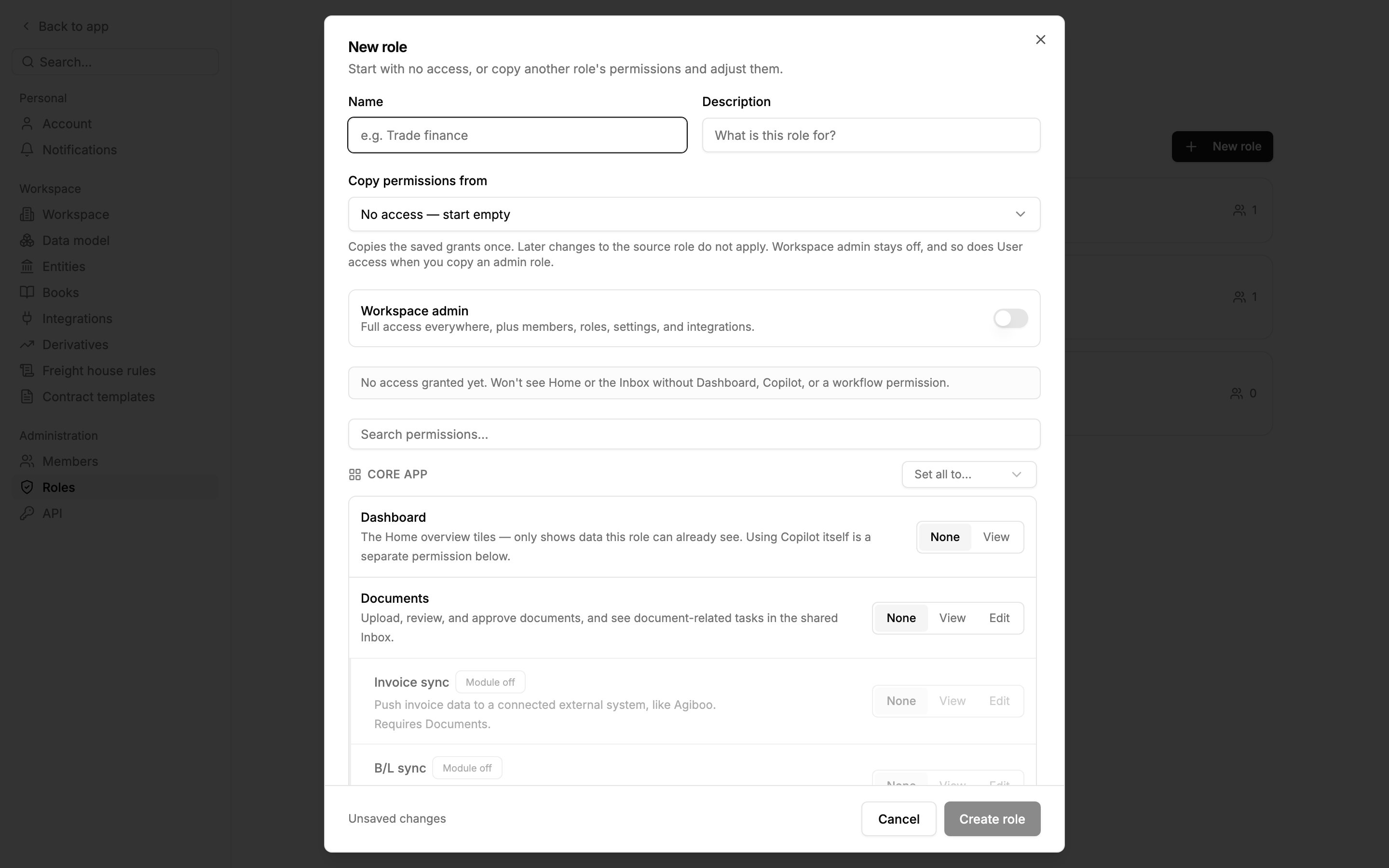
Creating a role, starting empty. Each permission gets None, View or Edit. Invoice sync carries a Module off badge, and stays greyed out until Documents is at least View.
Admins
Turning on Workspace admin for a role gives it full access everywhere, plus member management, roles, settings and integrations. An admin role ignores the permission grid. Mercora protects your workspace from losing its last admin. You can’t demote or remove the last admin, turn off Workspace admin on the role the only admins hold, or delete that role while it holds them. Give another member an admin role first.How modules and permissions combine
A member can only use an area when both are true:- The area’s module is turned on for the workspace. See Modules.
- The member’s role grants at least View on the matching permission, or Edit to make changes.
Next steps
Members
Invite teammates and give each one a role.
Modules
Turn on the areas your roles grant.
Walkthrough
See what a member does day to day, on one sugar trade.