

- the Shipments tab on each trade, for that trade’s cargo;
- the Shipments page in the sidebar, for every movement across the book.
Before you start: shipments usually come from a reviewed B/L. If you haven’t processed one yet, see Matching documents to trades or follow the walkthrough.
The Shipments tab on a trade
Available when the Shipments (trade tab) module is turned on for your workspace. It is on by default. Ask your workspace admin.
Click a row to open the shipment. The row’s menu offers Open shipment and Unlink from trade. Unlinking a vessel also unlinks its containers from this trade.
Add a shipment to a trade
1
Open the dialog
On the trade’s Shipments tab, click Add shipment.
2
Link or create
To use a shipment that’s already in Mercora, pick it under Link an existing shipment. Search by B/L, reference or vessel. The list holds in-flight shipments that aren’t on this trade yet. Linking adds the trade to the shipment, and the shipment keeps its other trades.To start a new one, click Create a new shipment and fill in the form. It’s linked to this trade when you save.
3
Attach
Click Attach.
The Shipments page
Available when the Shipments module is turned on for your workspace. Ask your workspace admin.
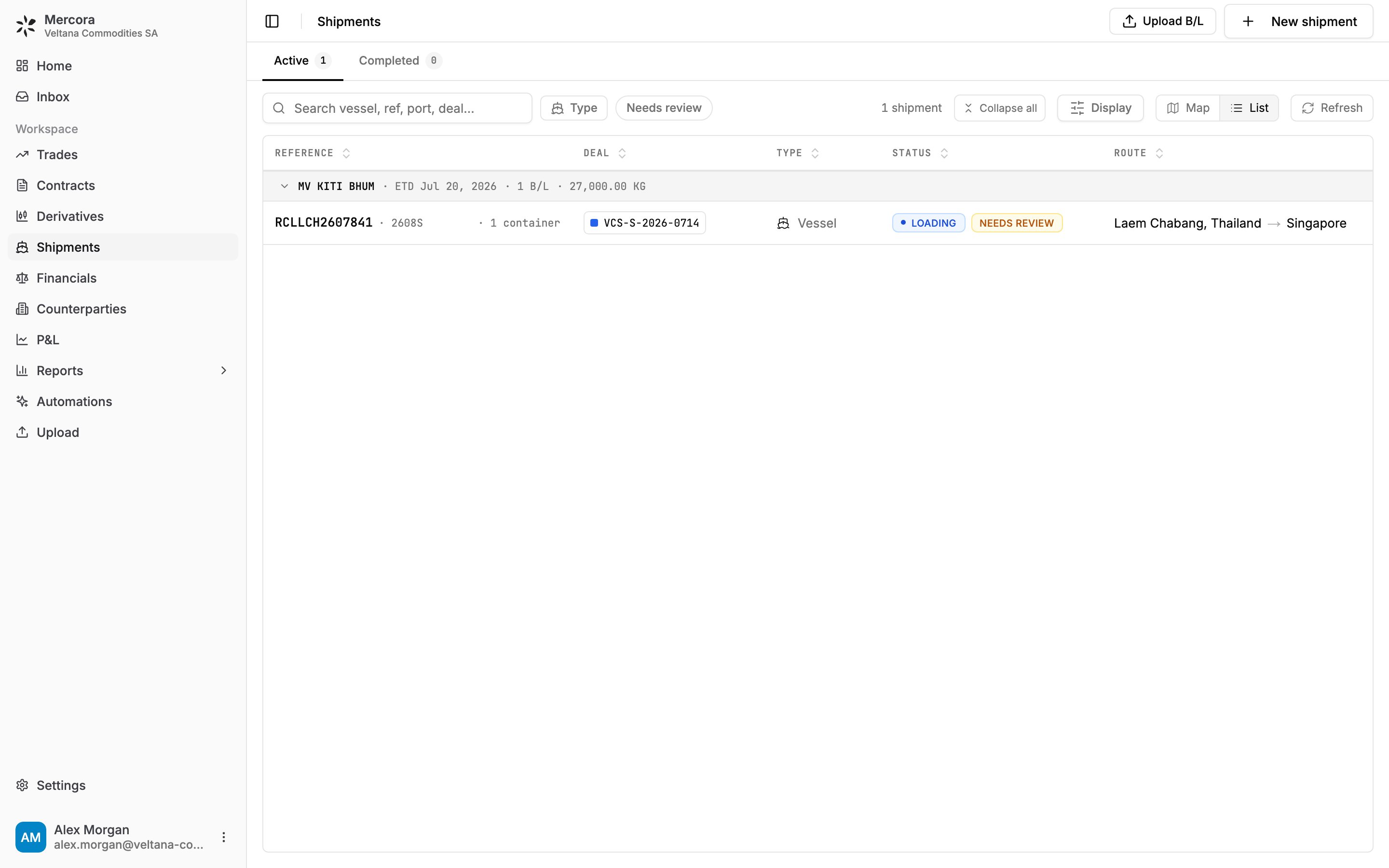
The Shipments page in List view, grouped by vessel: B/L RCLLCH2607841 on KITI BHUM, loading at Laem Chabang for Singapore.
- Active and Completed tabs split in-flight movements from finished ones. Each tab shows its count.
- Map and List switch the Active tab between a route map of live vessel positions and a table. The map needs Vessel Tracking (see below).
- Search matches vessel, reference, port or deal.
- Type filters by vessel, container, truck, ITT or bulk. Break-bulk (no containers) picks vessels and bulk shipments that carry no containers.
- Needs review shows only shipments with something for you to check.
- Display groups the list by Vessel, Day (ETD), Type or None. Reset to default returns to the standard layout, and an admin can Set as workspace default for everyone.
- Refresh asks for fresh vessel positions now.
Create a shipment
- New shipment opens a form for the reference, carrier, vessel name, voyage number, B/L number and date, type, status, ports, ETD and ETA.
- Upload B/L sends a bill of lading through document processing. Review it in the Inbox to create the shipment, even if it doesn’t match a trade yet.
A shipment’s page
Open a shipment to see its tabs:- Overview: the route map, the tracking line, and the cargo, route and delivery figures.
- Documents: the documents attached to the shipment.
- Discrepancies: differences between the shipment’s documents and the shipment record. For each one, choose Keep doc value or Keep shipment value.
- Cargo: what the shipment carries. For a vessel with containers, one row per Container with its type, seal, weight and whether it’s On packing list. For other shipments, the cargo facts as one line.
Needs review
A shipment is flagged Needs review when something about it looks off. The reasons Mercora gives:
You can dismiss a flag once you’ve checked it.
Vessel tracking
Available when the Vessel Tracking module is turned on for your workspace. It is on by default and needs the Shipments tab on trades. Ask your workspace admin.
- No AIS fix: no position is available for the vessel yet.
- Fix not matched to this B/L: a position exists, but the vessel appears to be on a different voyage, so Mercora doesn’t plot it.
- Not tracked · container B/L: containers and vessels carrying containers aren’t tracked individually.
- Tracking stopped · assumed delivered: see below.
Next steps
Trade financials
Record the invoices and payments that settle the cargo.
Discrepancies
Resolve differences between shipping documents and the record.
Trades
Go back to the trade page and its other tabs.