

Available when the P&L module is turned on for your workspace. You also need Reports access in your role. Ask your workspace admin.
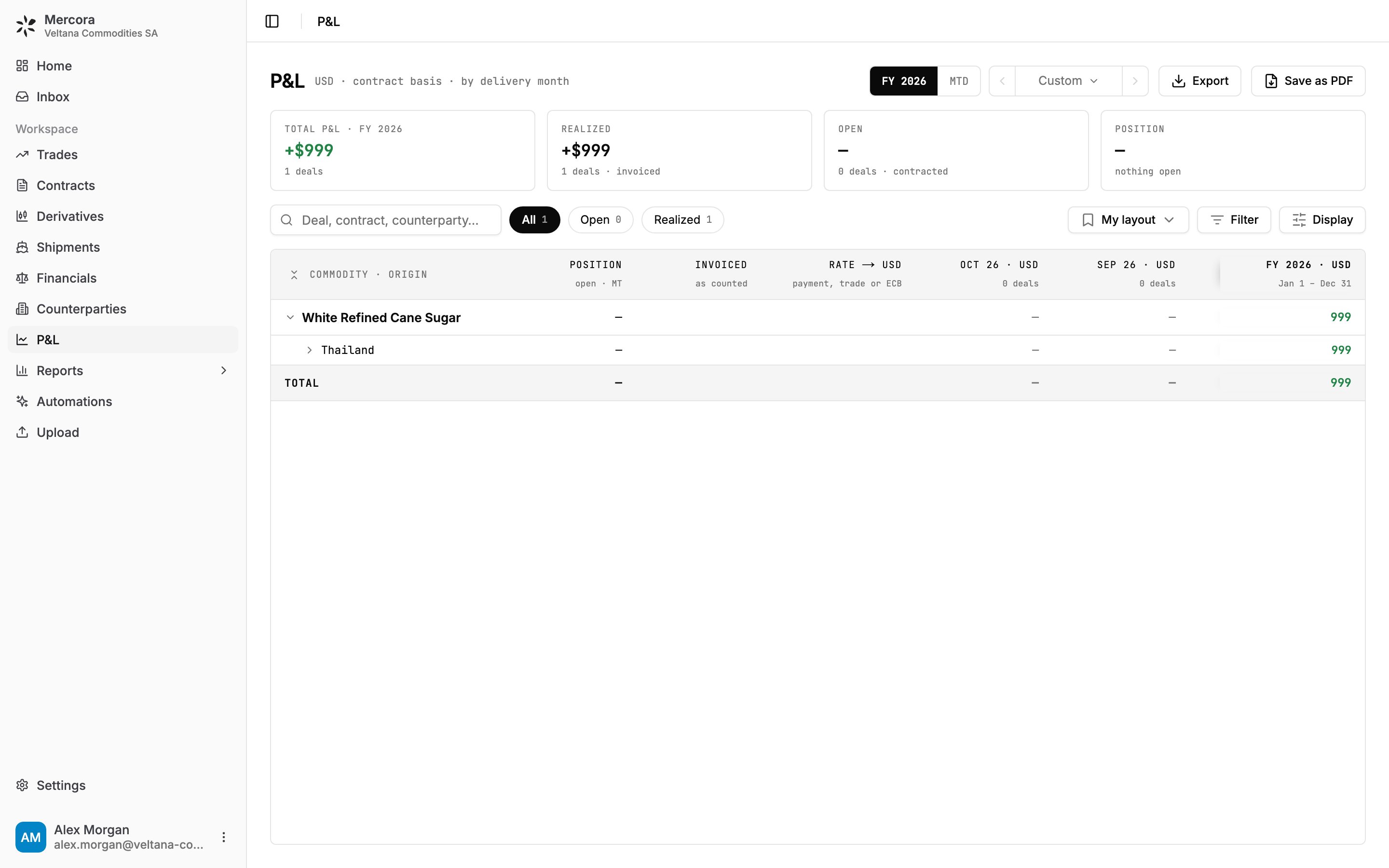
FY 2026 for Veltana Commodities SA: +$999 total, all of it realized on the invoices of VCS-S-2026-0714. With no books set up, the grid groups by Commodity, then Origin.
Read the page
The tiles
The tiles follow the period, the search box and your filters. They ignore the All, Open and Realized chips and the State filter, so narrowing the rows never moves the headline.
The grid
Rows are deals, grouped on two levels. Columns are delivery months, newest on the left, with a period total pinned at the end. Each month column header counts the deals in it, and months after the current one are marked expected. Each deal row carries its state: realized, open, open · shipped (shipping or billing evidence is in, but it isn’t realized yet), open · plan (valued from its cost plan) or unpriced. Click a deal to open the trade. Extra details, on by default and turned off under Display:- Position: the deal’s open tonnage in MT.
- Counterparties: who you buy from and sell to, shown on each deal row.
- Invoices (headed Invoiced · as counted): open a deal to see its invoices underneath, each with the amount the P&L counts.
- Rate: the exchange rate each invoice was converted at, and where it came from.
Realized, open and unpriced
Every deal is in one of three states.
Shipping or billing evidence means one of the following:
- the trade is marked complete, or
- the trade has an approved, processed document of one of these types: B/L or railway B/L, mate’s receipt, shipping instructions, notice of readiness, statement of facts, a commercial, provisional, final or plain invoice, a credit note or debit note, packing list, delivery order, quantity certificate, final settlement, or payment confirmation.
Which basis each deal uses
Mercora picks one basis per deal, in this order. Use the Basis filter (Invoiced, Contracted, Cost plan) to see which deals sit on which.1
Cost plan
If the trade has a cost and income plan, the trade isn’t complete, the plan has both an income and a cost line with a value, and at least one line is still open, the deal’s margin is the plan’s Provisional: planned income minus planned costs, each line at its planned amount or its linked invoices, whichever the line’s status says. A plan deal is always open.
2
Invoiced, for deals with evidence
Otherwise, if the deal has shipping or billing evidence, invoices on both sides, and every invoice could be converted, the margin is AR invoiced minus AP invoiced. This is a realized deal.
3
Contracted
Otherwise, if the deal has both a purchase and a sale contract and every running contract is priced and could be converted, the margin is sale value minus purchase value.
4
Invoiced, for deals without evidence
Otherwise, if the deal has invoices on both sides and every invoice could be converted, it uses AR minus AP even without the evidence. It shows as open.
5
Unpriced
If none of these apply, the deal is unpriced.
How the invoiced basis counts invoices
- Each invoice counts on the side it belongs to. A credit note counts negative against the side it reverses.
- An invoice that’s been superseded by a later invoice (a proforma replaced by its final, for example) is left out, so the pair isn’t counted twice.
- A closed invoice counts at what actually settled it (payments, adjustments and linked earlier invoices), not its face. A written-off remainder never becomes revenue or cost.
- An open invoice counts at its full face, whether or not it’s been paid.
- An invoice with no AR/AP direction isn’t counted on either side.
How the contracted basis values a contract
A contract’s value is its total value, or its unit price times its contracted quantity when no total is set. A cancelled contract carries no value. If any running contract on the deal has no price, the contracted margin can’t be worked out. The contracted basis uses the contracted quantity, not the quantity actually loaded.Cancelled and terminated trades
Cancelled trades are left out of the P&L entirely. Terminated trades stay in it.Delivery month
Every deal lands in one month, which decides its column and whether it falls inside the period you’re looking at.- Deals with shipping or billing evidence land on the shipped-on-board or B/L date of their earliest approved B/L. If a deal has several B/Ls and one is dated more than 180 days outside the laycan, Mercora ignores it while another B/L inside that window exists. A deal with no approved B/L lands on the date the trade was created.
- Other deals land on the midpoint of their laycan (the loading window). With no laycan, the earliest ETA (or ETD) on their linked shipments, and failing that, the date the trade was created. An expected deal is never placed in the past: if that date has gone by, it lands on today.
Group, filter and choose a period
Grouping
Under Display, Grouping and Sub-grouping choose the two row levels: Book, Entity, Commodity, Customer, Supplier, Origin, or None for a flat list of deals. Book appears when your workspace has deals in books. Entity appears when your deals carry at least two of your companies. When at least half of the deals are in a book, the page opens grouped by Book, then Commodity. Otherwise it opens by Commodity, then Origin, as in the example above, where no books are set up and the sugar deal sits under White Refined Cane Sugar › Thailand.- Commodity is read from the product name on the deal’s contracts, or on the trade when the contracts don’t name one. Spellings are cleaned up, so “Copper Cathodes Grade A” and “COPPER CATHODES” group together.
- Book is the deal’s book. See Books.
- Origin is the trade’s origin country.
- Entity is your own company on the deal. See Legal entities.
Filters
Filter narrows by State, Entity, Book, Commodity, Origin, Counterparty and Basis. The search box matches deal, contract or counterparty.Period and columns
The period control offers your reporting year (for example FY 2026, or Crop 25/26 if your year starts in another month), MTD (month to date), and Custom, with presets for the previous year, Last 12 months and All time. Use the arrows to step back and forward. Your admin sets when the reporting year starts. See Workspace settings. Display → Columns cuts the period into Recent months (the current month and the two before it, with earlier and later months folded into one column each, shown only when they hold deals), Every month, Quarters, or Period total only. For example, the sugar deal’s B/L shows it on board on 20 July 2026, so the deal lands in July. Viewed in October 2026 with Recent months, the Oct and Sep columns show ”—” and the deal’s 999 sits in the folded earlier-months column and in the FY 2026 total.Currencies and exchange rates
Display → Currency sets the currency every figure is converted into. Your workspace’s reporting currency is listed first, marked tenant. You can pick any currency your contracts use, or one of the standard list. When some of your books are contracted in another currency, Native · as contracted is also offered. Each group then shows in the currency its contracts are written in, and the foot consolidates everything into the currency you picked. Rates are applied like this:
For an invoice in a currency other than the trade’s, the part that’s been paid converts at the rates captured on its payments, oldest payment first, in this order of preference:
- a rate someone typed on the payment;
- the trade’s FX override for that currency;
- the ECB rate Mercora filled in when the payment was recorded;
- today’s ECB rate.
The P&L values invoices at the rates captured on their payments. The Invoiced figure on a trade’s Overview tab converts each currency at the trade’s override or today’s rate. For a foreign-currency invoice that’s been paid, the two can differ.
Save, share and export
- Views: save the current grouping, filters, currency and columns as a named view with Save as new view…. Saved views are yours: only you see them. My layout is your unsaved working layout.
- Workspace default: an admin can make the current layout everyone’s starting point with Display → Set as workspace default. Reset to default brings it back.
- Export downloads the grid as a CSV file you can open in Excel.
- Save as PDF downloads the view as it is on screen, including the rows you’ve opened, with the period, basis and filters printed at the top. If there are too many columns to fit a page, pick Quarters or Period total and try again.
Next steps
Trade financials
Record payments, close invoices and plan costs for a deal.
Reports
Operations, cashflow and overdue payments.
Workspace settings
Set the reporting currency, reporting year, books and entities.